# How To Brand Admin Screens With BetterShield Ultra?
Set an agency name and logo in the admin area and choose which BetterShield help links remain visible.
With **[BetterShield Ultra](/ultra/)**, set an agency name and logo in the admin area and choose which BetterShield help links remain visible.
_**Note:** These controls require the paid [BetterShield Ultra](/ultra/) add-on alongside the free BetterShield plugin._
## What it does
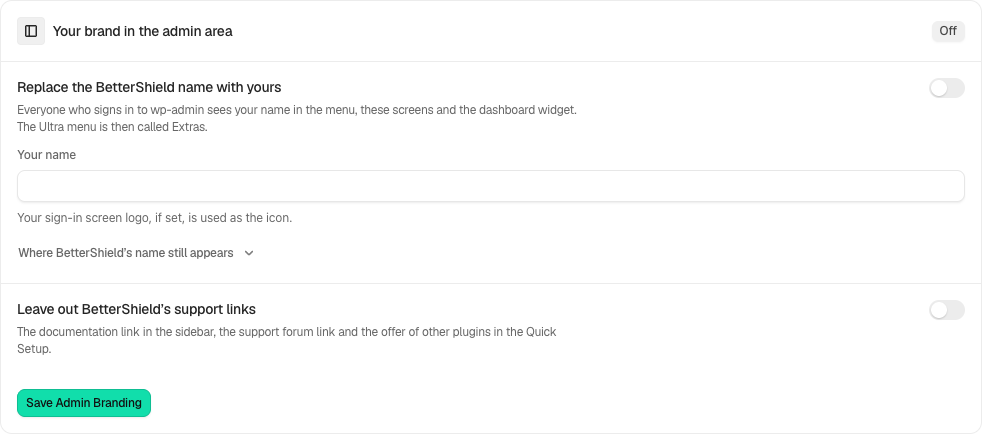
Open **BetterShield › Ultra › Branding**. **Your brand in the admin area** can replace the BetterShield name in the menu, screens and dashboard widget. It starts off. The sign-in-screen logo is reused as the icon when set, and the Ultra section becomes **Extras**.
## Step 1: Open the feature
Review the sign-in-screen logo above if you want it used as the icon.
Review the state and choices shown on your own site before applying a change.
## Step 2: Use your agency name in the admin screens
- Enable **Replace the BetterShield name with yours** and enter **Your name**.
- Choose whether to **Leave out BetterShield’s support links**. This also hides the Quick Setup plugin recommendations.
- Select **Save Admin Branding** and reload the page to see menu and sidebar changes.
## Recommended settings
Our advice: use the client-facing agency name and keep a clear support route available for the people managing the site.
## What it can break and how to undo
Changing visible names can confuse someone following product documentation. The Plugins screen, license, Site Health, alert and recovery emails, recovery pages, notices, assistant approval and network admin retain the product identity. Turn branding off and save to restore the normal admin names.
## Final Outcome
Reload the menu and dashboard widget. Confirm the chosen support-link setting and ensure recovery and license information remain identifiable.
Example Admin branding view. Check the saved values and status on your own site.
## Related
- [Ultra overview](/docs/ultra-overview/)
- [Activity log](/docs/activity-log/)
- [Sign-in screens](/docs/sign-in-screens/)
- [Client report](/docs/client-report/)
This is how you can brand admin screens with BetterShield Ultra.
Getting Stuck? Feel free to contact our [Dedicated Support Team](/support/).