# How To Set Allow and Block Lists With BetterShield?
Keep trusted office addresses from ever being locked out, and refuse sign-in to chosen addresses, usernames or browsers, on BetterShield's Login & Access.
In **[BetterShield](/)**, two lists override the counting for particular people. **Always allowed** holds addresses that are never locked out, and **Never allowed to sign in** refuses sign-in to the addresses, usernames or browsers you name. Both are empty by default, under **Allow and block lists** on **BetterShield › Protection › Login & Access**.
## What it does
### Always allowed
Addresses that are never locked out. An address or range here:
- is never counted toward a sign-in lockout or a public form limit, and so is never locked out or closed out;
- never gets the sign-in proof of work;
- skips the address and user-agent entries on **Never allowed to sign in**;
- keeps the [server firewall](/docs/server-firewall/) line quiet for its whole network: a lockout of another address in the same /24 or /64 writes no line, because the recovery link cannot lift a ban at the firewall.
It does not skip a username entry on **Never allowed to sign in**, or the hidden bot check. Entries are addresses only: in the screen's words, a user agent is a claim anyone can make.
### Never allowed to sign in
Refused at sign-in only, so browsing the site is untouched. Each entry names an address or range, a username, a user-agent fragment, or a mix:
| Entry | What it refuses | What the person sees |
|---|---|---|
| Address or range only | Sign-in from that range, on verified connections only (the same rule as lockouts) | "Sign-in is not available from this connection." |
| Username only | That account, from anywhere, even from an **Always allowed** address. Case does not matter, and signing in with the account's email address is matched too. | The same message a wrong password gets, so the name is not confirmed |
| User-agent fragment only | Any connection whose browser string contains it, case ignored, verified or not | "Sign-in is not available from this connection." |
| Username with a range or fragment | That account, only from there | The wrong-password message |
| Range with a fragment | Connections matching both | "Sign-in is not available from this connection." |
A refused username is checked before the password is. Whoever tries a name on the list is locked out at once, without the usual few tries, whether or not an account holds it: only on a verified connection, never from an address on **Always allowed**, and only while **Sign-in attempt limits** is on. That lockout sends no unlock email. A username entry on its own also stops that account's open sessions and application passwords working on this site. Address and user-agent entries also stop application passwords from that connection.
## Step 1: Open BetterShield › Protection › Login & Access
Open **BetterShield › Protection › Login & Access** and find **Allow and block lists**.
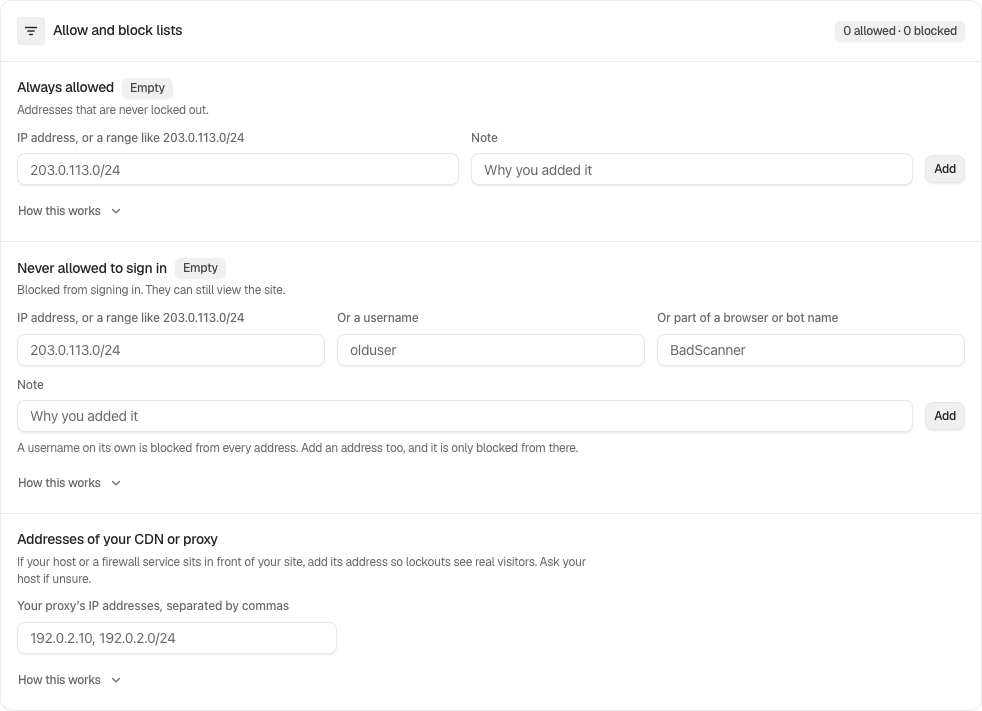
The Allow and block lists card holds the address lists and proxy configuration.
## Step 2: Set Allow and Block Lists
- In the list you want, fill in **IP address, or a range like 203.0.113.0/24**. On **Never allowed to sign in** you can use **Or a username** and **Or part of a browser or bot name** instead, or alongside it.
- Add a **Note** saying why the entry exists, then press **Add**. The row shows it will save with the form.
- Press **Save**. Saved rows show who added them and when. **Remove** takes one off, then **Save**.
### Block a name tried at sign-in
On the same screen, **Recent sign-in attempts** lists the names tried most often. Press **Block** beside a name to add it to **Never allowed to sign in** as a username-only entry, from every network. It saves at once with no **Note**, so you do not use the Save bar. Only a name that is not an account and not already blocked has the button. To undo it, press **Remove** on that entry and then **Save**. See [See who is trying to sign in](/docs/recent-sign-in-attempts/).
The finding **Sign-in tries with common usernames are not refused** has **Apply Fix**, **Refuse These Names**, with **Undo**. It adds the common names on offer as username-only entries, never a name an account here uses. It waits for a confirmed way back in: "Confirm your way back in first: check that the recovery email arrived, or download the recovery codes."
| Option | What it does | Default |
|---|---|---|
| **Always allowed** | Addresses or ranges exempt from counting, lockouts and the proof of work. Up to 500 entries. | Empty |
| **Never allowed to sign in** | Addresses, usernames and user-agent fragments refused at sign-in. Up to 500 entries. | Empty |
| **IP address, or a range like 203.0.113.0/24** | One address, or a range no wider than /8 (IPv4) or /32 (IPv6). | |
| **Or a username** | An account name. Your own cannot be added. | |
| **Or part of a browser or bot name** | Four characters or more, matched anywhere in the browser string. | |
| **Note** | Why the entry exists. Optional. | |
The fields check as you type: a mistyped address or a range that covers too much is named before you can add it, and the same entry twice reads "Already on the list."
From the terminal, `wp bettershield blocklist` lists **Never allowed to sign in**, and `wp bettershield blocklist add` and `remove` change it, for example `wp bettershield blocklist add --range=203.0.113.0/24 --note="Scanner" --user=admin`. See [WP-CLI commands](/docs/wp-cli-commands/).
## Recommended settings
- **Always allowed:** only fixed public addresses you control, such as an office or an agency. Leave out home broadband and mobile addresses, which change, and never add a hosting provider's whole range.
- **Never allowed to sign in:** use it sparingly. Lockouts already deal with guessing. A username entry is a quick stop for one account while you look into it; removing or demoting the account is the lasting fix, and revoking its application passwords goes with it. A user-agent fragment suits a tool that names itself in its browser string.
| Site | What we recommend |
|---|---|
| Store (WooCommerce) | Leave **Always allowed** empty unless your staff work from a fixed office address. |
| Agency or many sites | Add your office's fixed addresses to **Always allowed** on every client site, with a **Note** naming the office. |
## What it can break, and how to undo
- **Blocking your own network.** Your username cannot be added, and the save refuses a new address, range or user-agent entry that matches the connection or browser you are saving from, unless an **Always allowed** entry lets you past it (and then removing that entry is refused). A range can still cover a network you use at other times, such as home or mobile, and refuse you there. Another administrator can remove it, or your recovery link or `wp bettershield recover` turns on safe mode, which pauses both lists. See [Locked out](/docs/locked-out/).
- **A wide allowed range.** Everyone inside it is exempt from lockouts and form limits. Keep entries as narrow as you can.
- **A short user-agent fragment.** Choose a distinctive one; a common word matches ordinary browsers.
Removing a block or adding an allowed address gives something away, so with password confirmation on it asks for your password. Each save is recorded as "Login protection changed".
## Final Outcome
**The card's header** reads, for example, "1 allowed · 2 blocked", and each list's header counts its entries.
- **Recent sign-in attempts** marks a name added with **Block** as **Blocked**.
- **The activity log** records refused sign-ins as "Sign-in refused by blocklist" (in a flood of more than 500 an hour, the rest of that hour are counted rather than listed one by one).
- **Settings export.** `wp bettershield settings export` includes both lists (without who added each entry), so you can copy them to another site with `wp bettershield settings import`.
The Allow and block lists card holds the address lists and proxy configuration.
## On multisite
Each site keeps its own lists.
## Related
- [Login & Access](/docs/login-and-access/)
- [See who is trying to sign in](/docs/recent-sign-in-attempts/)
- [Sign-in lockouts](/docs/sign-in-lockouts/)
- [Public form limits](/docs/form-limits/)
- [Proxies and Cloudflare](/docs/proxies-and-cloudflare/)
- [WP-CLI commands](/docs/wp-cli-commands/)
This is how you can set allow and block lists with BetterShield.
Getting Stuck? Feel free to contact our [Dedicated Support Team](/support/).