# How To Create, Test and End Assistant Connections With BetterShield?
Connect Claude, ChatGPT, Cursor, Codex, or another client, test the route, replace a key, and disconnect apps.
In **[BetterShield](/)**, use **BetterShield › Agents › Connect**.
## What it does
**Allow AI assistant connections** is off by default. Turning it on also turns on **Let AI assistants see security info**, because an assistant needs to read to be useful.
Under **Add BetterShield to your assistant**, Claude and ChatGPT come first. You copy the address (**Connector URL**), add it to the assistant and sign in through your browser. Nothing is pasted and no key is created. This needs the site on https and pretty permalinks.
Editors and command-line tools are under **Editors & CLI**. **Set Up an Editor** gives each tool a ready-to-paste configuration, and those tools use a connection key. **Create Key** shows the key once. It stays hidden until you press **Show** and is removed from the screen after 5 minutes. **Replace Key** makes a new one and the old one stops working. **Disconnect All** ends the key and every signed-in app.
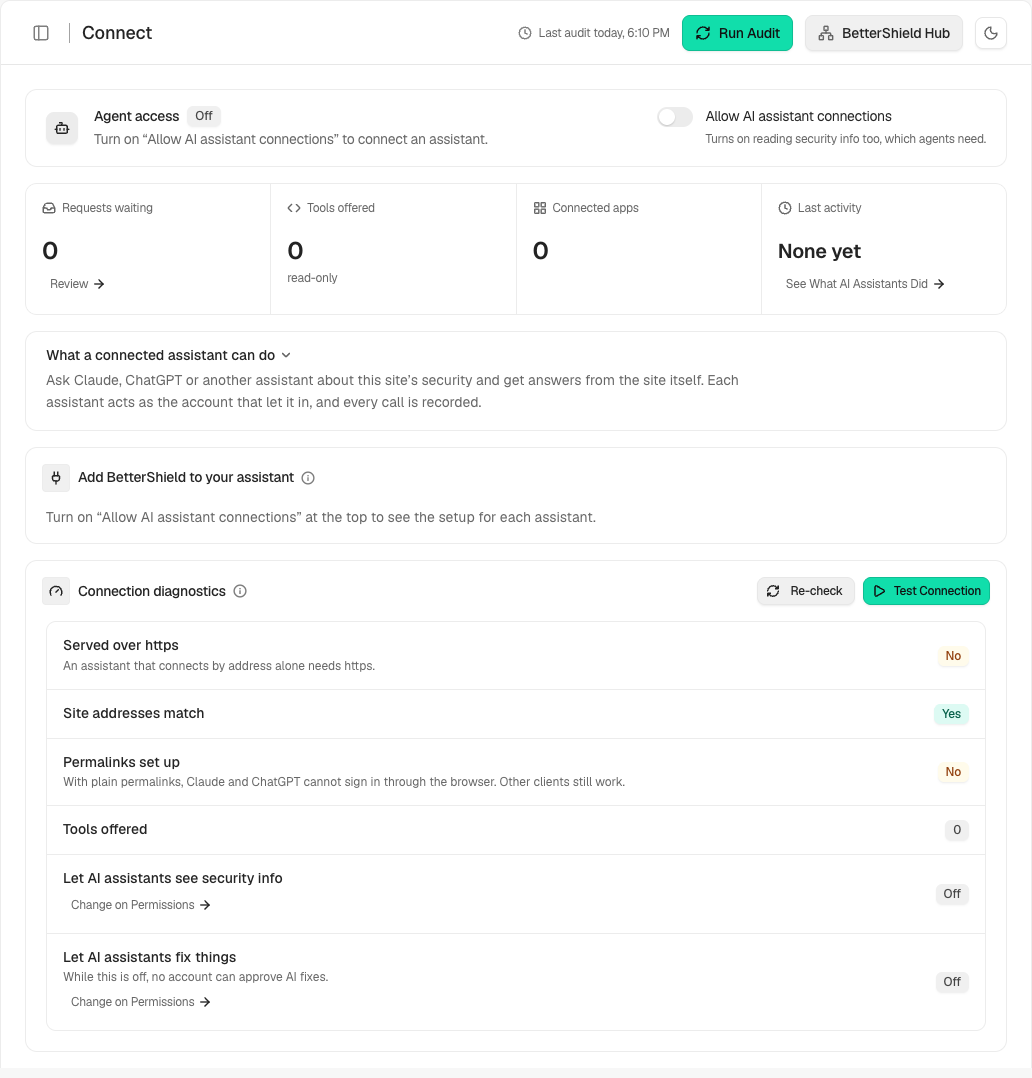
**Connected apps** lists every app with access, who let it in and when it was last used, with **Disconnect** for each one. **Test Connection**, under **Connection diagnostics**, makes one real call and shows how far it got. It checks https, that the Site Address and WordPress Address agree, permalinks, the tools offered, whether reading and fixing are on, and whether your account can approve AI fixes.
## Step 1: Open Allow AI assistant connections
Turn on **Allow AI assistant connections**. It is off by default.
One switch turns connections on. The steps for your assistant sit under it.
## Step 2: Create, test and end assistant connections
- Under **Add BetterShield to your assistant**, pick your assistant and follow its steps.
- For Claude or ChatGPT, press **Copy the Address**, add it to the assistant and sign in when your browser asks.
- For an editor or command-line tool, press **Set Up an Editor**, choose the tool and press **Create Key**. Copy the key at once and paste it into the tool's configuration.
- Press **Test Connection**.
Leave **Allow this key to make fixes** unticked to make a read-only key. Change which fixes are allowed on **Permissions**.
## Recommended settings
Use HTTPS on the public site. Make read-only keys unless the tool needs to make fixes. Replace a key after suspected exposure.
## What it can break and how to undo
Replacing a key or disconnecting stops clients using the old key. Reconnect them with a new one. Ending a connection does not reverse fixes it already made.
## Final Outcome
**Test Connection** should reach the real call and show the tools offered and the access state. **Connected apps** should list the app you just added.
Example Assistant connections view. Check the saved values and status on your own site.
## Limit a connected app
Open the app’s **Tools** selection, choose the tools it needs and select **Save Tools**. The app receives that selection on its next tool-list refresh. See [Per-app tool limits](/docs/assistant-tool-limits/). Claude and ChatGPT sign in through your browser, so they need no connection key.
## Related
- [Let an AI assistant read security information](/docs/agent-read-access/)
- [Limit an application password](/docs/application-password-limits/)
- [Troubleshooting](/docs/troubleshooting/)
This is how you can create, test and end assistant connections with BetterShield.
Getting Stuck? Feel free to contact our [Dedicated Support Team](/support/).