# How To Set Up Automatic Incident Response With BetterShield Ultra?
Choose up to four incident action types BetterShield Ultra may apply on an hourly schedule within its recovery limits.
**Automatic incident response** can apply selected actions when [BetterShield](/) correlates a qualifying incident.
_**Note:** These controls require the paid [BetterShield Ultra](/ultra/) add-on alongside the free BetterShield plugin._
## What it does
Once an hour, Ultra can prepare the same response plan offered on the incident and apply up to three allowed actions. It acts as the account that saved the policy and does not act against that account.
## Step 1: Open the feature
Prepare a working recovery link or printed recovery codes.
Nothing is selected by default, so the policy starts off.
## Step 2: Set up automatic incident response
- Open **BetterShield › Ultra › Automatic response**.
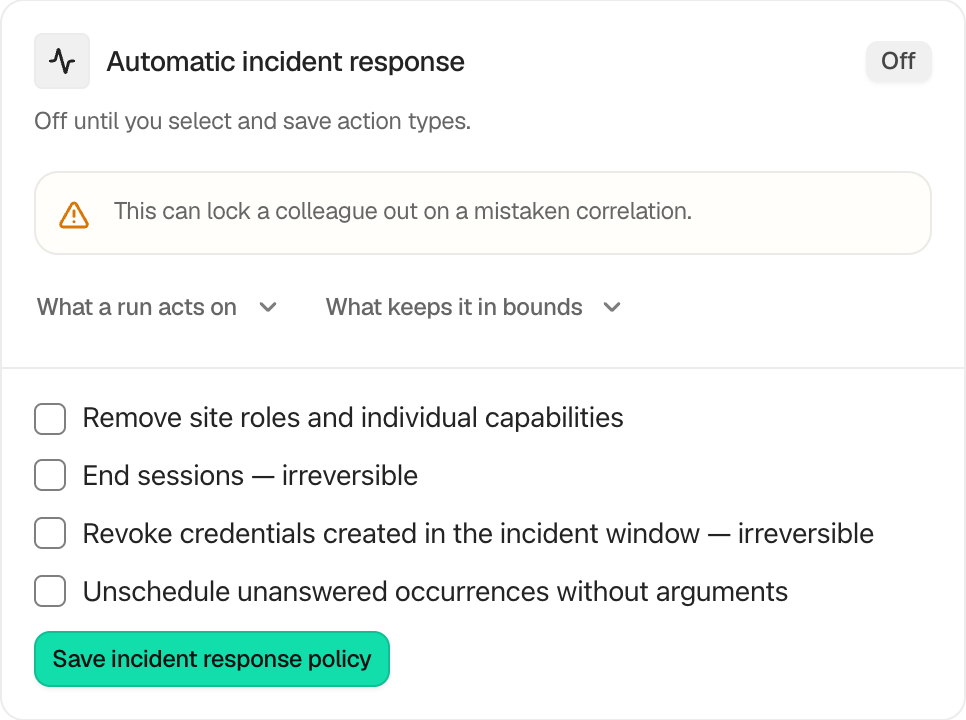
- Under **Automatic incident response**, choose action types. None are selected by default:
- **Remove site roles and individual capabilities**
- **End sessions**
- **Revoke credentials created in the incident window**
- **Unschedule unanswered occurrences without arguments**
- Select **Save incident response policy**.
Saving sets the starting point. Incidents opened earlier stay manual.
## Recommended settings
Our advice:
- Start with role removal or unscheduling, which may offer a way back.
- Add session or credential revocation only after reviewing the permanent effect.
- Review each receipt until the policy is familiar.
## What it can break and how to undo
The policy can remove a colleague's access, end sessions, revoke application passwords or unschedule work after a mistaken correlation. Incidents are correlations, not verdicts.
Role removal and unscheduling may be restorable when nothing changed after the action. Ended sessions and revoked credentials are irreversible. Sign in again or create a new credential.
## Final Outcome
The card shows **On for the action types saved below**.
- **Last incident considered** updates after a run.
- The incident receipt records what ran, stood down or failed.
Example Incident response view. Check the saved values and status on your own site.
## On multisite
Each site keeps its own policy. **End sessions on every site of the network** affects the account's sessions across that network.
## Related
- [Use Ultra automatic response](/docs/automatic-response/)
- [Prepare an incident response plan](/docs/incident-response-plan/)
- [Locked out](/docs/locked-out/)
This is how you can set up automatic incident response with BetterShield Ultra.
Getting Stuck? Feel free to contact our [Dedicated Support Team](/support/).