# How To Use BetterShield Ultra?
Find every BetterShield Ultra screen for sign-in, reports, alerts, response, Cloudflare, schedules and updates.
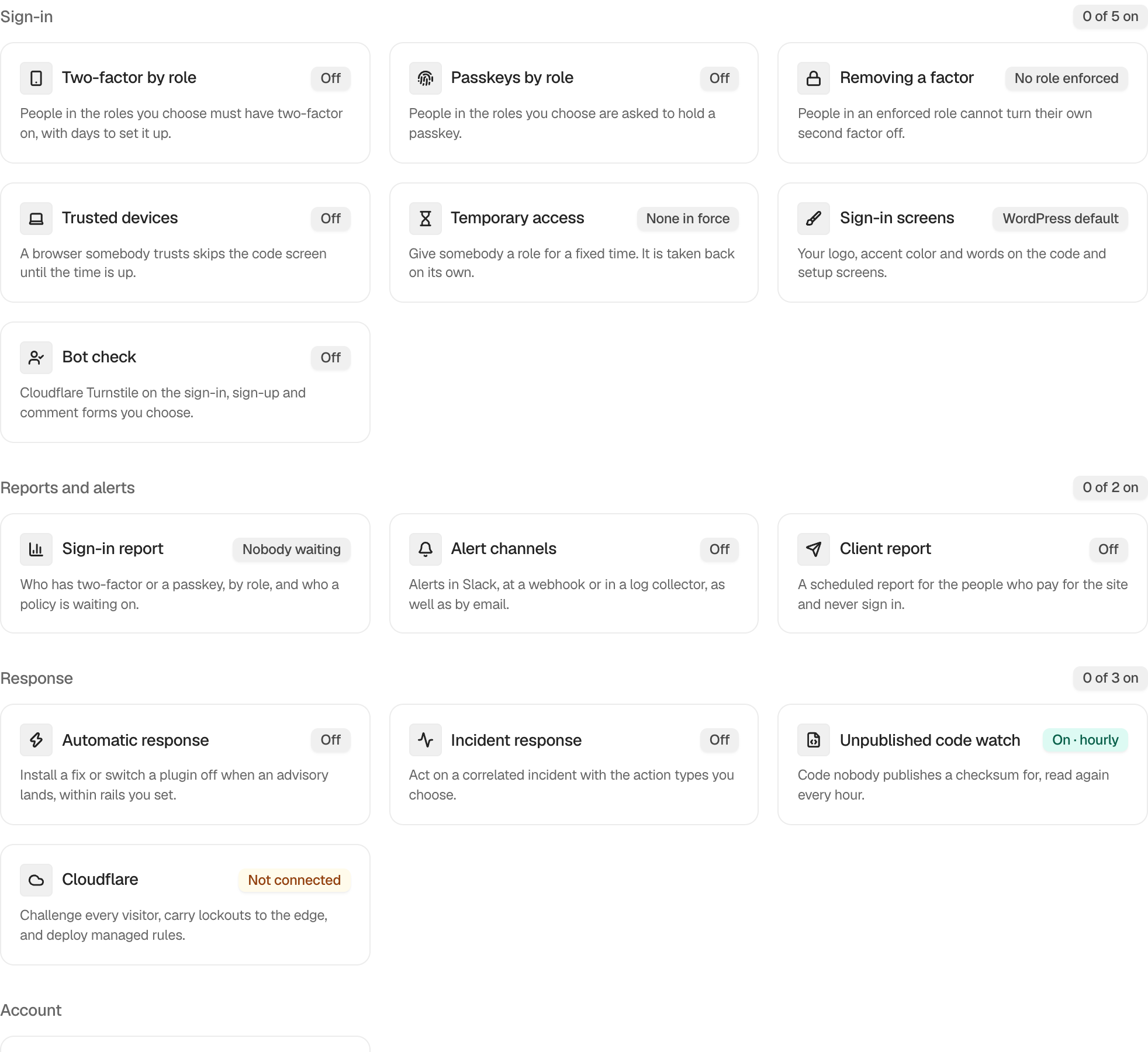
In **[BetterShield Ultra](/ultra/)**, **BetterShield › Ultra › Overview** shows everything the add-on adds to this site and whether each feature is on, off or waiting for setup.
_**Note:** These controls require the paid [BetterShield Ultra](/ultra/) add-on alongside the free BetterShield plugin._
## What it does
BetterShield Ultra adds sign-in policies, trusted devices, temporary access, handover, branded sign-in screens, a Turnstile bot check, sign-in reports, alert destinations, client reports and a report for one person or role, response controls, Cloudflare controls, scheduled-work monitoring and longer activity history.
## Step 1: Open the feature
Install and activate BetterShield first.
The overview links each feature to its own Ultra screen.
## Step 2: Use BetterShield Ultra
- Upload and activate BetterShield Ultra.
- Open **BetterShield › Ultra › Overview**.
- Select a feature card and configure its screen.
- Enter a license key on **Ultra › License** to receive updates.
Nothing is configured from the overview itself. Each feature keeps its own defaults.
## Recommended settings
Our advice:
- Start with sign-in policies and the sign-in report.
- Add external alert destinations only after site email alerts are working.
- Prepare recovery before enabling automated response or broad Cloudflare changes.
## What it can break and how to undo
Opening the overview changes nothing. Individual Ultra features can affect sign-in, outgoing alerts, account access, files or Cloudflare.
Read the focused guide and its undo limits before turning a feature on.
## Final Outcome
The overview lists the Ultra features available on the site.
- Each card shows a state and opens the matching screen.
- **Ultra › License** shows the saved update status after activation.
Example BetterShield Ultra view. Check the saved values and status on your own site.
## Newer Ultra controls
See [Ultra overview](/docs/ultra-overview/) for current state across the add-on. Dedicated guides cover [request protection](/docs/request-protection/), [administrator accounts](/docs/administrator-accounts/), [activity history](/docs/ultra-activity-history/), [settings watch](/docs/settings-watch/), [delayed updates](/docs/delay-automatic-updates/) and [admin branding](/docs/admin-branding/).
## Related
- [Install Ultra](/docs/install-ultra/)
- [Set up Ultra sign-in policies](/docs/sign-in-policies/)
- [Send Ultra alerts to other destinations](/docs/alert-channels/)
- [Send chosen activity to a channel with rules](/docs/alert-channel-rules/)
- [Activity report for one person or role](/docs/person-activity-report/)
- [Use Ultra automatic response](/docs/automatic-response/)
This is how you can use BetterShield Ultra.
Getting Stuck? Feel free to contact our [Dedicated Support Team](/support/).