# How To Give a Client Read-only Security Access With BetterShield Ultra?
Let named clients read Overview, Findings and past security reports while preserving their WordPress roles.
With **[BetterShield Ultra](/ultra/)**, let named clients read Overview, Findings and past security reports while preserving their WordPress roles.
_**Note:** These controls require the paid [BetterShield Ultra](/ultra/) add-on alongside the free BetterShield plugin._
## What it does
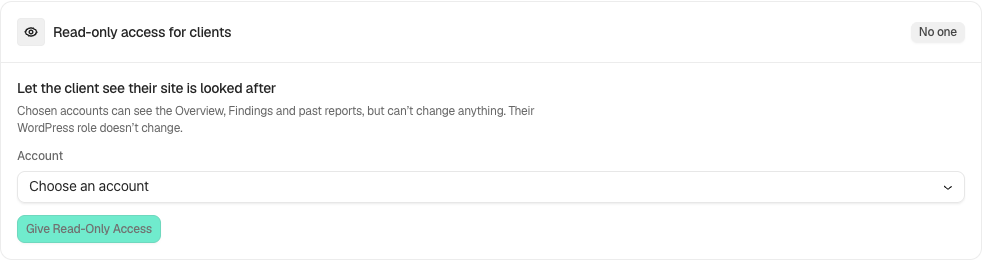
Open **BetterShield › Ultra › Client report**. **Read-only access for clients** adds access to the site’s Overview, Findings and past reports without granting security-management actions or changing the WordPress role. Up to 20 accounts can be selected.
## Step 1: Open Read-only access for clients
Under **Read-only access for clients**, choose the client’s **Account**.
Review the state and choices shown on your own site before applying a change.
## Step 2: Give a client read-only security access
- Select **Give Read-Only Access**.
- Ask the client to sign in with that account and open the available security screens.
- Use **Remove** beside an account to end this access.
## Recommended settings
Our advice: give access to a named client account and review what the findings and reports disclose before sharing it.
## What it can break and how to undo
This shares security information with the chosen account. Removing read-only access ends this extra visibility; it does not remove unrelated rights already provided by that account’s role.
## Final Outcome
Test using the client account. It should read the intended screens and reports and have no security-change controls from this grant.
Example Client read-only access view. Check the saved values and status on your own site.
## Related
- [Ultra overview](/docs/ultra-overview/)
- [Activity log](/docs/activity-log/)
- [Client report](/docs/client-report/)
- [Temporary access](/docs/temporary-access/)
This is how you can give a client read-only Security access with BetterShield Ultra.
Getting Stuck? Feel free to contact our [Dedicated Support Team](/support/).