# How To Schedule a Client Security Report With BetterShield Ultra?
Choose when BetterShield Ultra emails a client security report, who receives it and which sign-in figures it includes.
Choose when **[BetterShield Ultra](/ultra/)** emails a client security report, who receives it and which sign-in figures it includes.
_**Note:** These controls require the paid [BetterShield Ultra](/ultra/) add-on alongside the free BetterShield plugin._
## What it does
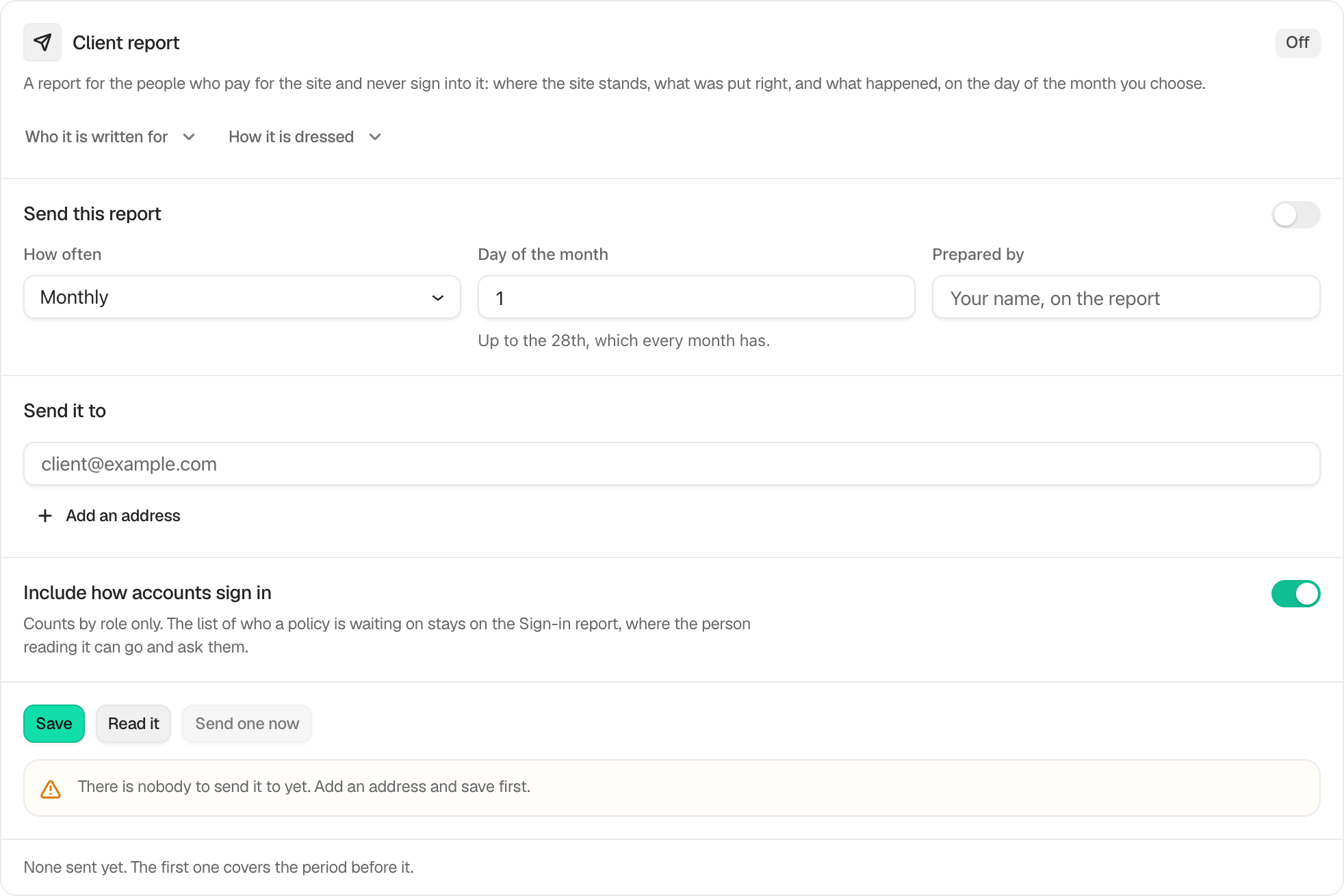
**BetterShield › Ultra › Client report** can email a weekly or monthly security report to a site's client. It uses the site's time zone and the site's own mail setup. For a report about what one person or role did, see [Activity report for one person or role](/docs/person-activity-report/).
## Step 1: Schedule a Client Security Report
| Option | What it does | Default |
|---|---|---|
| **Send this report** | Turns scheduled delivery on. | Off |
| **How often** | Sends the report **Monthly** or **Weekly**. | Monthly |
| **Day of the month** | Chooses a day from 1 to 28 for a monthly report. | 1 |
| **Day of the week** | Chooses Sunday through Saturday for a weekly report. | Monday |
| **Prepared by** | Adds your name or agency name to the report. | Empty |
| **Send it to** | Adds up to five email addresses. If empty, the report uses the contacts saved for this site's client. | Empty |
| **Include how accounts sign in** | Adds two-factor and passkey counts by role. | On |
Press **Save**. **Read it** opens the report as it will arrive. **Send Now** asks for confirmation and sends to the saved recipients. A manual send on or after the scheduled due day counts as that period’s report, so the scheduled run does not send it again. Sending early leaves the scheduled report due.
 ## Recommended settings
- **A managed business site:** send monthly and add the person who owns the website.
- **A site with frequent security work:** send weekly while changes are active, then return to monthly.
- **A site with role-based sign-in policies:** leave **Include how accounts sign in** on so the client can see adoption by role.
## What it can break and how to undo
The report can go to the wrong person if an address is mistyped or an old client remains on file. Use **Read it** before the first send, check the recipient list, and send a test with **Send Now**. To stop future reports, turn off **Send this report** and press **Save**.
A staging copy does not send client reports.
## Final Outcome
The badge reads **On** after the schedule is saved. The card shows when the last report was sent. Each delivery is also recorded as **Alert sent** in the activity log without storing recipient addresses there.
## On multisite
Each site has its own report and recipient list. Client records are shared across the network.
## Related
- [Client report](/docs/client-report/)
- [Keep client records](/docs/client-records/)
- [Review the sign-in report](/docs/sign-in-report/)
- [Brand sign-in screens](/docs/sign-in-screens/)
This is how you can schedule a client Security report with BetterShield Ultra.
Getting Stuck? Feel free to contact our [Dedicated Support Team](/support/).