# How To Set Cloudflare Country Rules With BetterShield Ultra?
Challenge or block requests from named countries at Cloudflare with a rule managed by BetterShield Ultra.
Challenge or block requests from named countries at Cloudflare with a rule managed by **[BetterShield Ultra](/ultra/)**.
_**Note:** These controls require the paid [BetterShield Ultra](/ultra/) add-on alongside the free BetterShield plugin._
## What it does
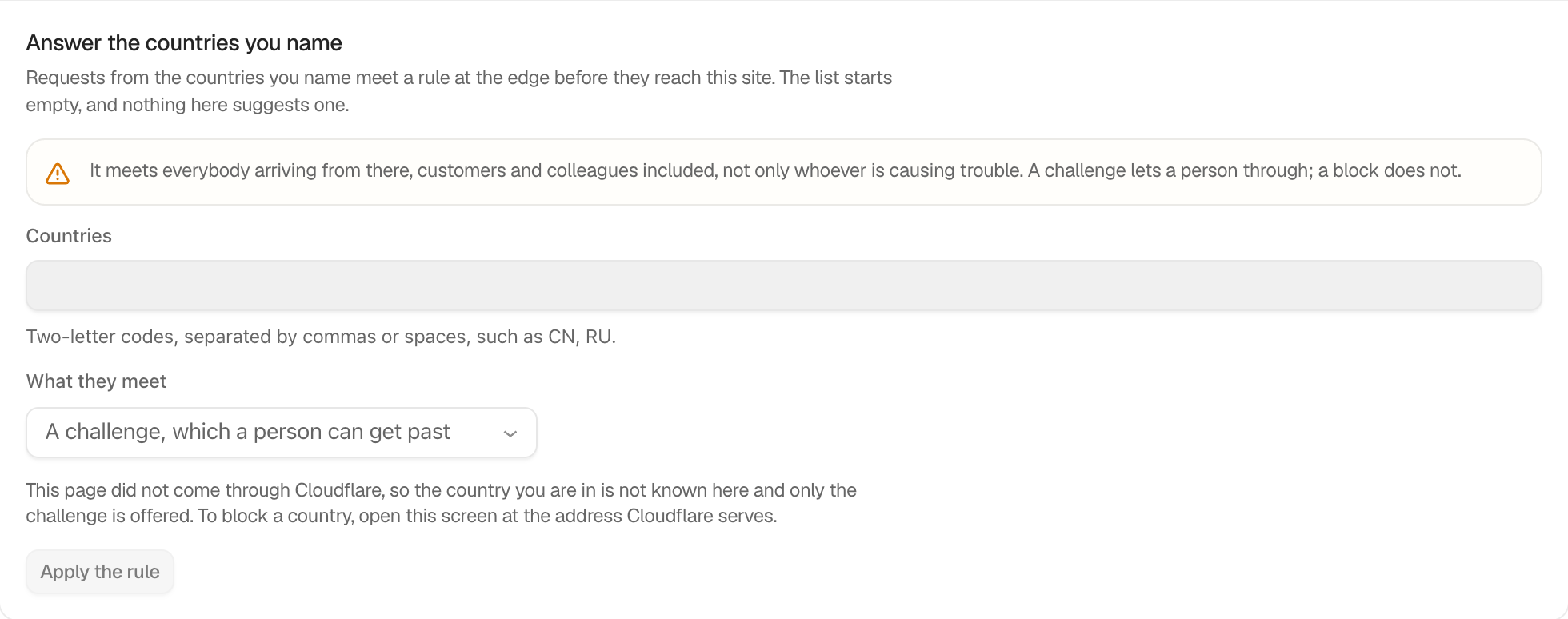
**Answer the countries you name** creates one Cloudflare rule for requests from the countries you list. It can show a challenge that a person can pass or block the request.
## Step 1: Open the feature
[Connect Cloudflare](/docs/connect-cloudflare/).
 ## Step 2: Set Cloudflare country rules
- Open **BetterShield › Ultra › Cloudflare**.
- Enter two-letter codes in **Countries**, such as `CN` or `RU`.
- Under **What they meet**, choose **A challenge, which a person can get past** or **A block, which nobody can get past**.
- Press **Apply the rule**.
The country list is empty by default and the response defaults to a challenge. The country you are connecting from cannot be added. A block is offered only when the screen itself was opened through Cloudflare. Use **Replace the rule** to update it or **Take the rule off** to remove it.
## From a connected assistant
With **Let AI assistants fix things** on, an assistant can propose a challenge for countries you name. It is a plan you approve, never applied on its own. It takes one to fifty two-letter codes, each once, and the answer is always a challenge a person can pass. A block stays on this screen. The plan names the countries and says who will meet the challenge, your own team included, and that payment and shipping callbacks, uptime checks and app connections from there cannot pass it. A list that names the country the request comes from is refused. The plan also says this screen's saved list becomes the assistant's list until it is undone. It is refused while a country rule is already on the zone, during a lockdown, in safe mode, on a copy of the site, or without a usable Cloudflare token.
To take it back, ask the assistant to undo it. That is a second plan you approve. It removes that one rule and puts back the countries, answer and switch this screen had saved before. See [Review change requests from agents](/docs/agent-change-requests/).
## Recommended settings
Start with a challenge. Use a block only when you are certain legitimate visitors, staff and services do not need to connect from the named countries.
## What it can break and how to undo
A country rule affects every matching request at the edge, including customers and third-party services. Press **Take the rule off** to remove the rule managed by Ultra. If the dashboard is unreachable, remove the **BetterShield country rule** directly in Cloudflare.
## Final Outcome
The card reads **Applied from here** and names the countries in the active rule. The activity log records applying, replacing and removing it.
## On multisite
Only a network administrator can use this control. The rule applies to the connected zone, which may serve more than one site.
## Related
- [Cloudflare controls](/docs/cloudflare/)
- [Connect Cloudflare](/docs/connect-cloudflare/)
- [Change the Cloudflare security level](/docs/cloudflare-security-level/)
This is how you can set Cloudflare country rules with BetterShield Ultra.
Getting Stuck? Feel free to contact our [Dedicated Support Team](/support/).