# How To Choose an Emergency Administrator Account With BetterShield Ultra?
Mark a spare administrator, receive urgent alerts when it is used, and prepare it safely for the next emergency.
With **[BetterShield Ultra](/ultra/)**, mark a spare administrator, receive urgent alerts when it is used, and prepare it safely for the next emergency.
_**Note:** These controls require the paid [BetterShield Ultra](/ultra/) add-on alongside the free BetterShield plugin._
## What it does
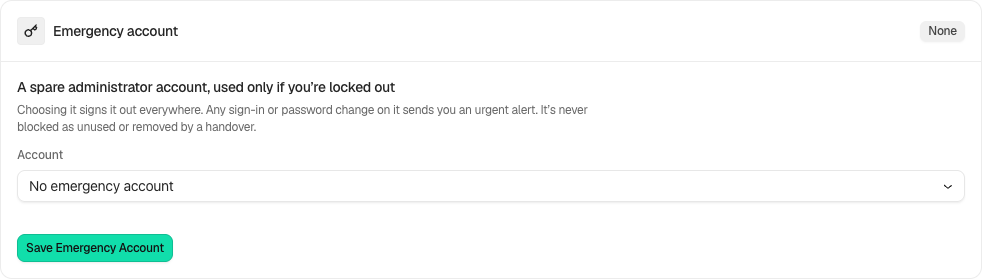
Open **BetterShield › Ultra › Administrator accounts**. **Emergency account** marks a spare administrator for emergency use. No account is chosen by default. It is excluded from unused-account blocking, access reviews and handover. Its use creates an urgent record and a reminder to change its password.
## Step 1: Open the feature
Create and secure a permanent administrator through WordPress’s Users screen if needed.
Review the state and choices shown on your own site before applying a change.
## Step 2: Choose an emergency administrator account
- Choose it under **Account** and select **Save Emergency Account**. Choosing it signs its sessions out.
- Keep its credentials outside the site. A temporary administrator cannot be the emergency account.
- After emergency use, change its password, then confirm **I Changed the Password**. You cannot mark your own account as the emergency account.
With BetterShield 1.1.6 and Ultra 1.0.7 or newer, **Emergency account used** emails even when instant alerts are off. **Mute all alerts** still silences it. Check the card’s delivery warning and configure an email recipient before relying on it.
## Recommended settings
Our advice: use a spare account owned by the client or site owner and verify that the alert recipients can be reached.
## What it can break and how to undo
This is oversight, not a bypass for two-factor or another new way in. A blocked or demoted account cannot provide emergency administrator access. Change or clear the selected account if it no longer qualifies; keep recovery available throughout.
## Final Outcome
The card identifies the selected account and whether it is still an administrator and permitted to sign in. After legitimate use, check the incident and password-change reminder.
Example Emergency account view. Check the saved values and status on your own site.
## Related
- [Ultra overview](/docs/ultra-overview/)
- [Activity log](/docs/activity-log/)
- [Set up recovery](/docs/set-up-recovery/)
- [Agency handover](/docs/handover/)
This is how you can choose an emergency administrator account with BetterShield Ultra.
Getting Stuck? Feel free to contact our [Dedicated Support Team](/support/).