# How To Read and Filter the Findings Report With BetterShield?
Use status tabs, search, and Group by controls to find the BetterShield audit result you need.
In **[BetterShield](/)**, open **BetterShield › Findings** for every saved audit result and the action available for it.
## What it does
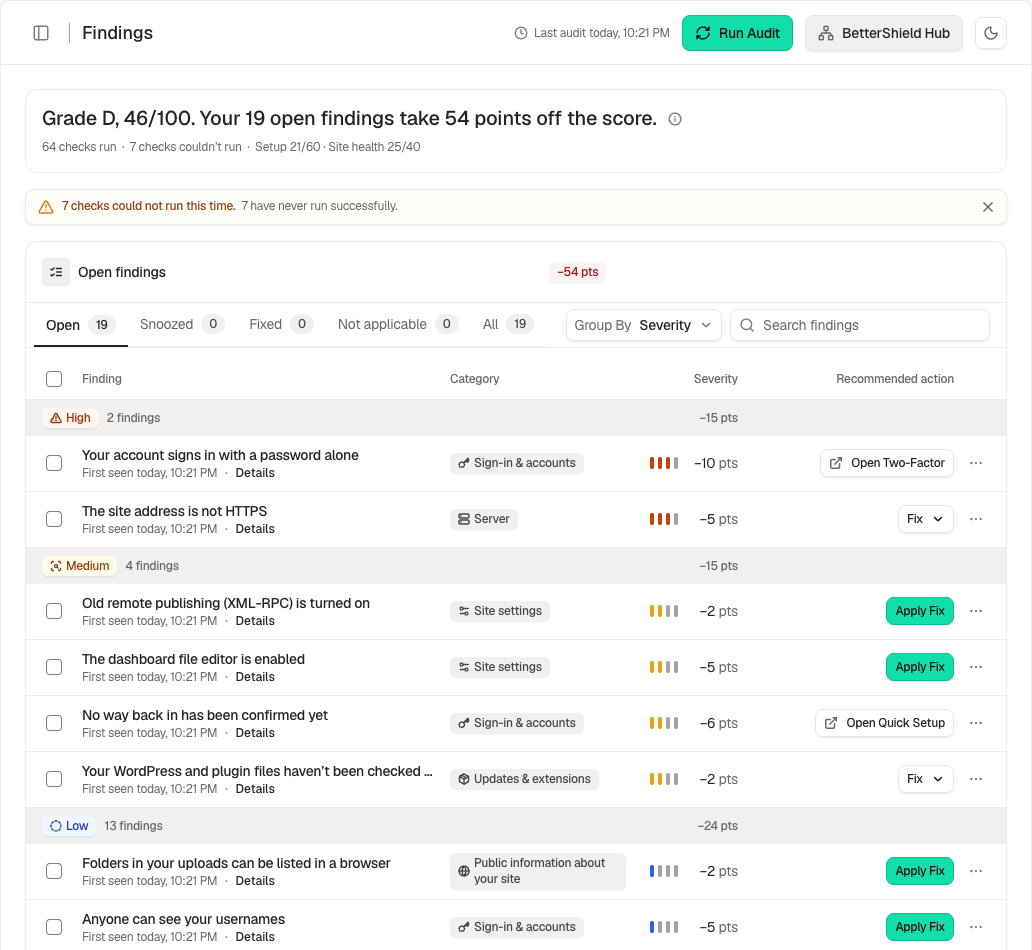
The status tabs are **Open** by default, then **Snoozed**, **Fixed**, **Not applicable**, and **All**. **Search findings** matches titles and areas inside the selected status.
**Group by** offers **Severity** by default, plus **Finding**, **Category**, **Impact**, and **Recommended action**. Severity groups place the heaviest open results first. Category groups use **Sign-in & accounts**, **Public information about your site**, **Updates & extensions**, **Server**, and **Site settings**.
Published-advisory data is not connected in this version. Update findings do not claim whether an installed version appears in a published advisory.
## Step 1: Read and Filter the Findings Report
No setup is needed. Choose a status, enter a search term if needed, then choose a grouping.
The report opens on current findings, grouped by severity.
## Recommended settings
Start with **Open** and **Severity**. Use **Recommended action** when you want to collect one-click corrections or links to the WordPress screen that handles a result.
## What it can break and how to undo
Filtering, searching, and grouping only change the view. Clear the search or return to **Open** and **Severity** to restore the default view.
## Final Outcome
The count beside each status should match the rows in that view. The summary below the list should update when filters change.
Example Findings report view. Check the saved values and status on your own site.
## Related
- [Read the evidence behind a finding](/docs/finding-details/)
- [Snooze a finding or mark it not applicable](/docs/manage-findings/)
- [Understand your security score and grade](/docs/security-score/)
This is how you can read and filter the findings report with BetterShield.
Getting Stuck? Feel free to contact our [Dedicated Support Team](/support/).