# How To Secure your BetterShield Hub Account?
Add Hub passkeys, turn on authenticator-app two-factor and keep recovery codes for your BetterShield Hub account.
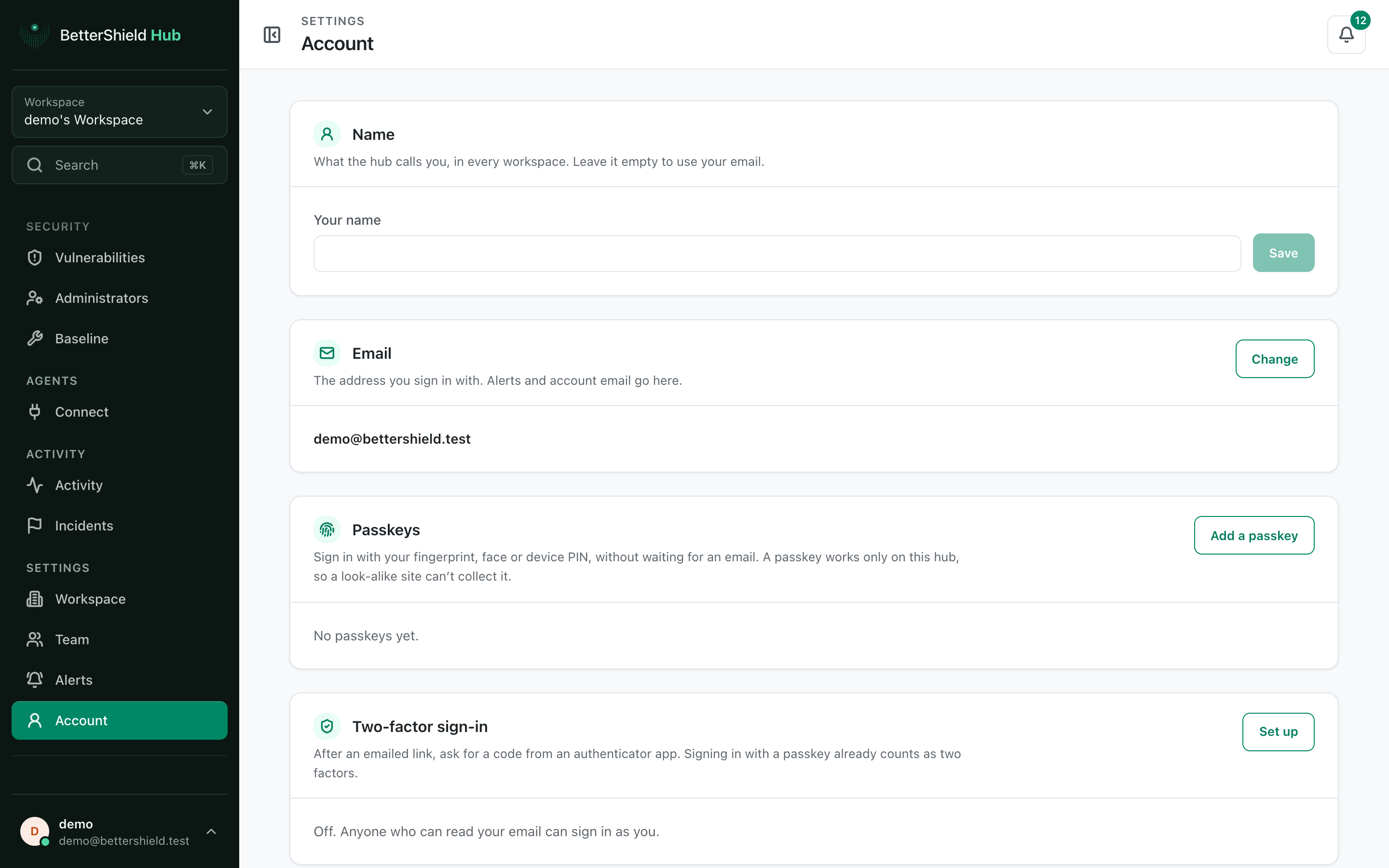
In **[BetterShield Hub](/bettershield-hub/)**, the **Passkeys** and **Two-factor sign-in** cards on **Settings › Account** protect your Hub sign-in. They are separate from factors on a connected WordPress site.
_**Note:** Sign in to your free [BetterShield Hub](/bettershield-hub/) account. Your workspace role and site permissions determine which information and actions you can use._
## What it does
A passkey signs in with a fingerprint, face or device PIN. Authenticator-app two-factor asks for a code after another sign-in route. Recovery codes provide a backup for two-factor.
## Step 1: Open Settings › Account
Open **Settings › Account**.
Hub account factors protect Hub itself, not WordPress sign-ins.
## Step 2: Secure your BetterShield Hub account
- Under **Passkeys**, select **Add a passkey**, follow the device prompt and give it a name. No passkey exists by default.
- Under **Two-factor sign-in**, start setup, scan the QR code, enter the code from your app and save the recovery codes. Two-factor is off by default.
- Rename or remove old passkeys when needed.
## Recommended settings
Our advice:
- Add at least one passkey on a device you control.
- Keep recovery codes somewhere outside Hub.
- Name passkeys by device so an old one is easy to identify.
## What it can break and how to undo
Removing your last usable sign-in method can make access difficult. Keep another route before removing a passkey or turning off two-factor.
Remove a passkey from Hub and from the device or password manager that stores it. New recovery codes replace the old set.
## Final Outcome
The passkey appears with its name and last-used information.
- **Sign in with a passkey** works after signing out.
- An authenticator code is accepted and recovery codes are stored.
Example Hub account security view. Check the saved values and status on your own site.
## Related
- [Manage your Hub account](/docs/hub-account/)
- [Review your Hub sessions](/docs/hub-sessions/)
- [Two-factor and passkeys](/docs/two-factor-and-passkeys/)
This is how you can secure your BetterShield Hub account.
Getting Stuck? Feel free to contact our [Dedicated Support Team](/support/).