# How To Manage your BetterShield Hub Account?
Change your Hub name or email and find passkeys, two-factor, sessions, data export and account deletion.
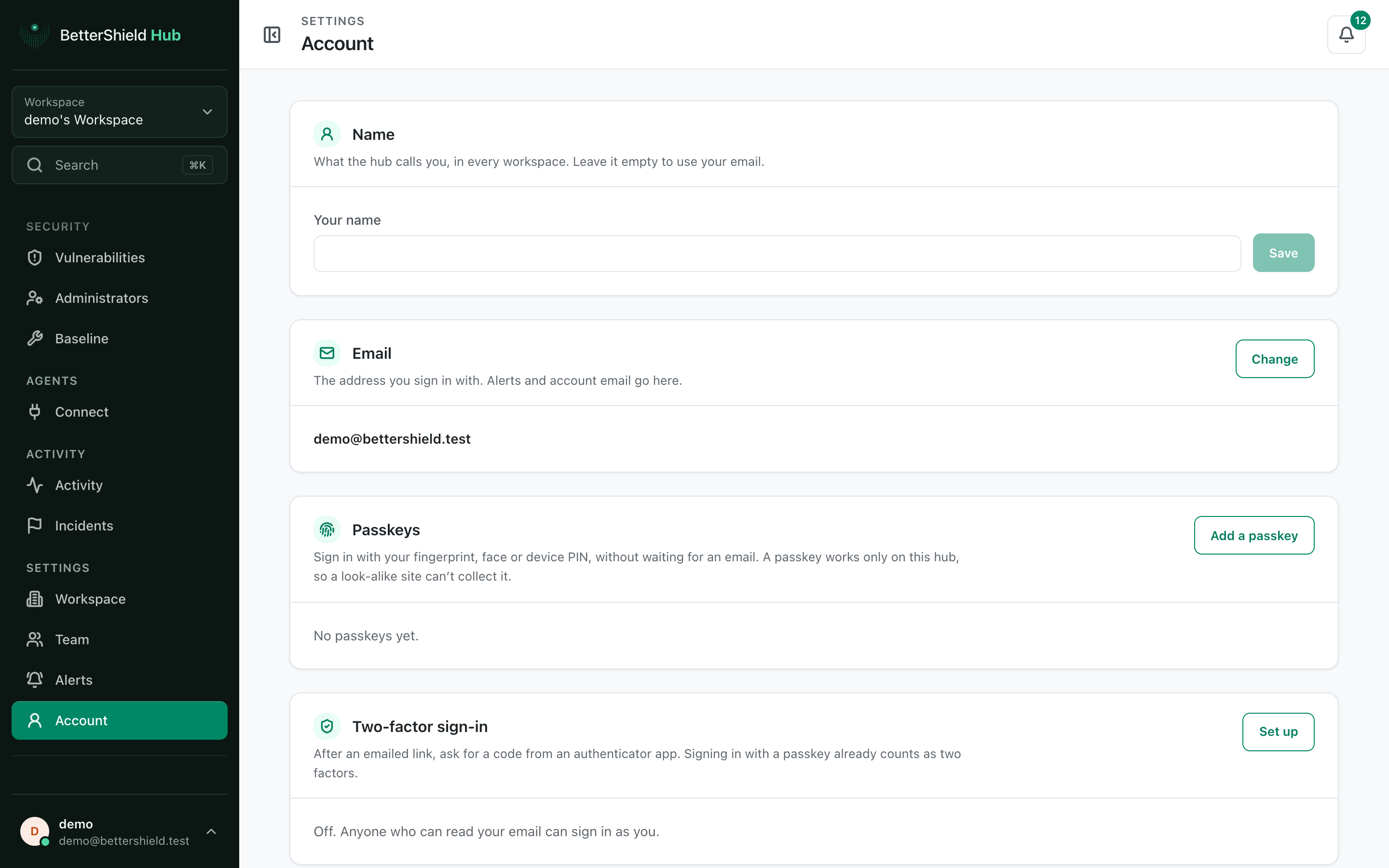
In **[BetterShield Hub](/bettershield-hub/)**, **Settings › Account** holds settings for your Hub account across every workspace.
_**Note:** Sign in to your free [BetterShield Hub](/bettershield-hub/) account. Your workspace role and site permissions determine which information and actions you can use._
## What it does
The screen includes **Name**, **Email**, **Passkeys**, **Two-factor sign-in**, **Where you’re signed in**, **Your data** and **Delete your account**.
## Step 1: Open Your account
Open the account menu and choose **Your account**.
Account settings follow you across workspaces.
## Step 2: Manage your BetterShield Hub account
- Under **Name**, enter up to the screen's limit or leave it empty to use your email.
- Under **Email**, select **Change** and follow the confirmation route.
- Continue to the focused security, session, export or deletion card.
Your current name and sign-in email are the defaults.
## Recommended settings
Our advice:
- Use an address you monitor and control.
- Add a passkey and keep a second sign-in recovery route.
- Review sessions after using a shared or borrowed device.
## What it can break and how to undo
Changing email changes the address used to sign in. When mail is available, nothing changes until you open the link sent to the new address.
Account deletion is separate and permanent. Do not use it just to leave one workspace.
## Final Outcome
The sidebar shows the saved name or email.
- The new email is marked confirmed after its link is opened.
- Security and session cards load without an error.
Example Hub account view. Check the saved values and status on your own site.
## Related
- [Secure your Hub account](/docs/hub-account-security/)
- [Review your Hub sessions](/docs/hub-sessions/)
- [Export your Hub account data](/docs/hub-data-export/)
- [Delete your Hub account](/docs/delete-hub-account/)
This is how you can manage your BetterShield Hub account.
Getting Stuck? Feel free to contact our [Dedicated Support Team](/support/).