# How To Connect Alert Destinations With BetterShield Hub?
Send workspace alerts to Slack, Microsoft Teams or a signed webhook, test delivery and choose the alert types each destination gets.
In **[BetterShield Hub](/bettershield-hub/)**, **Alert destinations** under **Settings › Workspace** send workspace alerts to Slack, Microsoft Teams or an HTTPS webhook.
_**Note:** Sign in to your free [BetterShield Hub](/bettershield-hub/) account. Your workspace role and site permissions determine which information and actions you can use._
## What it does
These destinations belong to the free Hub workspace; they do not require Ultra. They are separate from [Ultra alert destinations](/docs/alert-destinations/) configured on a WordPress site. Editing one does not update the other.
Destinations add a shared channel beside each member's own email and Hub bell. A destination can be on, off, trying again or failing. You can send a test, edit it or delete it.
## Step 1: Open Settings › Workspace
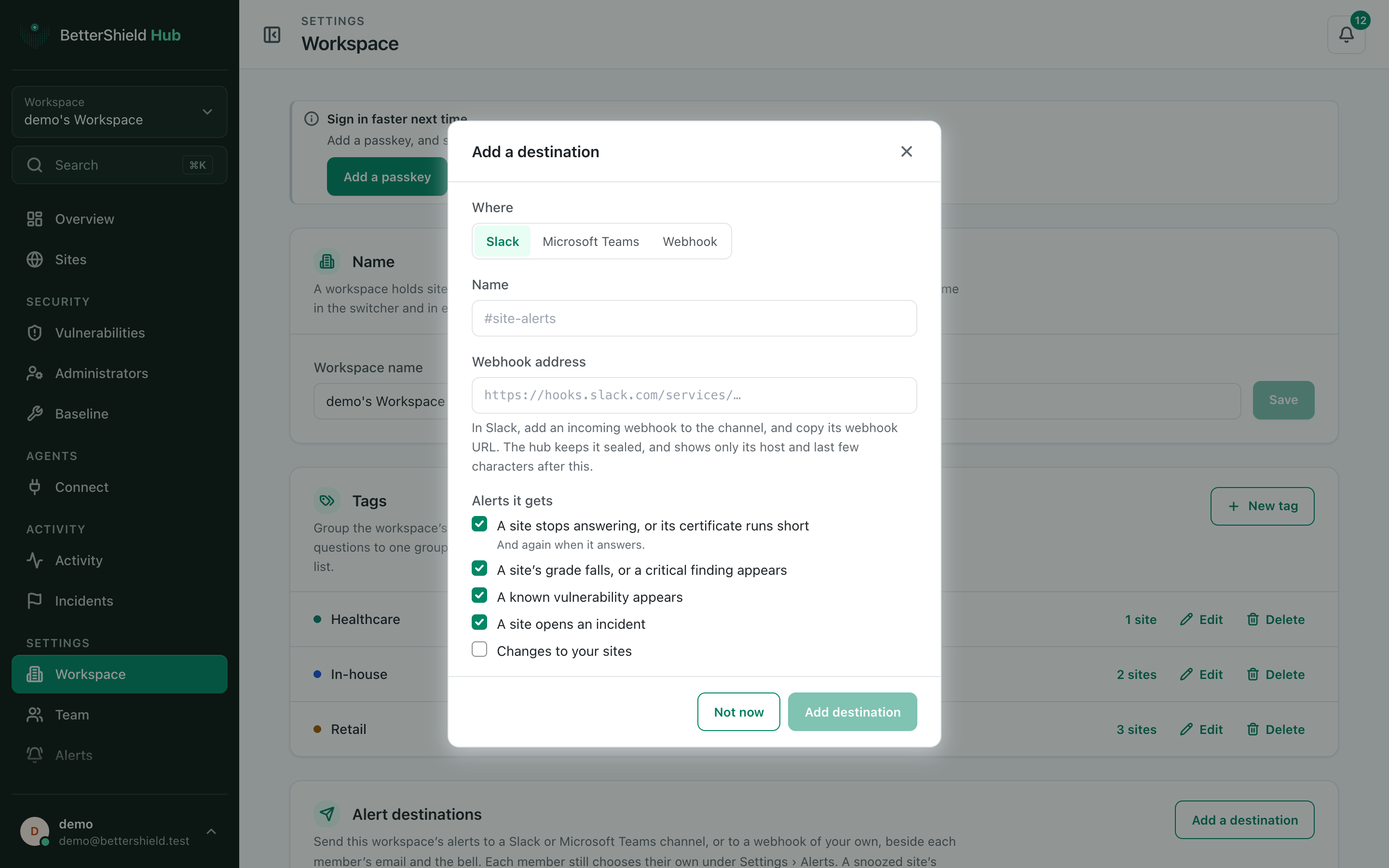
Open **Settings › Workspace** and select **Add a destination**.
A new destination starts with the four site alert types selected and changes left out.
## Step 2: Send BetterShield Hub alerts to workspace destinations
- Under **Where**, choose **Slack**, **Microsoft Teams** or **Webhook**. **Slack** is the default.
- Enter **Name** and the webhook **Address**.
- Under **Alerts it gets**, choose the alert types. By default, outages, posture changes, known vulnerabilities and incidents are selected; **Changes to your sites** is not.
- Select **Add destination**, then **Send a test**.
A webhook receives a signing secret once. Copy it then, because Hub does not show it again.
## Recommended settings
Our advice:
- Use a channel watched by the people responsible for the included sites.
- Add change alerts only where the extra volume is useful.
- Verify webhook signatures and reject old timestamps.
## What it can break and how to undo
A wrong address or removed channel stops delivery there. Hub retries failed alerts and can mark the destination failing.
Turn off **Send alerts** to pause it, edit the address, or delete it. Deleting also discards alerts still waiting for that destination.
## Final Outcome
**Send a test** reaches the destination.
- The row shows **On** and a successful last-alert time after delivery.
- A webhook accepts a valid Hub signature and ignores repeated alert IDs.
Example Hub alert destinations view. Check the saved values and status on your own site.
## Related
- [Set Hub alert preferences](/docs/hub-alert-settings/)
- [Manage the Hub workspace](/docs/hub-workspace/)
- [Send Ultra alerts to destinations](/docs/alert-destinations/)
This is how you can connect alert destinations with BetterShield Hub.
Getting Stuck? Feel free to contact our [Dedicated Support Team](/support/).