# How To Connect an Assistant to BetterShield Hub?
Connect an AI assistant to BetterShield Hub with its setup instructions, then limit the sites, tools and change access it receives.
In **[BetterShield Hub](/bettershield-hub/)**, **Agents › Connect** gives an assistant one workspace connection for the sites its owner can access.
_**Note:** Sign in to your free [BetterShield Hub](/bettershield-hub/) account. Your workspace role and site permissions determine which information and actions you can use._
## What it does
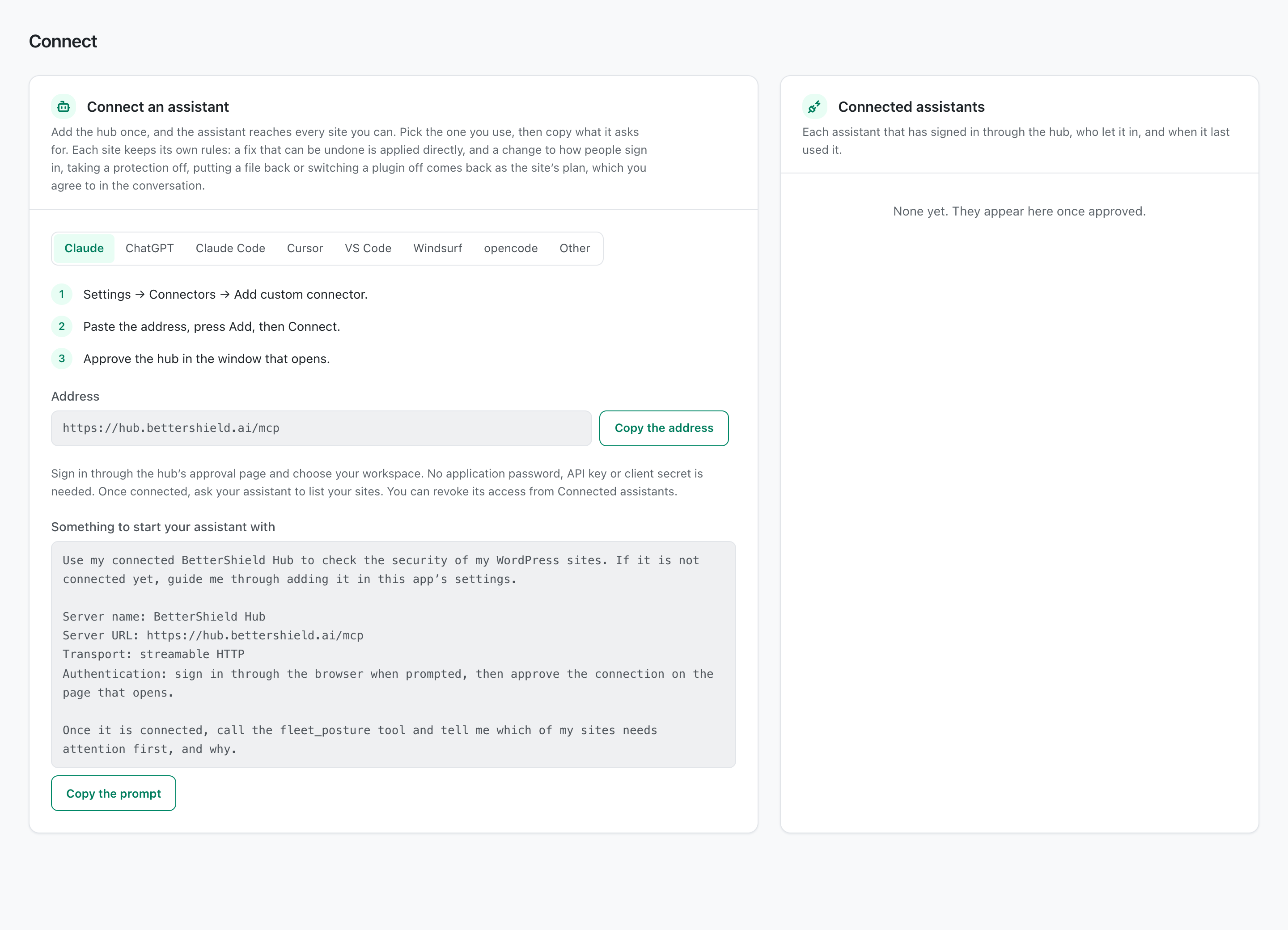
The screen offers **Claude**, **ChatGPT**, **Claude Code**, **Cursor**, **VS Code**, **Windsurf**, **opencode** and **Other**. Choose **Other** for a client that supports remote HTTP MCP and browser sign-in through OAuth. A client that only accepts a fixed token cannot use this Hub connection. Connected assistants appear under **Connected assistants**, where you can set limits or disconnect them.
Limits narrow the owner's role. They do not grant access the person does not already have.
## Step 1: Open Agents › Connect
Open **Agents › Connect**.
The released Connect screen with example connection data. Choose an assistant to see its setup instructions.
## Step 2: Connect an assistant to BetterShield Hub
- Under **Choose an assistant**, select the product. **Claude** is selected by default.
- Follow that assistant’s displayed instructions and copy its address, command or configuration where requested.
- Finish the connection in the assistant and approve it through Hub’s sign-in page.
- Under **Connected assistants**, open **Limits** when needed.
Limit defaults are **Read only** off, **Every site its person sees**, and every offered tool allowed. Choose **Only these sites** or clear individual tools to narrow it.
## Recommended settings
Our advice:
- Start read-only when evaluating a new connection.
- Limit an assistant to the client or project sites it needs.
- Block tools unrelated to its job.
## What it can break and how to undo
An assistant allowed to change sites can request plans and actions within its owner's role and the site's own connection permissions. Small reversible fixes may run directly; sign-in changes, removing a protection and other sensitive actions require the site's approval plan. The Hub browser interface shows a plan before applying a finding fix. Turn on **Read only** or block tools to narrow it.
**Disconnect** ends the connection and cannot restore it. Connect the assistant again if needed.
## Final Outcome
The assistant appears under **Connected assistants**.
- A test question can read an allowed site.
- A blocked tool is not listed to the assistant and a direct call is refused.
- A site outside **Only these sites** is unavailable to that connection.
Example Hub assistants view. Check the saved values and status on your own site.
## Related
- [Connect an AI assistant](/docs/connect-an-ai-assistant/)
- [Review a site's assistant connections in Hub](/docs/hub-site-agents/)
- [Review Hub activity](/docs/hub-activity/)
This is how you can connect an assistant to BetterShield Hub.
Getting Stuck? Feel free to contact our [Dedicated Support Team](/support/).