# How To Send Client Reports from BetterShield Hub?
Send a weekly or monthly report for one site or tag to workspace members and confirmed client addresses.
In **[BetterShield Hub](/bettershield-hub/)**, **Client reports** under **Settings › Workspace** send a scheduled security report for one site or all sites carrying a tag.
_**Note:** Sign in to your free [BetterShield Hub](/bettershield-hub/) account. Your workspace role and site permissions determine which information and actions you can use._
## What it does
Hub client reports are part of the free workspace and do not require Ultra. They are separate from the [Ultra client report](/docs/client-report-schedule/) generated and scheduled on an individual WordPress site.
A report summarizes the selected sites for people who may not use Hub. You can preview it, send it now, pause it or delete it.
## Step 1: Open Settings › Workspace
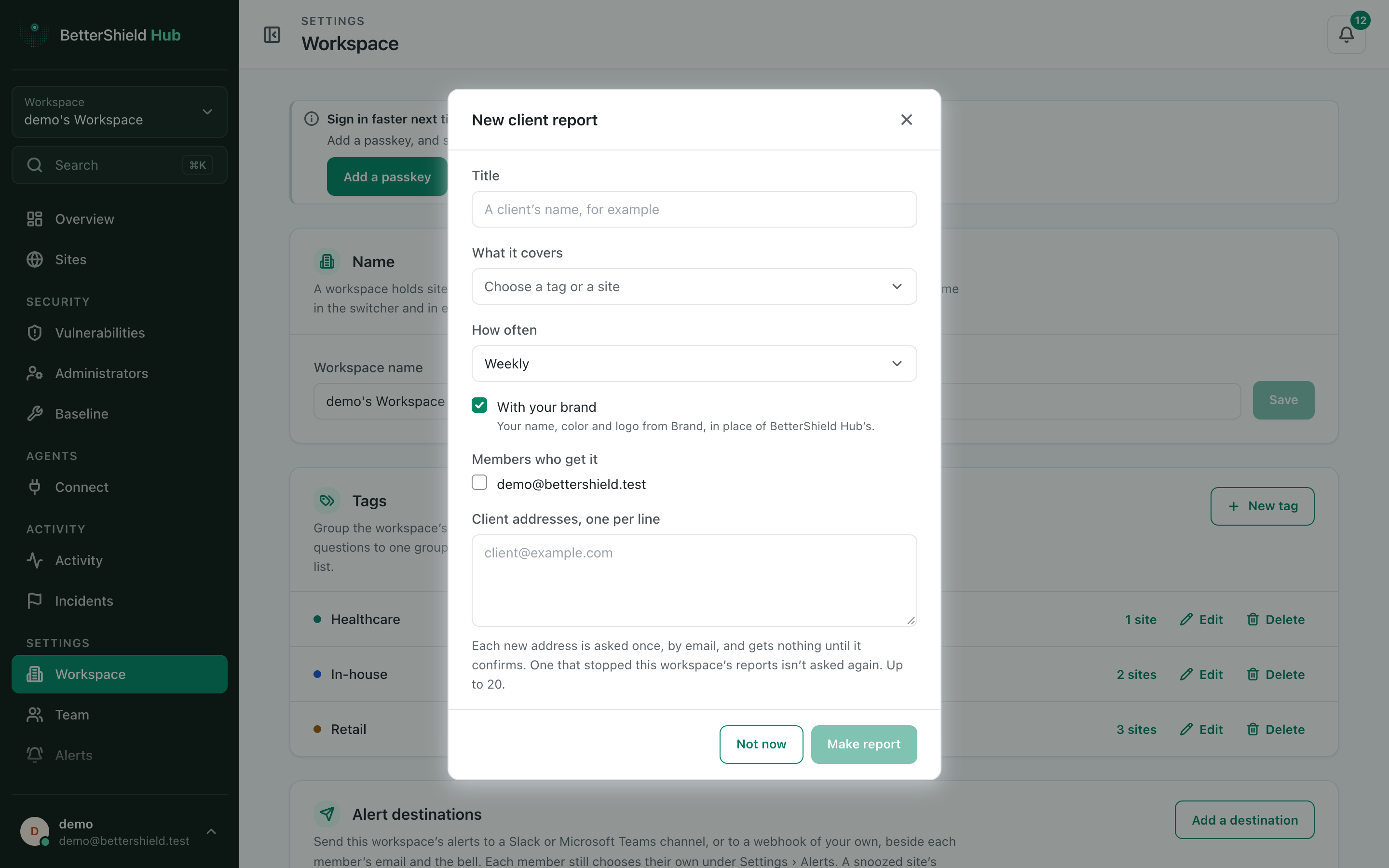
Open **Settings › Workspace** and select **New report**.
Client addresses receive nothing until they confirm the request by email.
## Step 2: Send client reports
- Enter **Title** and choose **What it covers**: one site or one tag. Both start empty.
- Choose **How often**: **Weekly** (default, Mondays for the week before) or **Monthly** (the 1st for the month before).
- Leave **With your brand** on (default) or turn it off.
- Tick eligible **Members who get it**. None are selected by default.
- Add **Client addresses, one per line**, up to 20. The list starts empty.
- Select **Make report** and preview it.
## Recommended settings
Our advice:
- Use one report per client or operating group.
- Preview after changing tags or branding.
- Keep only people who need the report on its recipient list.
## What it can break and how to undo
A wrong tag or address can share a report with the wrong audience. Client addresses must confirm before receiving it, but selected members can receive it immediately.
Edit or pause the report to stop future sends. A sent report cannot be recalled.
## Final Outcome
The preview shows the intended sites and branding.
- Client addresses show **confirmed**, **waiting to confirm** or **stopped them**.
- **Send now** reaches eligible recipients and does not move the schedule.
Example Hub client reports view. Check the saved values and status on your own site.
## Related
- [Brand shared Hub pages](/docs/hub-workspace-brand/)
- [Organize a site in Hub](/docs/hub-site-organization/)
- [Schedule an Ultra client report](/docs/client-report-schedule/)
This is how you can send client reports from BetterShield Hub.
Getting Stuck? Feel free to contact our [Dedicated Support Team](/support/).