# How To Use the BetterShield Hub Overview?
Read the workspace summary, open incidents, recent alerts and site list on the BetterShield Hub overview.
The **Overview** is the first screen in [BetterShield Hub](/bettershield-hub/). It brings the workspace totals, open incidents, recent activity and every connected site into one place.
_**Note:** Sign in to your free [BetterShield Hub](/bettershield-hub/) account. Your workspace role and site permissions determine which information and actions you can use._
## What it does
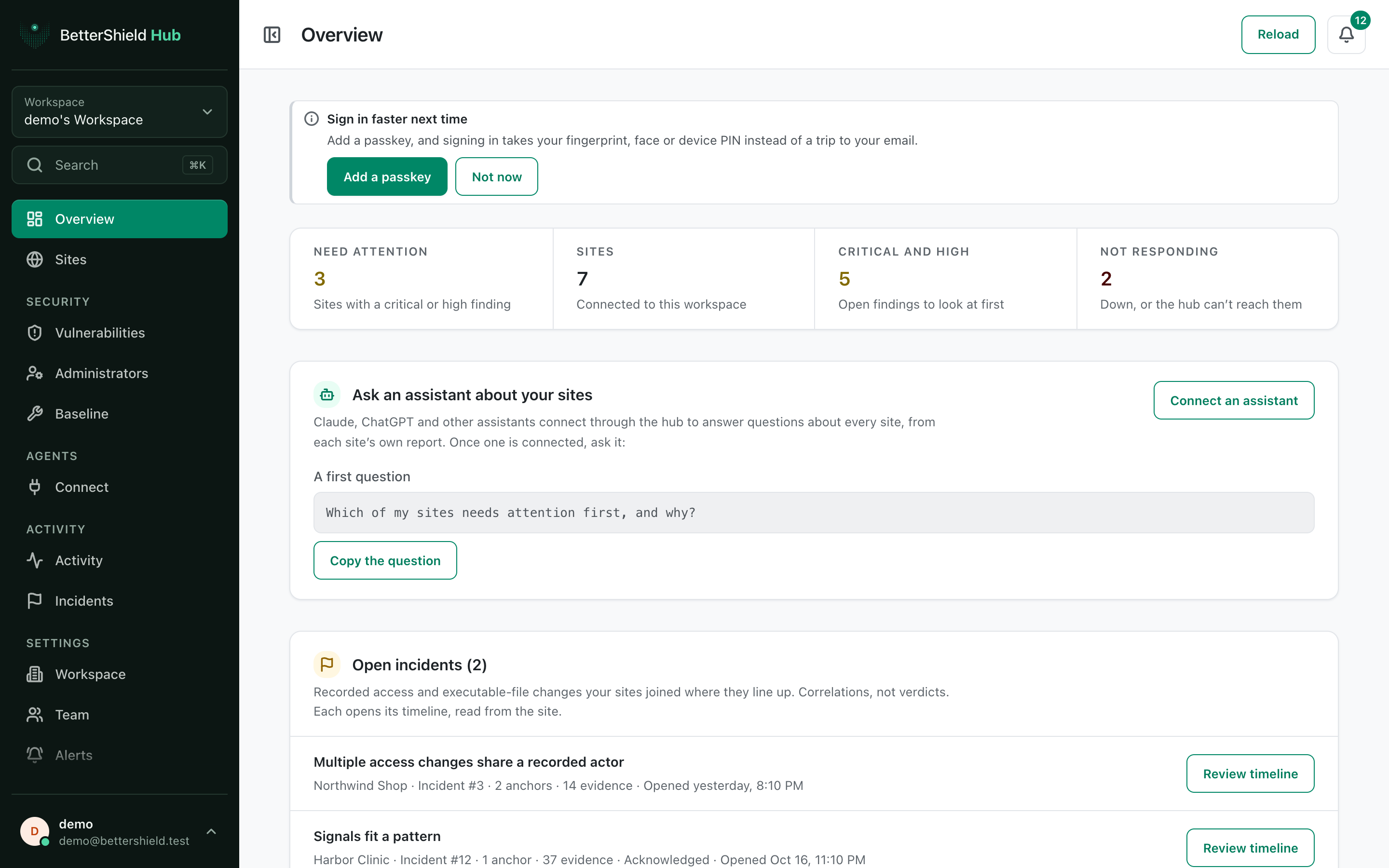
**This workspace at a glance** counts sites that need attention, all sites, critical and high findings, and sites that are not responding. The screen can also show **Open incidents**, **Look at these first**, **Last 7 days**, **Recent alerts** and **All sites**.
The figures come from each connected site's own report. Select a total, incident or site to open the matching detail.
## Step 1: Use the BetterShield Hub Overview
There are no Overview settings. Connect at least one site, then open **Overview** in the Hub sidebar. Select **Reload** when you want to ask for the current workspace view immediately.
If no assistant is connected, **Ask an assistant about your sites** offers **Connect an assistant** and a first question you can copy. Adding an assistant is optional.
The Overview starts with the sites that need attention across the workspace.
## Recommended settings
Our advice:
- Start with **Need attention** and **Not responding**, then review open incidents.
- Use **Look at these first** as a short triage list, not as a replacement for the full Sites screen.
- Reload after connecting, removing or reconnecting a site.
## What it can break and how to undo
Reading or reloading the Overview changes no site. Opening an item only moves to another Hub screen.
Figures can be old when a site has not reported recently. Open that site and check **Last read** before acting on an old result.
## Final Outcome
The four workspace totals appear.
- **All sites** lists the sites you can access.
- Selecting a total opens the matching Sites view.
- Selecting **Review timeline** opens that incident.
Example Hub overview view. Check the saved values and status on your own site.
## Related
- [Browse and filter sites](/docs/hub-sites/)
- [Review Hub incidents](/docs/hub-incidents/)
- [Connect an assistant to Hub](/docs/hub-assistant-connections/)
This is how you can use the BetterShield Hub overview.
Getting Stuck? Feel free to contact our [Dedicated Support Team](/support/).