# How To Run a Check Across Sites in BetterShield Hub?
Run audits, file, recovery and vulnerability checks, refresh incident evidence or run scheduled work across up to 50 selected Hub sites.
In **[BetterShield Hub](/bettershield-hub/)**, **Run a check** on the **Sites** screen asks selected sites to run the same check or scheduled work and shows each result as it arrives.
_**Note:** Sign in to your free [BetterShield Hub](/bettershield-hub/) account. Your workspace role and site permissions determine which information and actions you can use._
## What it does
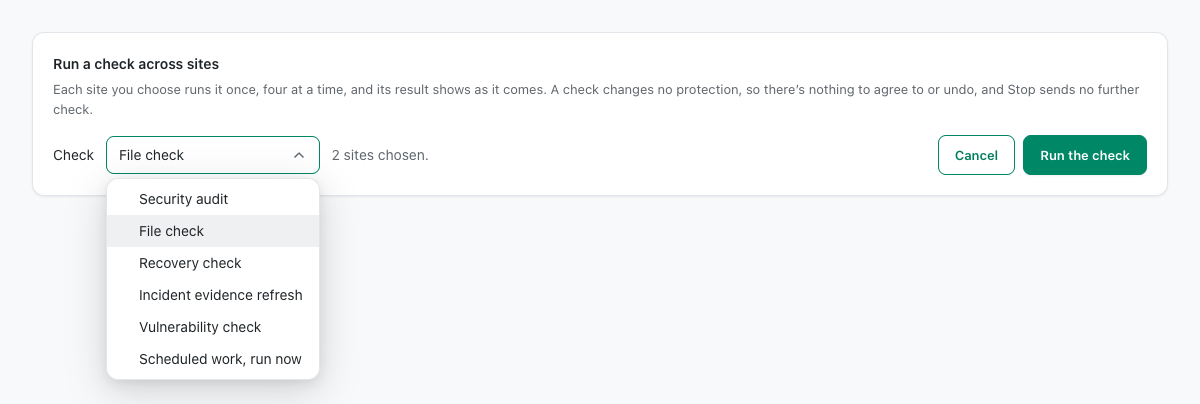
The choices are **Security audit**, **File check**, **Recovery check**, **Incident evidence refresh**, **Vulnerability check** and **Scheduled work, run now**. A run sends work to four sites at a time and can include up to 50 sites.
These operations do not apply or remove a protection. **Scheduled work, run now** runs the site’s due tasks, so review its [scheduled work](/docs/scheduled-audits/) before starting it.
## Step 1: Open Sites
Use an owner or admin account and a site connection that allows changes. Open **Sites** and select **Run a check**. The control appears when a site offers a supported check.
Choose one of the six checks, select eligible sites and review the operation results after running it.
## Step 2: Run a check across sites
- Under **Check**, choose the check. The initial choice is **File check**.
- Tick the sites. A site is unavailable when its connection cannot run the chosen check or its BetterShield version does not offer it.
- Select **Run the check**.
- Follow the operation page as each site reports **Checked**, **Refused**, **Not confirmed**, **Failed**, **Waiting**, **Checking** or **Not sent**.
## Recommended settings
Our advice:
- Run a **Security audit** after a coordinated settings change.
- Run a **File check** after plugin, theme or server maintenance.
- Run a **Recovery check** after changing recovery links or codes.
- Use **Incident evidence refresh** while reviewing related events.
- Use **Vulnerability check** for a fresh advisory match where the site offers it.
- Use **Scheduled work, run now** when you intend to run the tasks that are due.
## What it can break and how to undo
The checks do not change protections, so there is no protection setting to undo. File and vulnerability checks can take time and contact their configured sources. Scheduled work can carry out due tasks; stopping the Hub run does not undo work already sent to a site.
Select **Stop** to send no further checks. Checks already completed stay in Activity.
## Final Outcome
The operation page moves sites from **Waiting** or **Checking** to a final result.
- Completed checks appear in Activity.
- The site's corresponding report shows a fresh check time.
Example Run Hub checks view. Check the saved values and status on your own site.
## Related
- [Browse and filter sites](/docs/hub-sites/)
- [Review Hub activity](/docs/hub-activity/)
- [Run and monitor scheduled audits](/docs/scheduled-audits/)
This is how you can run a check across sites in BetterShield Hub.
Getting Stuck? Feel free to contact our [Dedicated Support Team](/support/).