# How To Review Sign-in Coverage With BetterShield Hub?
Compare two-factor and passkey coverage by role for connected sites and download each site's sign-in report CSV.
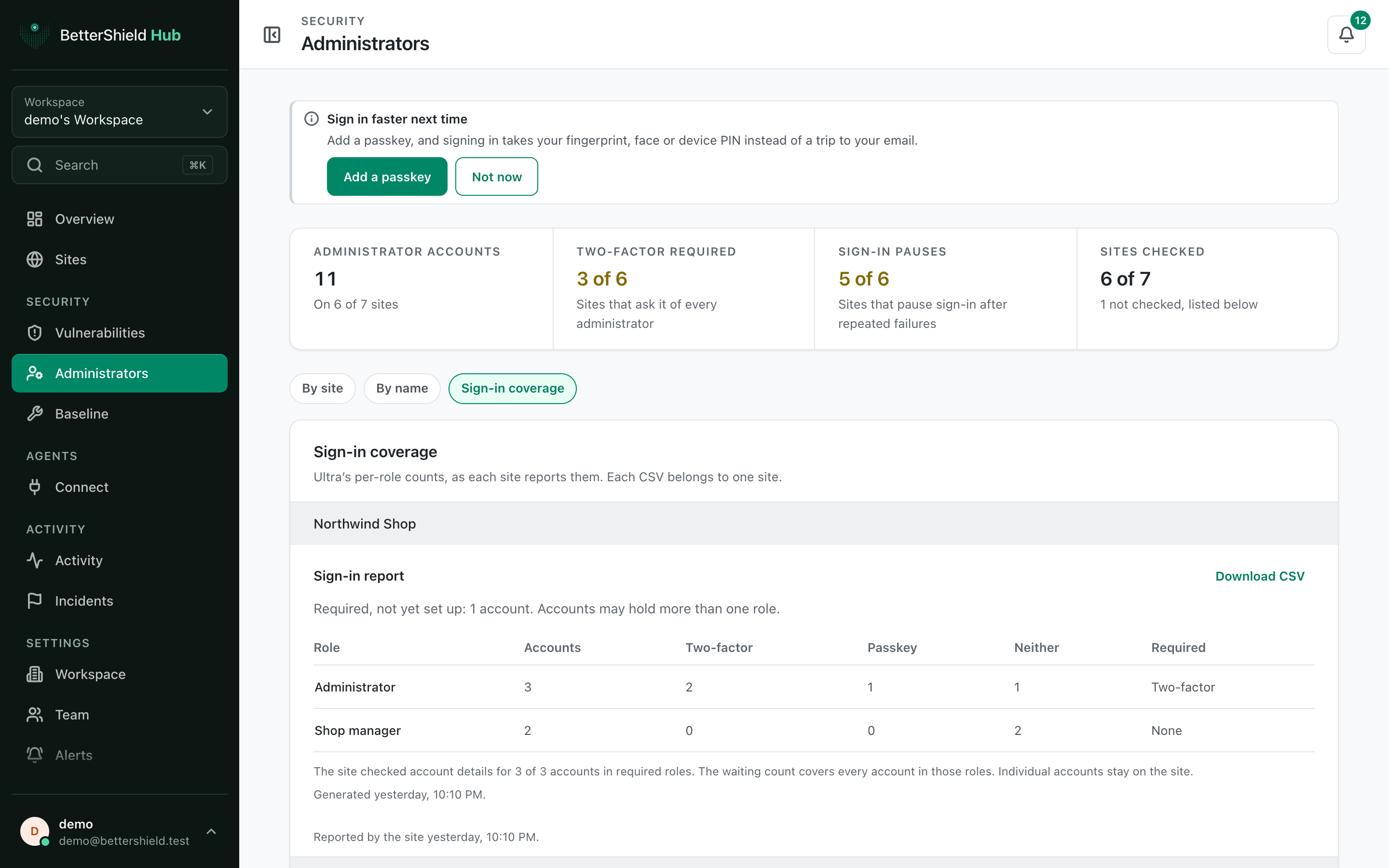
**Sign-in coverage** on the **Administrators** screen reads the per-role counts reported by [BetterShield Ultra](/ultra/) on each site.
_**Note:** Sign in to your free [BetterShield Hub](/bettershield-hub/) account. Your workspace role and site permissions determine which information and actions you can use._
## What it does
For each site, the report shows account counts by role, two-factor use, passkey use and what a policy requires. **Download CSV** saves that site's count report.
Hub does not combine names or email addresses into one cross-site export.
## Step 1: Open the feature
Install and configure BetterShield Ultra on the sites you want to compare.
Each site's counts and CSV stay separate.
## Step 2: Review sign-in coverage across BetterShield Hub sites
- Connect them to Hub with read access.
- Open **Security › Administrators**.
- Select **Sign-in coverage**.
- Use **Download CSV** beside a site when needed.
There are no Hub defaults. Counts come from each site's saved policies and account records.
## Recommended settings
Our advice:
- Compare coverage before requiring a factor for a new role.
- Follow up on a site's missing accounts from its WordPress Sign-in report.
- Keep exports only as long as the review requires.
## What it can break and how to undo
Reading or downloading the report changes nothing. A downloaded CSV becomes a separate copy under your control, so store and remove it according to your privacy process.
Policy changes happen on the WordPress site, not on this report.
## Final Outcome
Each compatible site shows role totals.
- **Download CSV** produces a file for that site.
- A site with an unavailable report explains why instead of showing zero.
Example Hub sign-in coverage view. Check the saved values and status on your own site.
## Related
- [See who has two-factor or a passkey](/docs/sign-in-report/)
- [Require two-factor by role](/docs/ultra-two-factor-policy/)
- [Ask roles to add a passkey](/docs/ultra-passkey-policy/)
This is how you can review sign-in coverage with BetterShield Hub.
Getting Stuck? Feel free to contact our [Dedicated Support Team](/support/).