# How To Manage a Connected Site in BetterShield Hub?
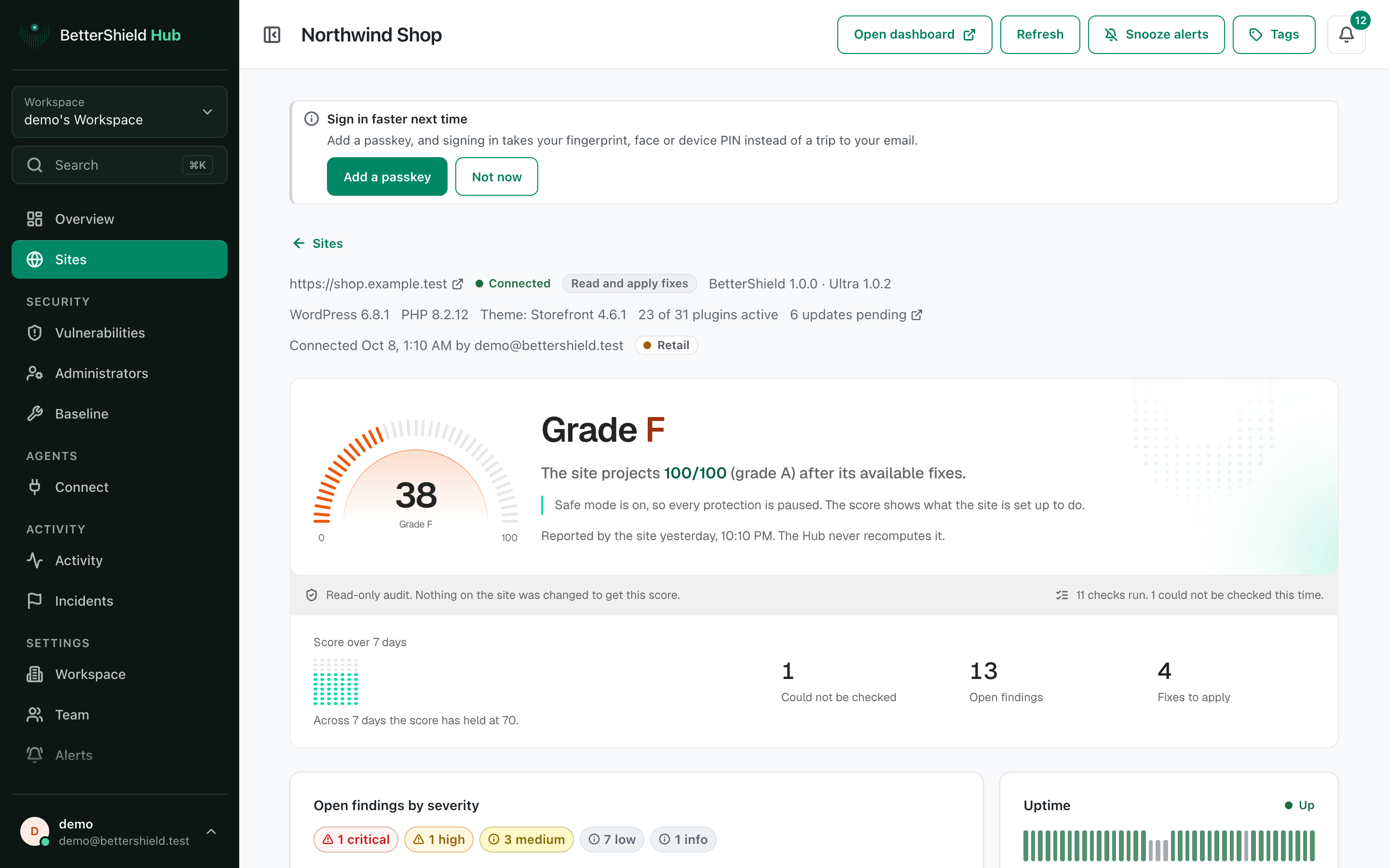
Use a connected site's Hub page to review posture, findings, activity, protections, recovery and site settings.
A connected site's page brings together what [BetterShield](/) reports and the actions that its Hub connection allows.
_**Note:** Sign in to your free [BetterShield Hub](/bettershield-hub/) account. Your workspace role and site permissions determine which information and actions you can use._
## What it does
The page can show score history, findings, protections, uptime and certificate state, vulnerabilities, administrators and sessions, sign-in coverage, incidents, assistant connections, file changes, recovery readiness, backups, scheduled work, Ultra details, site settings, email alerts, recent changes and notes.
What appears depends on the site's BetterShield version, installed add-ons, permissions and connection state. **Site settings** and **Site email alerts** are read-only summaries with **Open on the site** links; change those values in WordPress.
## Step 1: Open Sites
Open **Sites** and select the site.
The site page starts with current posture and links to the detailed cards below.
## Step 2: Manage a connected site
- Use **Run audit** or **Refresh** when the buttons are available.
- Select a page link or scroll to the card you need.
- Use **Open dashboard** when a setting must be changed on the site itself.
There is no site-page default. It reflects the connected site's current report.
## Recommended settings
Our advice:
- Check **Last read** before acting on a result.
- Review findings before changing protections.
- Keep the WordPress recovery route ready before making access changes.
## What it can break and how to undo
Reading or refreshing changes nothing. Actions that change the site show a plan or confirmation first. Some actions, such as revoking a credential, cannot be restored and must be created again.
If the connection is read-only, Hub shows information but does not apply changes.
## Final Outcome
The header shows the site name and connection state.
- **Last read** shows a recent time after refresh.
- Cards load from the site without a stale or unavailable message.
- A change made from Hub appears under **Changes made from hub** and Activity.
Example Hub site details view. Check the saved values and status on your own site.
## Related
- [Review and fix site findings in Hub](/docs/hub-site-findings/)
- [Review site file changes in Hub](/docs/hub-site-file-changes/)
- [Review a site's settings in Hub](/docs/hub-site-settings/)
- [Remove a site from Hub](/docs/remove-site-from-hub/)
This is how you can manage a connected site in BetterShield Hub.
Getting Stuck? Feel free to contact our [Dedicated Support Team](/support/).