# How To Review a Site's Email Alerts in BetterShield Hub?
Read a site's email-alert status in BetterShield Hub, then open WordPress to change recipients, instant alerts or the weekly summary.
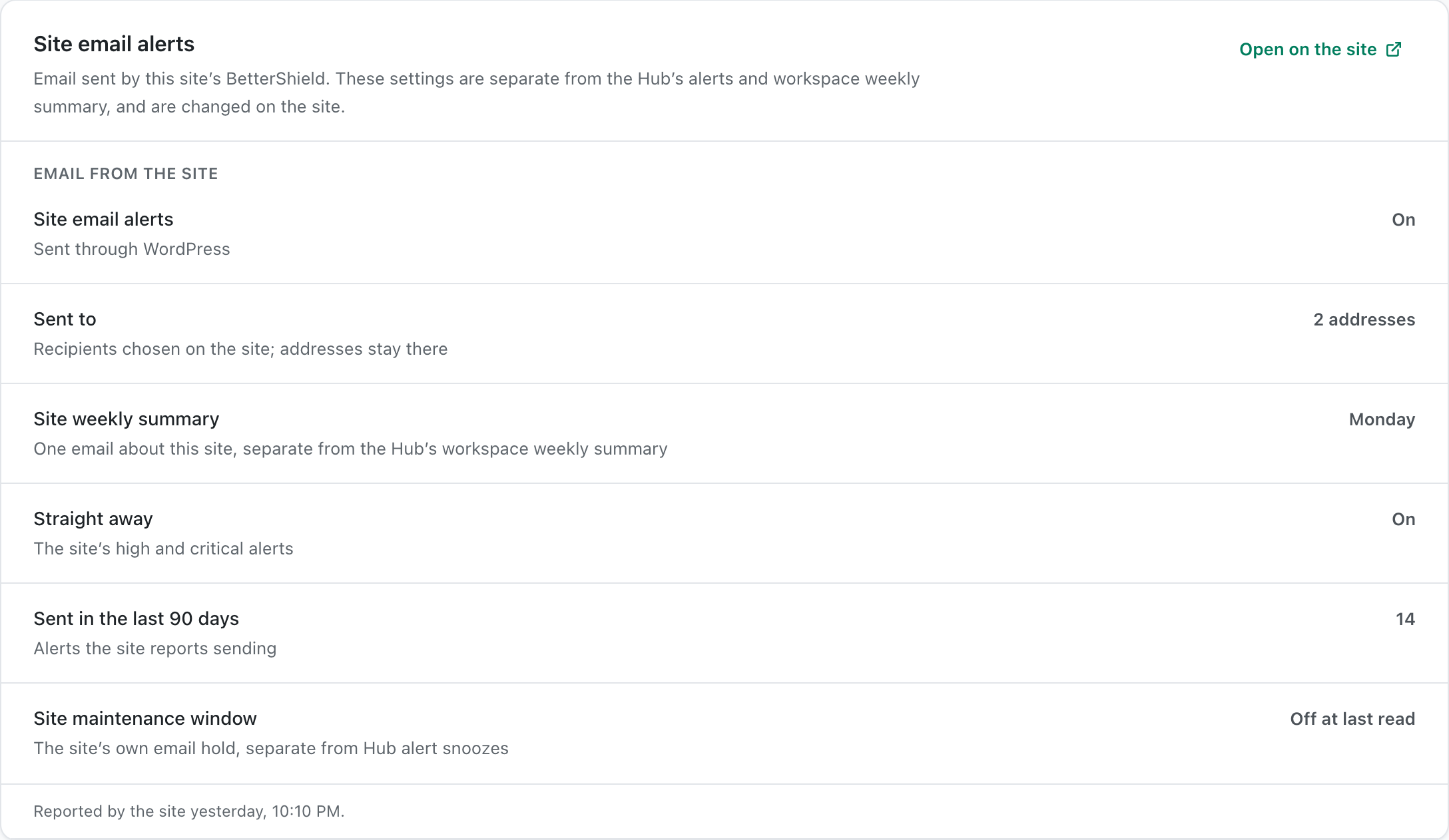
The site's **Site email alerts** card is a read-only summary of email settings reported by [BetterShield](/) on that WordPress site. Change these settings in WordPress.
_**Note:** Sign in to your free [BetterShield Hub](/bettershield-hub/) account. Your workspace role and site permissions determine which information and actions you can use._
## What it does
The card can show whether site email is muted, how many addresses receive it, the weekly summary, instant alerts, recent sends and a maintenance window. It reports a recipient count, not the email addresses themselves.
These are emails sent by the WordPress site. Hub's personal alerts, workspace weekly summary and shared destinations are separate.
## Step 1: Open Site email alerts
Open the connected site in Hub and find **Site email alerts**.
Hub displays the site's email status. Open on the site takes you to its WordPress controls.
## Step 2: Review a site's email alerts
- Review the reported settings and any stale or unavailable message.
- Select **Open on the site** and sign in to WordPress if asked.
- Under **BetterShield › Settings › Email alerts**, change the recipients or alert choices and save.
- Return to Hub and refresh the site to read the updated summary.
New installations of Free 1.1.5 start with instant alerts and the site weekly summary off. Existing saved choices are retained on update. Enable the emails you want on the WordPress site; connecting Hub does not enable them.
## Recommended settings
- Choose a monitored recipient before enabling site email.
- Send a test from WordPress after changing the recipient or mail setup.
- Set [Hub alert preferences](/docs/hub-alert-settings/) separately for workspace members.
- If your host manages alerts, review [host-managed alerts](/docs/host-managed-alerts/) on the site.
## What it can break and how to undo
Reading the Hub card changes nothing. Muting email, disabling a switch or removing a recipient in WordPress can stop that site's emails. Restore the previous choice on **Settings › Email alerts**.
This does not change Hub's own delivery choices or destinations.
## Final Outcome
Hub shows the updated status after a successful refresh.
- WordPress shows the intended recipients and enabled switches.
- A test email from the site reaches the expected inbox.
Example Hub site email view. Check the saved values and status on your own site.
## Related
- [Email alerts](/docs/email-alerts/)
- [Set Hub alert preferences](/docs/hub-alert-settings/)
- [Send Hub alerts to workspace destinations](/docs/hub-alert-destinations/)
This is how you can review a site's email alerts in BetterShield Hub.
Getting Stuck? Feel free to contact our [Dedicated Support Team](/support/).