# How To Review Site File Changes in BetterShield Hub?
Review changed and expected files for a connected site, inspect progress and use supported restore or quarantine actions from Hub.
The site's file card reads the file-change report held by [BetterShield](/) on that site. It can show a check in progress, changed files, expected files and supported actions.
_**Note:** Sign in to your free [BetterShield Hub](/bettershield-hub/) account. Your workspace role and site permissions determine which information and actions you can use._
## What it does
Use the file views to see what BetterShield compared, what changed and which changes were marked expected. Supported core and WordPress.org plugin files can be put back from the official copy. Free 1.1.5 can also compare supported WPDeveloper paid plugins with publisher checksums. A checksum comparison does not provide a replacement download or enable Hub to restore paid-plugin files.
## Step 1: Open the feature
Open the site in Hub and go to its file card.
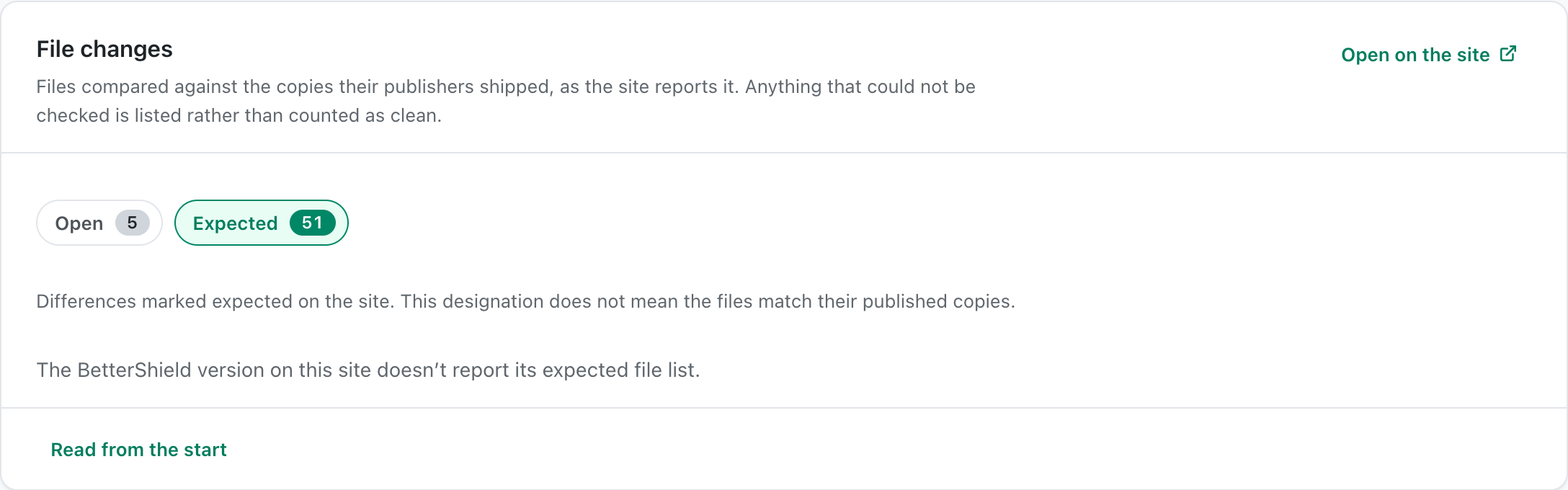
The file card keeps changed and expected files in separate views.
## Step 2: Review site file changes
- Select the changed or **Expected** view.
- Use **Check now** when a fresh comparison is needed. A check in progress offers **Continue file check**.
- Use **Put the official file back at [path]** or **Mark [path] expected** when that action is available.
There are no Hub defaults. The site keeps the file report and decides which actions are available.
## Recommended settings
Our advice:
- Run a fresh file check after an update or restore.
- Confirm a custom or generated file before marking it expected.
- Keep a separate backup before changing files.
## What it can break and how to undo
Putting an official file back can stop code that the site relies on. Read the plan first. The change can be undone only if the site still has the previous value in its undo record.
If the site stops working, use its recovery route or hosting file manager and restore from a trusted backup.
## Final Outcome
A file check shows progress and then a completion time.
- The changed and expected counts match the rows shown.
- A successful action appears in **Changes made from hub** and Activity.
Example Hub file changes view. Check the saved values and status on your own site.
## Related
- [File changes](/docs/file-changes/)
- [Restore official files](/docs/restore-official-files/)
- [File quarantine](/docs/file-quarantine/)
- [Paid-plugin checks and host deployments](/docs/file-changes/#paid-plugin-updates-and-host-deployments)
This is how you can review site file changes in BetterShield Hub.
Getting Stuck? Feel free to contact our [Dedicated Support Team](/support/).