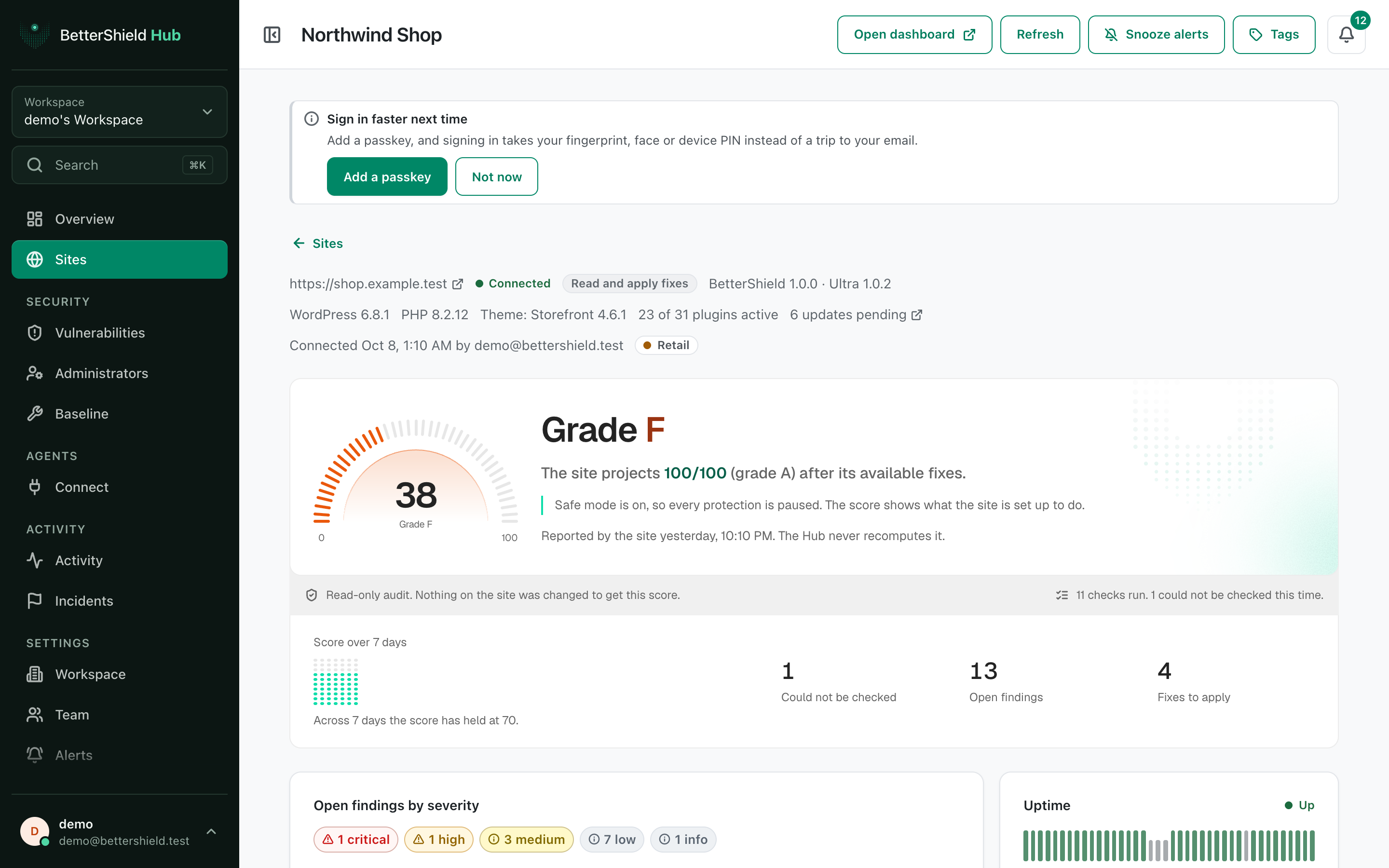
# How To Review and Fix Site Findings in BetterShield Hub?
Review open, fixed and not-applicable findings for one site, then inspect a plan before applying or undoing a fix from Hub.
The site page's findings show what its own [BetterShield](/) audit reported. A connection with change access can prepare supported fixes and undo plans.
_**Note:** Sign in to your free [BetterShield Hub](/bettershield-hub/) account. Your workspace role and site permissions determine which information and actions you can use._
## What it does
Use **Open**, **Fixed** and **Not applicable** to review findings by state. Select a finding to read its reason and available action.
Hub offers only the fixes supported by its connection and the tools reported by the site. A finding with a direct action in WordPress does not necessarily have the same action in Hub. Open the WordPress dashboard when no Hub action is offered.
**Apply fix** asks the site to write a plan first. **Undo** does the same for a supported earlier change. Hub shows what the plan will change before you agree.
## Step 1: Open Read this site and apply fixes that can be undone
Connect the site with **Read this site and apply fixes that can be undone**.
Findings come from the connected site and keep the same state they have in WordPress.
## Step 2: Review and fix site findings
- Open the site and find **Findings**.
- Select **Open**, **Fixed** or **Not applicable**.
- Choose a finding and select **Apply fix** or **Undo** when offered.
- Read the plan, then agree only when the described change is right.
The default connection can apply supported changes. A consent choice or site policy can make it read-only.
## Recommended settings
Our advice:
- Work through critical and high findings first.
- Apply one unfamiliar fix at a time and check the site afterwards.
- Use **Not applicable** only when the finding truly does not fit this site.
## What it can break and how to undo
A protection can affect sign-in, headers, files or integrations. The plan states the scope before it runs. Use **Undo** only when it is offered and read that plan too.
Not every change has an undo. When no undo is offered, restore the setting on the WordPress site or from your own backup.
## Final Outcome
The finding moves to **Fixed** after a successful fix.
- The site's score and counts update after a fresh audit.
- **Changes made from hub** records the action and its result.
Example Hub site findings view. Check the saved values and status on your own site.
## Related
- [Manage a connected site in Hub](/docs/hub-site-details/)
- [Apply finding fixes](/docs/apply-finding-fixes/)
- [Restore a settings change](/docs/restore-settings-change/)
This is how you can review and fix site findings in BetterShield Hub.
Getting Stuck? Feel free to contact our [Dedicated Support Team](/support/).