# How To Organize a Site in BetterShield Hub?
Add workspace tags and notes to a Hub site, or snooze its alerts for a fixed time.
In **[BetterShield Hub](/bettershield-hub/)**, use a site's **Tags**, note and **Snooze alerts** controls to organize workspace work without changing the WordPress site.
_**Note:** Sign in to your free [BetterShield Hub](/bettershield-hub/) account. Your workspace role and site permissions determine which information and actions you can use._
## What it does
Tags group sites for the Sites list, baselines, status pages and client reports. A site note gives workspace members context. Snoozing pauses that site's Hub alerts until the chosen time, without turning off the site's protection or its own email settings.
## Step 1: Open the feature
Open the site.
Tags belong to the workspace and can be applied to more than one site.
## Step 2: Organize a site
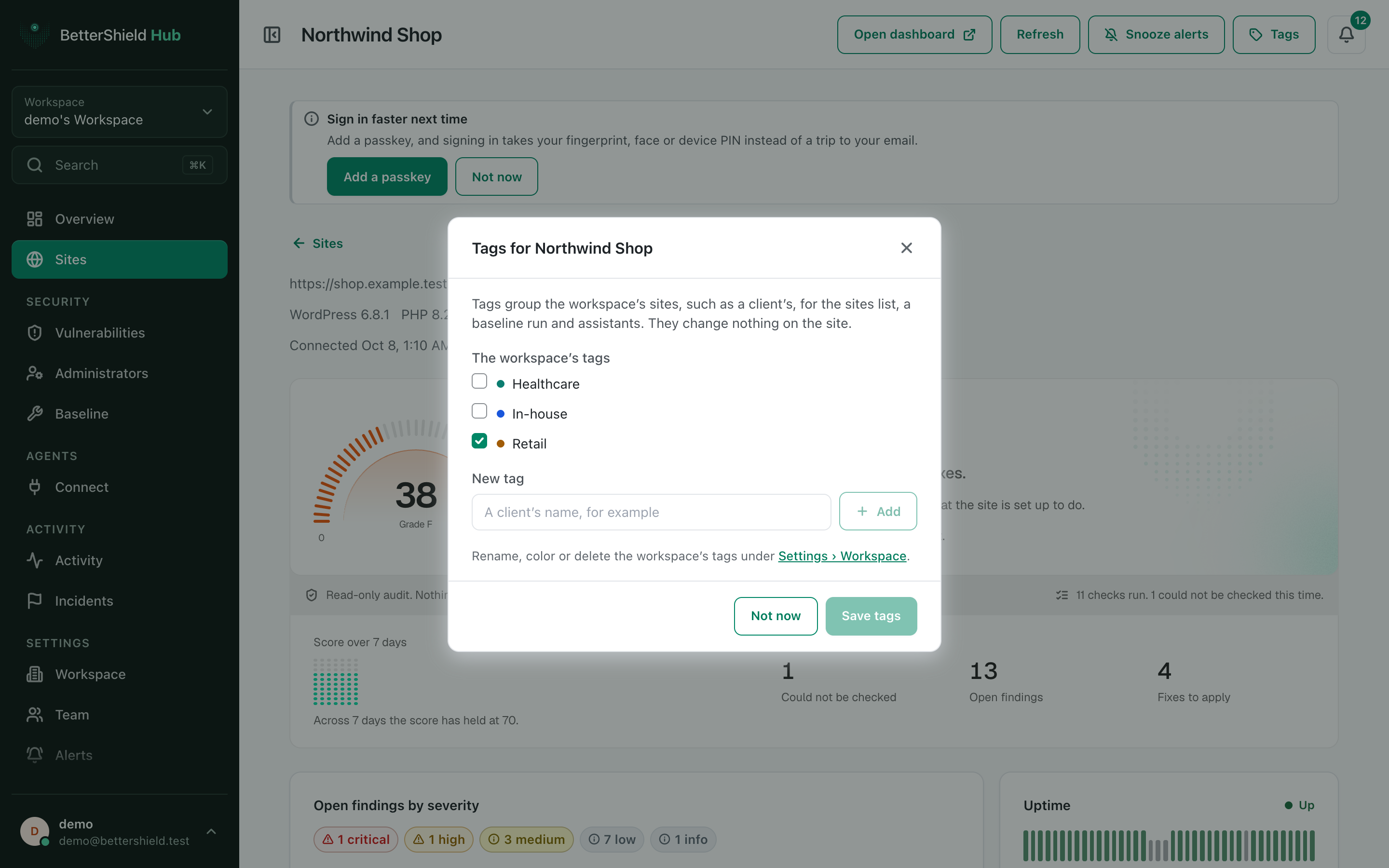
- Select **Tags**, tick the workspace tags and save. No tag is selected by default.
- Add or edit the site note when the note card is available. It starts empty.
- Select **Snooze alerts**, choose the offered duration or end time, and confirm. Alerts are not snoozed by default.
Create and edit the workspace's tag list under **Settings › Workspace**.
## Recommended settings
Our advice:
- Use a small tag set with clear meanings, such as client or maintenance group.
- Put operational context in the note, never passwords, keys or recovery codes.
- Snooze only for a known maintenance window and let it expire promptly.
## What it can break and how to undo
Tags and notes do not affect the site. Remove a tag or edit the note to undo the organization change.
Snoozing can hide Hub notifications you expected to receive. End the snooze from the site or **Settings › Alerts**.
## Final Outcome
The site's tags appear on its row and in the Tag filter.
- The note remains after reload.
- A snoozed site shows its end time and appears in the **Snoozed** Sites view.
Example Organize Hub sites view. Check the saved values and status on your own site.
## Related
- [Browse and filter sites](/docs/hub-sites/)
- [Manage the Hub workspace](/docs/hub-workspace/)
- [Set Hub alert preferences](/docs/hub-alert-settings/)
This is how you can organize a site in BetterShield Hub.
Getting Stuck? Feel free to contact our [Dedicated Support Team](/support/).