# How To Review Site Settings With BetterShield Hub?
Read password policy, security contact, usage sharing and uninstall choices in Hub, then open WordPress to change them.
[BetterShield Hub](/bettershield-hub/) lets you review a connected WordPress site's settings before opening its dashboard. Check the password policy, security contact, usage sharing and uninstall choice in one place, then open WordPress when something needs changing.
_**Note:** Connect the site to Hub and sign in with an account permitted to manage it. To change settings, you also need a WordPress account allowed to manage BetterShield. Ultra is not required._
## Step 1: Review the Site Settings
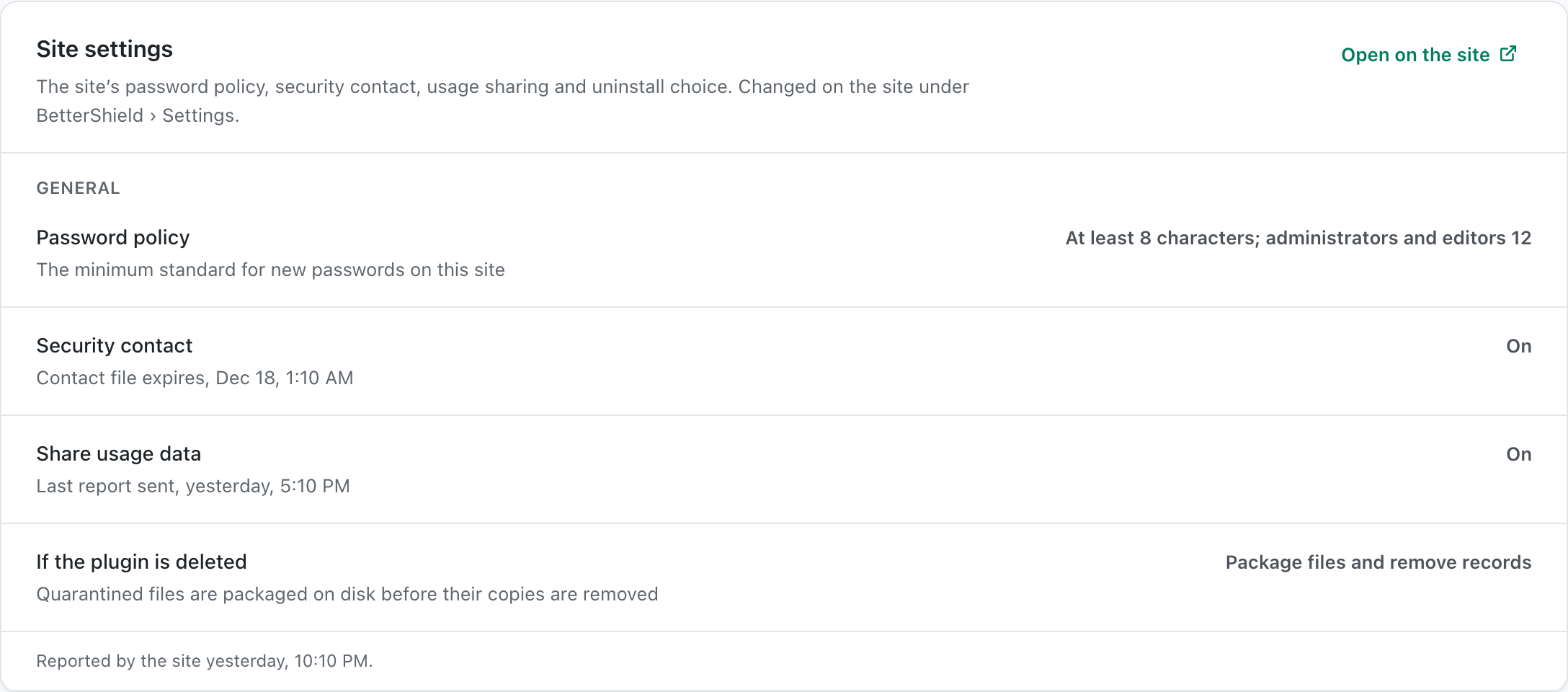
Open **Sites** in BetterShield Hub and select the connected site. Scroll to **Site settings** to review these values:
- **Password policy**: whether the policy is enabled and the minimum password lengths reported by the site.
- **Security contact**: whether the site publishes a security contact and, when available, its expiry.
- **Share usage data**: whether sharing is enabled and when the last report was sent.
- **If the plugin is deleted**: whether the site keeps its data, removes records, or packages quarantined files before removing records.
These rows show the site's saved choices. They are read-only, even when the Hub connection allows fixes. If the card reports stale or unavailable information, refresh the site before relying on those values.
## Step 2: Make Changes in WordPress
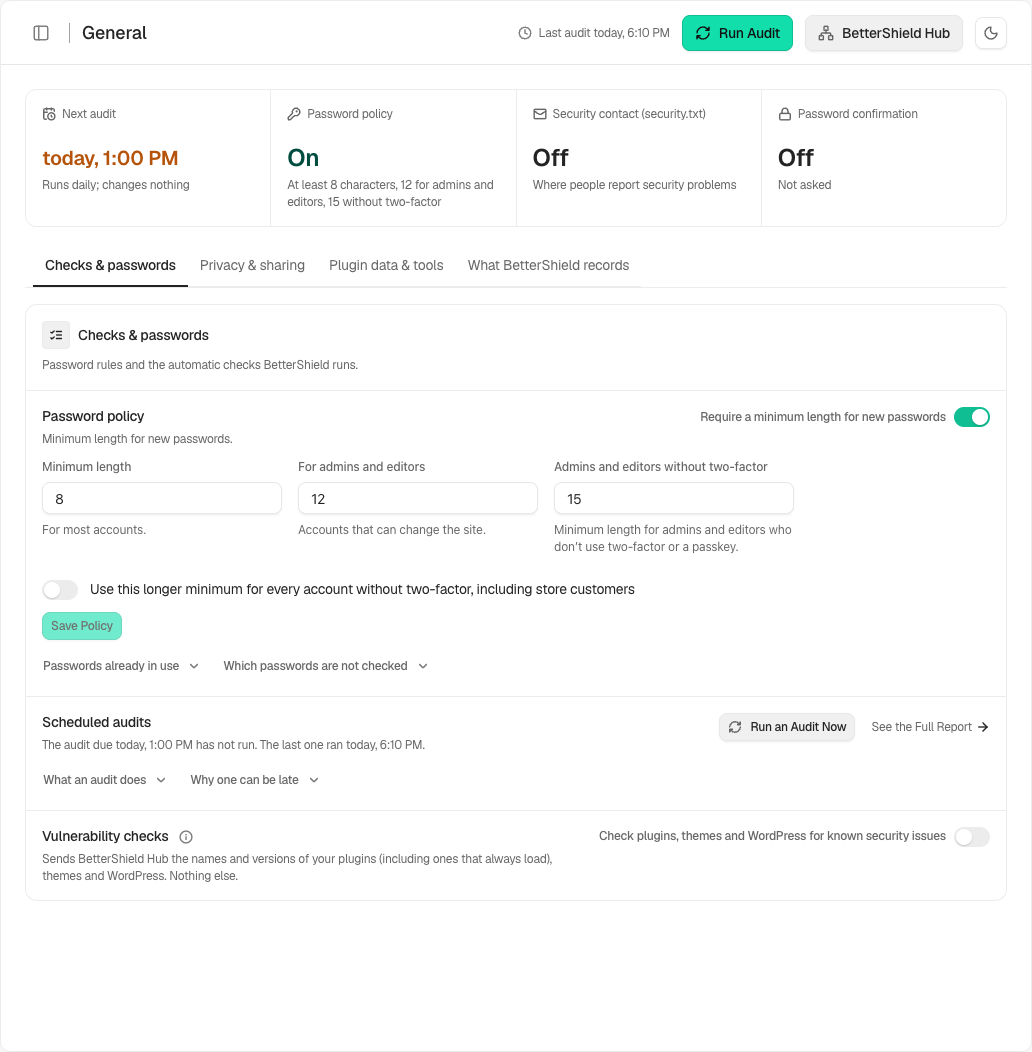
Select **Open on the site** on the card and sign in to WordPress if asked. The link opens **BetterShield → Settings → General**.
Choose the setting you need to change. Each setting has its own controls and save behavior:
- [Password policy](/docs/minimum-password-standard/)
- [Security contact](/docs/security-contact/)
- [Usage sharing](/docs/share-usage-data/)
- [Plugin deletion choices](/docs/deletion-data-choice/)
Follow that setting's instructions, then return to the site's Hub page and select **Refresh** to read the updated values.
## Final Outcome
You can now review the site's current settings in Hub and open the matching WordPress screen to make changes. After a successful refresh, the Hub card reflects the values reported by the site.

This is how you can review site settings with BetterShield Hub.
Getting Stuck? Feel free to contact our [Dedicated Support Team](/support/).