# How To Read BetterShield Ultra Status in Hub?
Read the connected site's BetterShield Ultra overview, including policies, channels, reports and response status, from Hub.
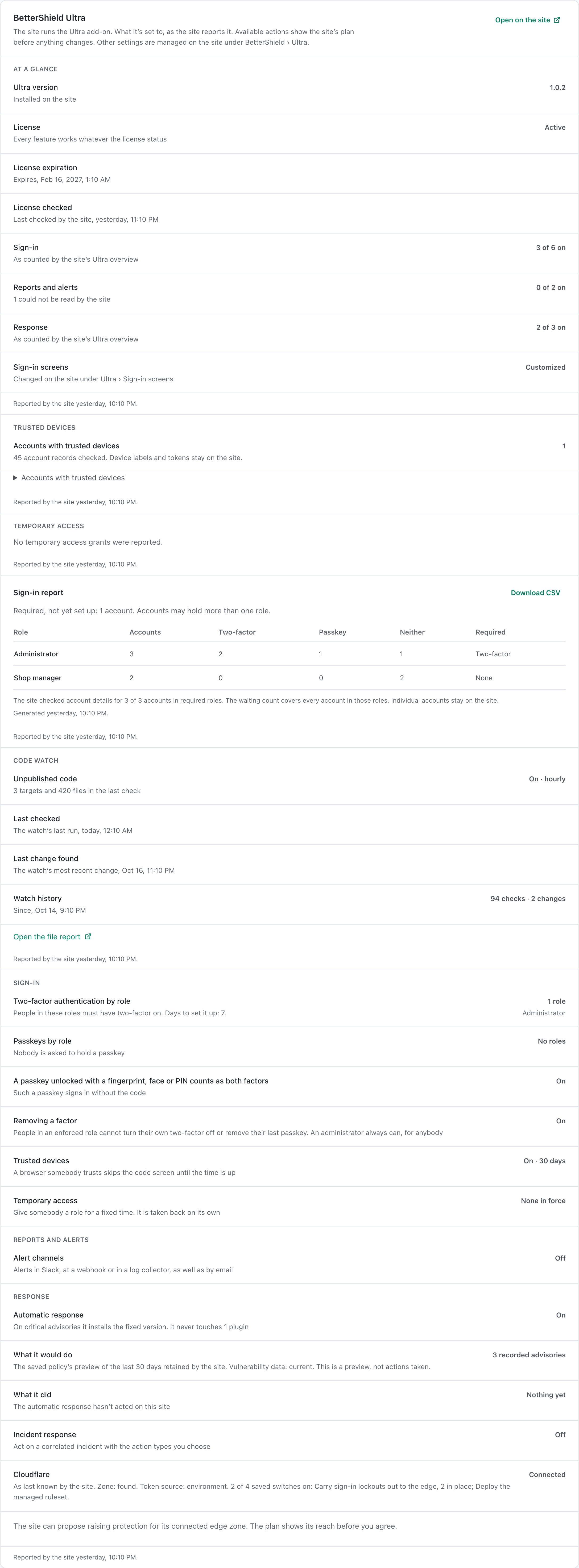
The site page's **BetterShield Ultra** reads the feature status reported by [BetterShield Ultra](/ultra/). It is a summary for review, not a second copy of every Ultra control.
_**Note:** Sign in to your free [BetterShield Hub](/bettershield-hub/) account. Your workspace role and site permissions determine which information and actions you can use._
## What it does
The card can summarize sign-in policies, trusted devices, temporary access, alert channels, client reports, response controls, the unpublished code watch, Cloudflare and the Ultra license state.
Some supported actions, such as forgetting trusted devices or ending temporary access, can be offered here when your role and the site connection allow changes. Hub shows the site’s plan before you agree. Other settings stay in WordPress. In Ultra 1.0.6, configure request-protection exceptions and repeat-request controls on the site.
The exact list depends on the installed Ultra version and what the site permits Hub to read.
## Step 1: Open the feature
Install BetterShield Ultra on the WordPress site.
The Ultra overview shows which add-on features the connected site reports as on, off or unavailable.
## Step 2: Read BetterShield Ultra status in Hub
- Connect the site to Hub with read access.
- Open the site and find **BetterShield Ultra**.
- Use the WordPress link for a feature that must be configured on the site.
There are no Hub defaults. The values come from Ultra.
## Recommended settings
Our advice:
- Use this card for a quick consistency check across managed sites.
- Open WordPress before changing a policy whose full context is not visible in the summary.
- Review the status again after an Ultra update.
## What it can break and how to undo
Reading the Ultra overview changes nothing. Review the plan before a supported Hub action. Forgetting trusted devices or ending access can require people to sign in or verify again. Other changes follow the controls and undo options of that Ultra feature on the WordPress site.
A stale message means Hub could not refresh the overview. Check the site connection before relying on the old values.
## Final Outcome
The card lists the Ultra features offered by the site.
- Each item has a current state instead of a stale or unavailable message.
- Opening a feature takes you to the matching WordPress screen when a link is offered.
Example Hub Ultra status view. Check the saved values and status on your own site.
## Related
- [BetterShield Ultra overview](/docs/bettershield-ultra/)
- [Manage a connected site in Hub](/docs/hub-site-details/)
- [Connect a site to BetterShield Hub](/docs/connect-to-bettershield-hub/)
This is how you can read BetterShield Ultra status in Hub.
Getting Stuck? Feel free to contact our [Dedicated Support Team](/support/).