# How To Browse and Filter Sites in BetterShield Hub?
Search, filter and sort connected sites by status, grade, tag, BetterShield version or reported network in BetterShield Hub.
In **[BetterShield Hub](/bettershield-hub/)**, the **Sites** screen is the workspace list. Use it to find a site, compare reported posture and open common views without checking each WordPress dashboard.
_**Note:** Sign in to your free [BetterShield Hub](/bettershield-hub/) account. Your workspace role and site permissions determine which information and actions you can use._
## What it does
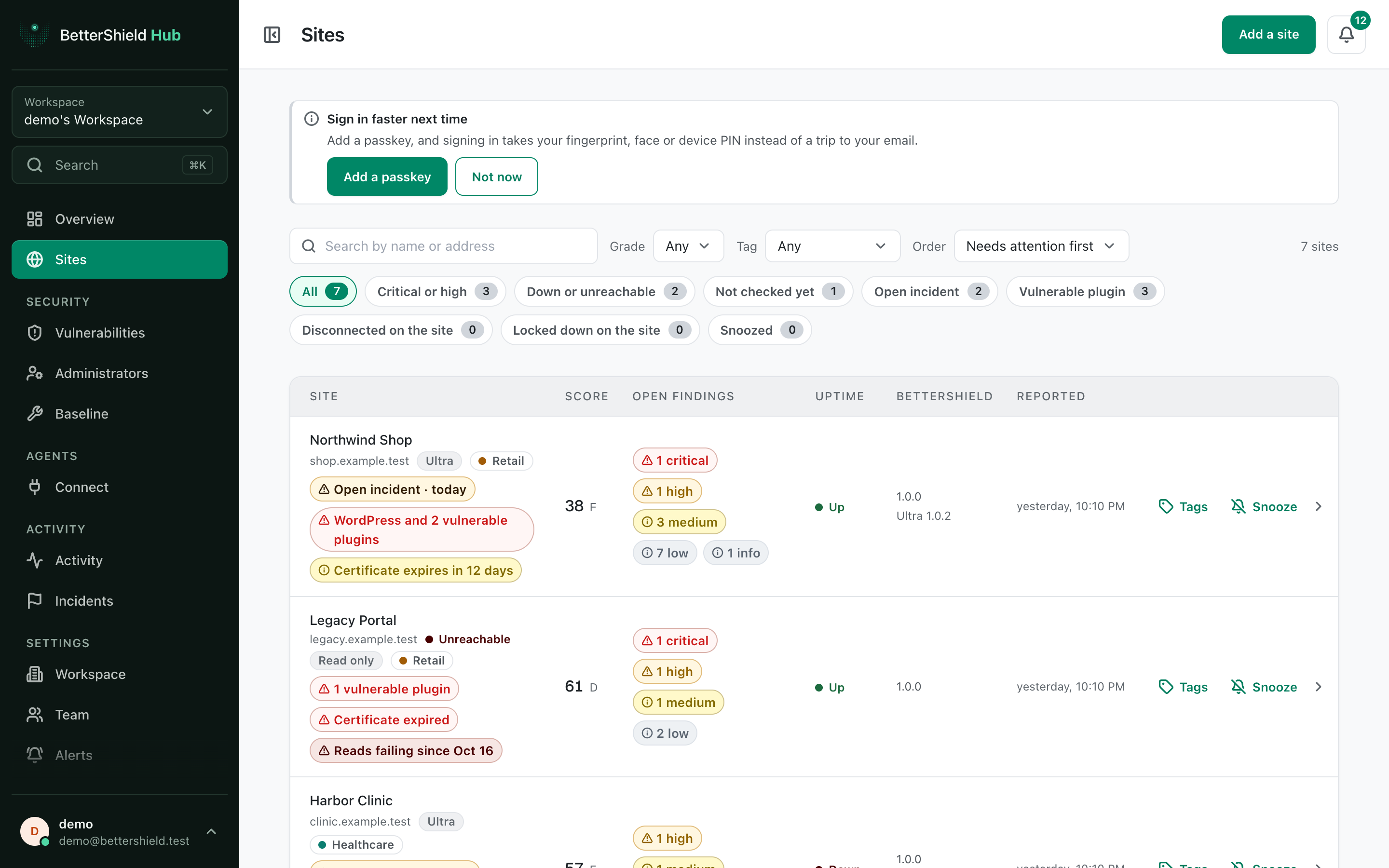
Each row shows the site's score, grade, findings and connection state. Sites from one reported WordPress network are grouped together when that information is available.
The vulnerability chip and **Vulnerable plugin** filter count confirmed affected-version matches. Uncertain matches are kept on the individual site page under **Match uncertain**; they do not increase the confirmed count. Informational advisories are not actionable findings.
The **Show** views include **All**, **Critical or high**, **Down or unreachable**, **Not checked yet**, **Open incident**, **Vulnerable plugin**, **Disconnected on the site**, **Locked down on the site** and **Snoozed**.
## Step 1: Browse and Filter Sites in BetterShield Hub
Open **Sites**. The default choices are:
| Option | Default |
| --- | --- |
| **Search by name or address** | Empty |
| **Grade** | **Any** |
| **Tag** | Any tag |
| **BetterShield** | Any version |
| **Order** | **Needs attention first** |
| **Show** | **All** |
The tag filter appears when the workspace has tags. The version filter appears when the sites report versions. **Reported network** appears when the list contains more than one network.
The default view shows every site with the ones needing attention first.
## Recommended settings
Our advice:
- Use **Critical or high** for routine review.
- Use **Older than** in the BetterShield version choices before an update round.
- Use workspace tags for client, environment or maintenance groups.
## What it can break and how to undo
Filtering and sorting change no site. Clear the search and choose **All**, **Any** and **Needs attention first** to return to the default view.
Rows for disconnected sites are history. Reconnect from the site's WordPress dashboard before treating the old score as current.
## Final Outcome
The result count changes as filters change.
- **No site matches** offers **Show every site** when a filter returns nothing.
- Selecting a row opens that site's detail screen.
- A view opened from Overview shows the same count on Sites.
Example Hub sites view. Check the saved values and status on your own site.
## Related
- [Use the Hub overview](/docs/hub-overview/)
- [Run a check across sites](/docs/hub-run-checks/)
- [Organize a Hub site](/docs/hub-site-organization/)
This is how you can browse and filter sites in BetterShield Hub.
Getting Stuck? Feel free to contact our [Dedicated Support Team](/support/).