# How To Set Team Roles and Site Access With BetterShield Hub?
Choose a workspace role and limit a BetterShield Hub member to every site or selected sites.
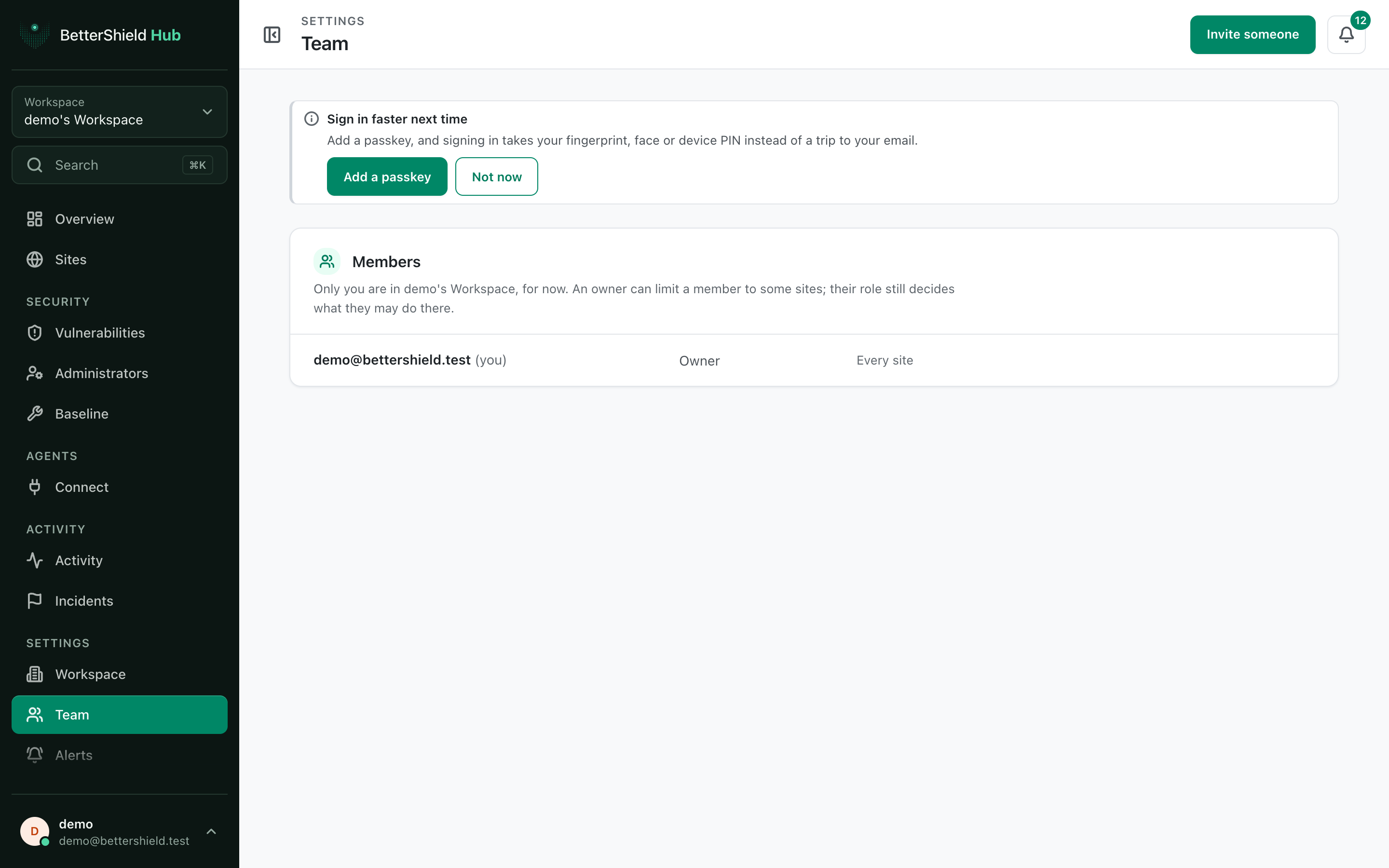
In **[BetterShield Hub](/bettershield-hub/)**, the **Members** card on **Settings › Team** controls each person's workspace role and the sites they can see.
_**Note:** Sign in to your free [BetterShield Hub](/bettershield-hub/) account. Your workspace role and site permissions determine which information and actions you can use._
## What it does
Roles are **Owner**, **Admin** and **Viewer**. Owners control the whole workspace. Administrators manage within their allowed scope. Viewers read what their scope permits.
For a non-owner, **Sites they can see** can be **Every site** or **Only these sites**.
## Step 1: Open Settings › Team
Open **Settings › Team**.
A role sets the ceiling; site access can narrow it further.
## Step 2: Set BetterShield Hub member roles and site access
- Change the member's role and save. Their current role is the default.
- Open the member's site access.
- Choose **Every site** (default when unrestricted) or **Only these sites** and tick at least one site.
- Save the access.
Making someone an owner requires a separate confirmation.
## Recommended settings
Our advice:
- Use **Viewer** for review-only work.
- Limit client staff to their own sites.
- Reserve **Owner** for people responsible for membership and workspace settings.
## What it can break and how to undo
Narrowing access can make sites, reports and related alerts disappear for that member. Restore the earlier role or site scope to bring them back.
An owner cannot be site-limited. Change ownership only when full control is intended.
## Final Outcome
The member row shows the saved role and scope.
- The member can open allowed sites and cannot open excluded ones.
- Their alerts and activity views follow the same visibility.
Example Hub team access view. Check the saved values and status on your own site.
## Related
- [Manage the Hub team](/docs/hub-team/)
- [Invite someone to a Hub workspace](/docs/hub-team-invitations/)
- [Transfer a Hub workspace](/docs/transfer-hub-workspace/)
This is how you can set team roles and site access with BetterShield Hub.
Getting Stuck? Feel free to contact our [Dedicated Support Team](/support/).