# How To Brand Shared Pages from BetterShield Hub?
Add a workspace name, accent color and logo for Hub status pages and client reports.
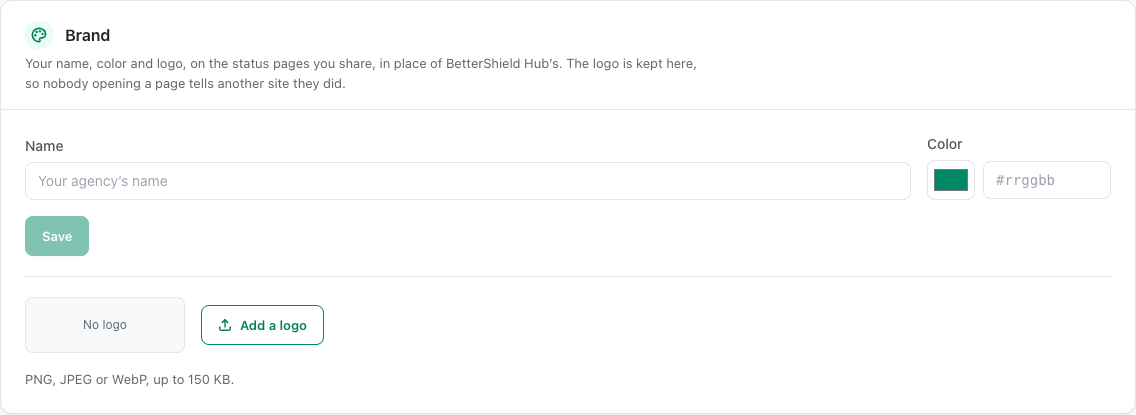
In **[BetterShield Hub](/bettershield-hub/)**, the **Brand** card under **Settings › Workspace** supplies the name, color and logo used by branded status pages and client reports.
_**Note:** Sign in to your free [BetterShield Hub](/bettershield-hub/) account. Your workspace role and site permissions determine which information and actions you can use._
## What it does
Branding replaces the BetterShield Hub identity on a shared page or report with the workspace's saved name, accent color and logo.
## Step 1: Open Settings › Workspace
Open **Settings › Workspace** and find **Brand**.
The Brand card controls the workspace name, accent color and logo.
## Step 2: Brand shared pages
- Enter the workspace or agency name. It starts empty.
- Set the accent color. It starts with the Hub accent when no brand color is saved.
- Upload a logo. No logo is set by default, and the saved file must stay within the screen's size limit.
- Save the brand.
- Turn on **With your brand** when creating a status page or client report. It is on by default in those dialogs.
## Recommended settings
Our advice:
- Use a short name and a high-contrast accent color.
- Use a simple logo that remains clear at small sizes.
- Preview a client report before sending it.
## What it can break and how to undo
Branding changes only shared Hub output. A low-contrast color or crowded logo can make it harder to read.
Edit or clear the brand, or turn off **With your brand** on the status page or report.
## Final Outcome
The Brand card shows the saved name, color and logo.
- A preview with **With your brand** uses them.
- An unbranded page keeps BetterShield Hub's identity.
The Brand card controls the workspace name, accent color and logo.
## Related
- [Publish a Hub status page](/docs/hub-status-pages/)
- [Send Hub client reports](/docs/hub-client-reports/)
- [Manage the Hub workspace](/docs/hub-workspace/)
This is how you can brand shared pages from BetterShield Hub.
Getting Stuck? Feel free to contact our [Dedicated Support Team](/support/).