# How To Connect Incident Destinations With BetterShield Ultra?
Use PagerDuty, Opsgenie or help-desk email for one incident thread that follows acknowledgment and resolution.
With **[BetterShield Ultra](/ultra/)**, use PagerDuty, Opsgenie or help-desk email for one incident thread that follows acknowledgment and resolution.
_**Note:** These controls require the paid [BetterShield Ultra](/ultra/) add-on alongside the free BetterShield plugin._
## What it does
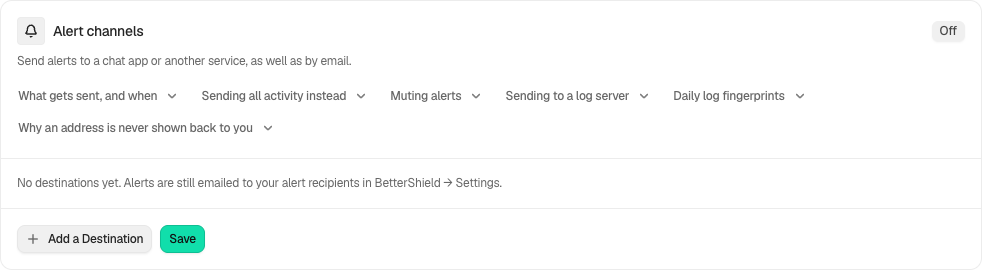
Open **BetterShield › Ultra › Alert channels**. PagerDuty and Opsgenie destinations open one alert per incident. A help-desk email destination opens one ticket thread per incident. Acknowledging or handling the incident updates the existing alert or thread instead of opening another for every event.
## Step 1: Open Add a Destination
Select **Add a Destination**, then choose **PagerDuty**, **Opsgenie** or **Help desk (by email)** under **Send to**.
Review the state and choices shown on your own site before applying a change.
## Step 2: Connect Incident Destinations
- Enter a name and the fields for that kind. For help desk, use the address that creates tickets. For a paging service, review its region and connector-key requirements.
- Save the destination before selecting **Send a Test Message**. A paging test opens and closes a test alert immediately.
- Review delivery in the destination service.
## Recommended settings
Our advice: use a test destination first and ensure service-region and connector settings match your account.
## What it can break and how to undo
Delivery creates records in another service. Removing a destination stops future sends; it does not erase external tickets. Preserve the real incident’s history while correcting delivery problems.
## Final Outcome
Follow one incident from opening through acknowledgment to handled. The external service should update the same alert or help-desk thread, with an appropriate closing message.
Example Incident destinations view. Check the saved values and status on your own site.
## Related
- [Ultra overview](/docs/ultra-overview/)
- [Activity log](/docs/activity-log/)
- [Alert destinations](/docs/alert-destinations/)
- [Incident escalation](/docs/incident-escalation/)
This is how you can connect incident destinations with BetterShield Ultra.
Getting Stuck? Feel free to contact our [Dedicated Support Team](/support/).