# How To Review the Language Used by BetterShield?
See whether BetterShield screens and server messages are translated into the current WordPress language.
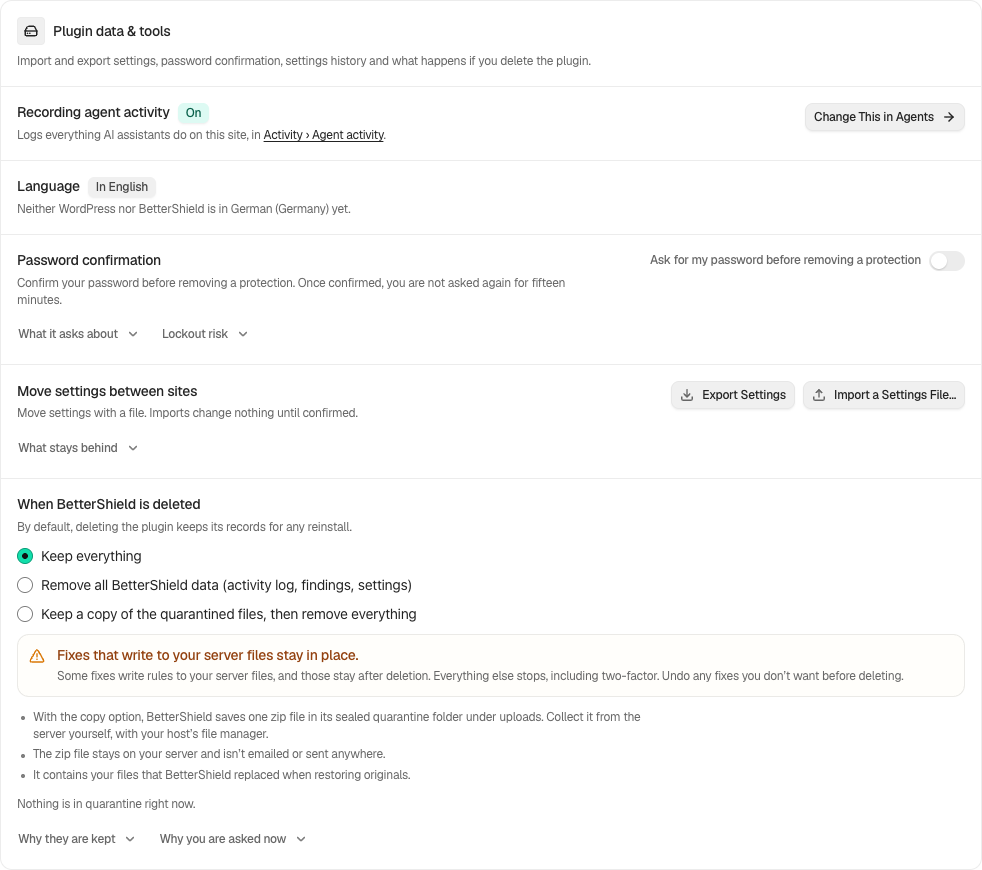
In **[BetterShield](/)**, the language row appears under **BetterShield › Settings › General › Plugin data & tools** when your WordPress profile language is not English.
## What it does
The row compares your WordPress user locale with BetterShield's browser catalog and server catalog. It can report that both are translated, that only screens are translated, that only email and other server messages are translated, or that BetterShield remains in English. It also distinguishes a missing WordPress core translation.
## Alerts and summaries
Alert email and the weekly summary are written in each recipient's own language, not the language of whoever saved the settings. An address that belongs to a user on the site is written in that user's language, and any other address in the site language. See [Alerts in each person's language](/docs/alerts-in-your-language/).
## Step 1: Review the Language Used by BetterShield
Choose your preferred language under **Users › Profile › Language**. If your profile uses the site default, choose it under **Settings › General › Site Language** instead. Install available language updates, then return to BetterShield Settings.
The language row reports which parts are translated when your WordPress profile language is not English.
## Recommended settings
Use a language for which both WordPress and BetterShield have current catalogs when administrators rely on translated operational email. Each administrator reads alerts in their own language when it is set on their profile.
## What it can break and how to undo
Changing the WordPress site language affects WordPress and other translated plugins, not only BetterShield. Choose the previous language again to reverse it.
## Final Outcome
The BetterShield row should name the WordPress language and state which parts are translated. Compare one screen and one BetterShield email or server-generated message. To check the language of alerts, select **Send a Test Alert** and read **Each address gets alerts in:**.
Example Language and translations view. Check the saved values and status on your own site.
## On multisite
Each site can use its own language. Network Admin follows the relevant network or user locale supplied by WordPress.
## Related
- [General settings](/docs/general-settings/)
- [Email alerts](/docs/email-alerts/)
- [Alerts in each person's language](/docs/alerts-in-your-language/)
- [Troubleshooting](/docs/troubleshooting/)
This is how you can review the language used by BetterShield.
Getting Stuck? Feel free to contact our [Dedicated Support Team](/support/).