# How To Set Password Standards With BetterShield?
Set minimum lengths for ordinary and privileged accounts and understand where the policy checks new passwords.
In **[BetterShield](/)**, the policy is under **BetterShield › Settings › General › Checks & passwords › Password policy**.
## What it does
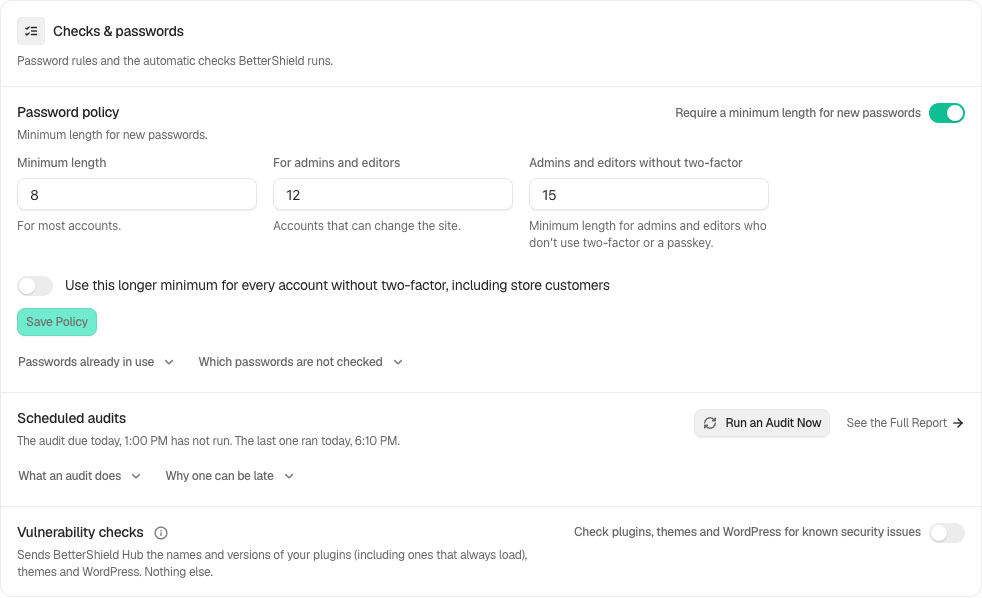
**Require a minimum length for new passwords** is on by default. **Minimum length** defaults to 8 for most accounts. **For admins and editors** defaults to 12 and cannot be lower than the first value. All three length fields accept 6 to 64.
- **Admins and editors without two-factor:** defaults to 15 when the account has neither two-factor nor a passkey.
- **Use this longer minimum for every account without two-factor, including store customers:** off by default. Turn it on only when you intend that longer requirement to cover those accounts too.
The policy also refuses passwords built from the account or site, a commonly guessed word, or a repeated or sequential run of four or more characters. It runs when a password is chosen through supported reset, profile, dashboard-account, store-account, or REST forms. It does not run at sign-in, checkout, imports, WP-CLI, application-password creation, or unsupported programmatic account creation.
## Step 1: Set Password Standards
Review the enabled policy, set the applicable lengths and select **Save policy**. Leave the longer minimum limited to admins and editors unless you intend to cover every password-only account.
The policy is on by default and uses a higher default for accounts that can change the site.
## Recommended settings
The defaults are 8 for most accounts, 12 for admins and editors, and 15 for admins and editors without two-factor or a passkey. Review the broader-coverage switch before applying the longer minimum to store customers or other accounts.
## What it can break and how to undo
People choosing a weak password must choose another. Existing passwords continue to sign in. Lower the numbers or turn the policy off, then save. A recent settings-history row can also restore the prior policy.
## Final Outcome
On a test account profile, try a password shorter than the applicable length or built from the username. WordPress should show the specific refusal message.
Example Minimum password standard view. Check the saved values and status on your own site.
## On multisite
Each site keeps its own policy. Super administrators use the privileged length.
## Related
- [Password rules](/docs/password-rules/)
- [Put a settings change back](/docs/restore-settings-change/)
- [Refuse breached passwords](/docs/refuse-breached-passwords/)
This is how you can set password standards with BetterShield.
Getting Stuck? Feel free to contact our [Dedicated Support Team](/support/).