# How To Configure a Security Baseline With BetterShield?
What to turn on after Quick Setup, in what order and why: your way back in, sign-in, the fixes, alerts, the log and file check, and assistants.
In **[BetterShield](/)**, this is our recommended baseline for the free plugin, in the order we would work through it once [Quick Setup](/docs/install-and-set-up/) is done. Most of it lives under **BetterShield › Protection**, and the rest under **BetterShield › Settings**. Each step links to the doc that covers it in full.
## What it does
Some protection starts at activation, and the rest waits for you: apart from refusing requests to cloud-metadata addresses, no hardening fix, required two-factor or passkey-only sign-in is switched on until you choose it.
| Protection | After activation |
|---|---|
| **Sign-in attempt limits** | On: 5 failures in 15 minutes pause that connection for 15 minutes |
| **Block simple bots on forms** (the hidden bot check) | On |
| Comment, password reset and sign-up limits | On |
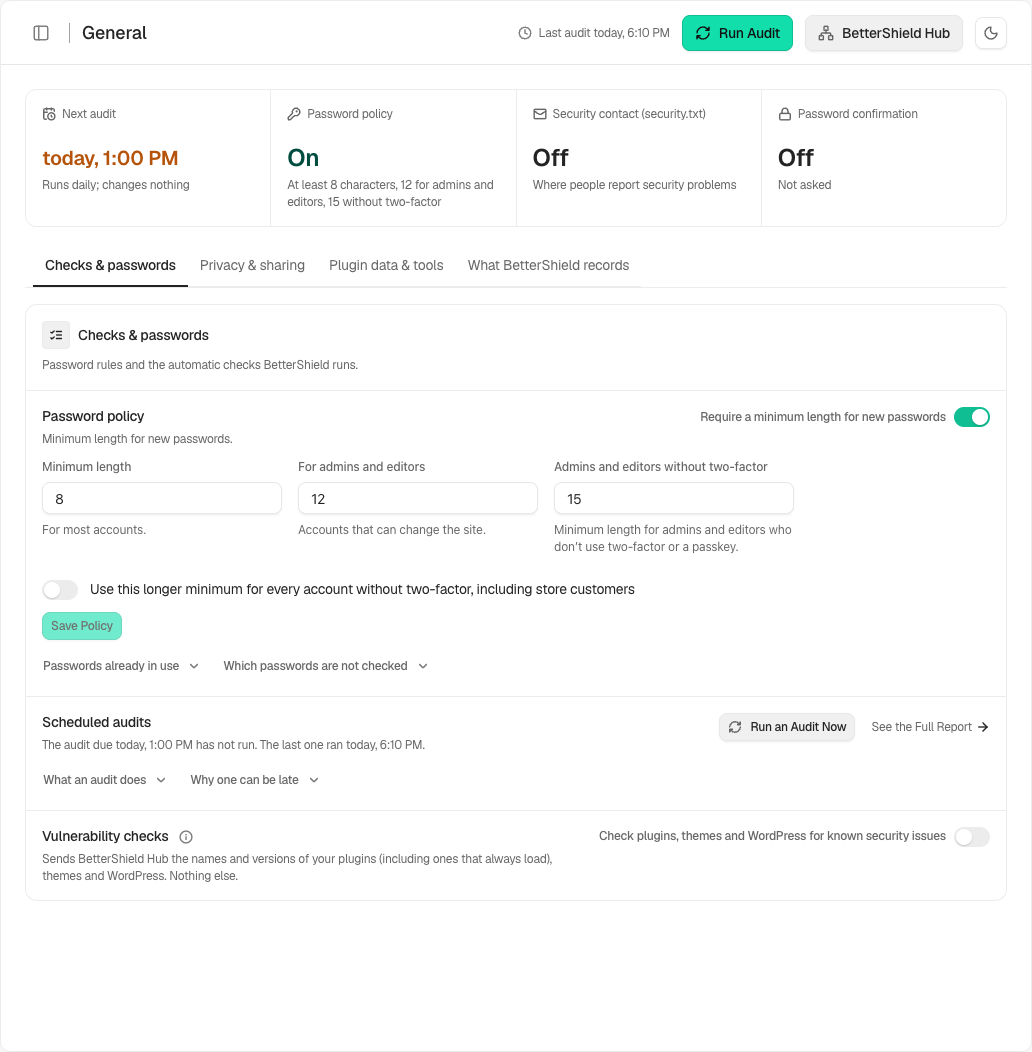
| Password policy | On: 8 characters, 12 for admins and editors, 15 for admins and editors without a second factor |
| Weekly summary and instant alerts for high and critical events | Off until you enable them; review the site's admin email recipient |
| Activity log and the file check | Running |
| Recovery link | Emailed to the admin address |
| **Server detail protection** | On |
| The other hardening fixes, required two-factor, passkey-only sign-in | Off |
| Usage sharing, BetterShield Hub, AI assistant access | Off |
## Step 1: Your way back in, first
On **BetterShield › Protection › Recovery**:
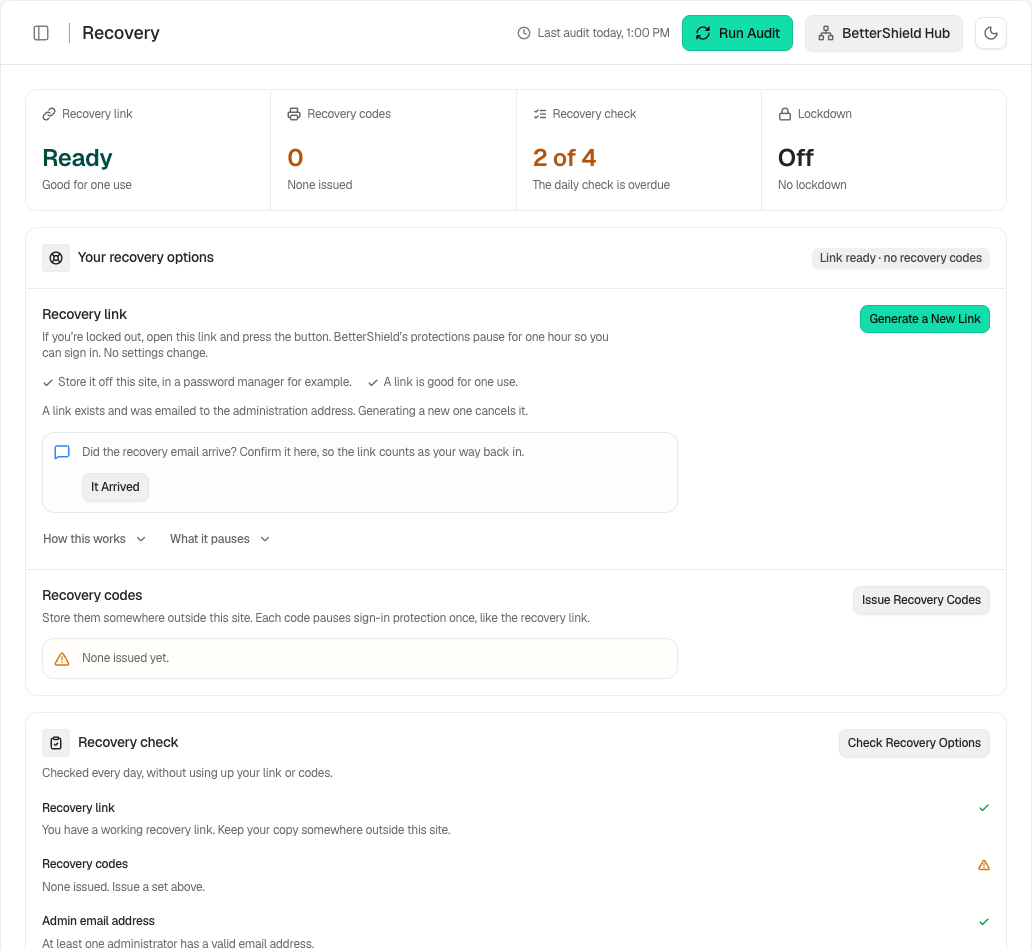
1. Keep the recovery link from your activation email somewhere off the site, such as a password manager. It works once and lasts 90 days. **Generate a New Link** replaces it and shows the new one once.
2. Press **Issue Recovery Codes** and keep the eight codes off the site. They work when email does not.
3. Turn on **Send a weekly recovery email check** if mail from this site has ever gone missing. It is off by default.
We put this first because every change to how people sign in (a sign-in fix, a required second factor, passkey-only sign-in) checks for a working way back before it applies. The first two also want recovery checked within the last day, and let you go ahead anyway, which is logged; passkey-only sign-in does not. See [Set up recovery](/docs/set-up-recovery/).
On a new install, instant alerts and the weekly summary start off. Turn them on in Quick Setup or **Settings › Email alerts**, review recipients and send a test alert. An update keeps an existing site’s saved choices.
## Step 2: Sign-in
| Setting | Where | Default | Our advice |
|---|---|---|---|
| **Sign-in attempt limits** | **Protection › Login & Access** | On, 5 in 15 minutes, 15-minute pause that doubles on each repeat within a day, up to a day | Keep the defaults, unless another plugin keeps this job ([Alongside another plugin](/docs/alongside-another-security-plugin/)). |
| **Block simple bots on forms** | **Protection › Login & Access** | On | Keep it on. |
| Proxy or Cloudflare | **How this site sees you**, **Addresses of your CDN or proxy** | Cloudflare not trusted, no proxies listed | Behind Cloudflare, press **Yes, this site is behind Cloudflare**. Behind another proxy, list its addresses under **Addresses of your CDN or proxy**, so each visitor is counted on their own. |
| Your own two-factor | **Protection › Two-Factor** | Off | Press **Set up two-factor** for your own account first. |
| **Require two-factor of a role** | **Protection › Two-Factor** | No roles, **Grace period, in days** 14 | Tick Administrator, and Editor where editors publish. |
| Passkeys | **Protection › Two-Factor** | None | **Add a passkey** for yourself (needs HTTPS). |
| **Sign in with a passkey only** | **Protection › Two-Factor** | No roles | Only for a role whose people all hold a passkey, and after your recovery codes are issued. |
| **Sign out after idle (minutes)** | **Protection › Login & Access**, **Signed-in devices** | 0 (off); 5 to 1440 | Leave off, unless people sign in on shared computers. |
| **Sessions per account** | **Protection › Login & Access**, **Signed-in devices** | 0 (off); up to 100 | Leave off, unless accounts should not be shared. |
**Ask for a sign-in puzzle after wrong passwords** and **Tell account holders about sign-ins from a new network** start off. Both are worth a look on a team site. See [Login & Access](/docs/login-and-access/), [Proxies and Cloudflare](/docs/proxies-and-cloudflare/), [Require two-factor](/docs/require-two-factor/) and [Passkeys](/docs/passkeys/).
## Step 3: The safe fixes, then the sign-in fixes
1. Apply the five fixes Quick Setup offers, if you skipped them: **File editor lock**, **WordPress version privacy**, **Folder listing protection**, **Username privacy** and **Browser protections**, all on **Protection › Hardening**.
2. On the same screen, add **Remote publishing block (XML-RPC)** if nothing on the site uses it (its **Pingbacks only** choice keeps the WordPress mobile app and Jetpack working), and **Uploads code block** and **Private file protection** where your server reads .htaccess (otherwise the row reads **Not available here**).
3. Once the whole site is on HTTPS, turn on **Strict HTTPS (HSTS)** with **Five minutes, to prove it works**, and move to six months later.
4. Under **Signing in** on **Protection › Login & Access**, turn on **Leaked password check**. Add **App password block** for **Accounts that can manage this site** unless a tool you use signs in with one.
**Custom sign-in address** is optional: in the plugin's words, it makes the logs quieter, not the door stronger. If you use it, add **Dashboard privacy for visitors**, so /wp-admin/ does not hand the new address out. Rotate keys with **Sign everyone out on demand** at a quiet time, because it signs other accounts out. Where a fix offers **Monitor first**, use it before you enforce. See [Hardening](/docs/hardening/).
## Step 4: Alerts
On **BetterShield › Settings › Email Alerts**, **Send a weekly summary** (Monday) and **Email me about high and critical events as they happen** are on, to the admin email until you name someone. Add the people who will act (up to 5 addresses); once any address is named, the admin email gets alerts only if it is on the list too. Then press **Send a test alert**. For planned work, use **Planned maintenance** rather than **Mute all alerts**. See [Email alerts](/docs/email-alerts/).
## Step 5: The activity log and the file check
Both run from activation, with nothing to switch on. The log keeps 30 days; use **Export CSV** if you need a longer record. The file check compares WordPress core and directory plugins with the WordPress.org copies every hour in the background. Read the weekly summary, and act on **Some WordPress or plugin files have been changed** when it appears. See [Activity log](/docs/activity-log/) and [File changes](/docs/file-changes/).
## Step 6: Assistants, off until needed
**Allow AI assistant connections** on **BetterShield › Agents › Connect** starts off. We recommend leaving it off until you use an assistant. Turning it on also lets assistants see security info. On the **Permissions** tab, **Let AI assistants see security info** and **Let AI assistants fix things** are separate switches; turn on the second only when you want an assistant to apply fixes. See [Connect an AI assistant](/docs/connect-an-ai-assistant/).
General settings shows the current password policy and automatic checks.
## Recommended settings
| Site | What we recommend |
|---|---|
| Blog or brochure site | The five safe fixes, **Remote publishing block (XML-RPC)**, with **Pingbacks only** if you publish through the WordPress mobile app or Jetpack, **Leaked password check**, and two-factor for your own account. |
| Store (WooCommerce) | **Require two-factor of a role** for Administrator and Shop manager. Customers can set up two-factor under **My Account › Sign-in security**. Keep the bot check on: it covers the store's account forms and adds nothing to the cart or checkout. Use **Monitor first** before **App password block**. |
| Membership or course site | **Dashboard lock for customers and subscribers** for Subscriber, after **Monitor first**. Keep **Slow repeated sign-ups** on, and consider a **Sessions per account** cap of two or three. |
| Agency or many sites | **Me and a team** in Quick Setup and two-factor required for Administrators. Set one site up, then export its settings and import them elsewhere under **Settings › General**, **Move settings between sites**. Connect each site to [BetterShield Hub](/docs/connect-to-bettershield-hub/). Ultra adds [temporary access](/docs/temporary-access/) and a [client report](/docs/client-report/). |
## What it can break, and how to undo
- **Remote publishing block (XML-RPC)**: with **All of XML-RPC**, the WordPress mobile app and Jetpack. **Pingbacks only** keeps both working.
- **Browser protections**: another site that embeds your pages in a frame.
- **Custom sign-in address**: anyone who only knows the old address. Keep the new one off the site; the recovery link restores the standard page.
- **Sign everyone out on demand**: everyone else signs in again, and sessions it ended stay ended.
- **Strict HTTPS (HSTS)**: a browser that saw the header keeps insisting on HTTPS until the period ends, whatever you undo. Start with five minutes.
- **Require two-factor of a role**: after the grace period the dashboard waits until people set it up. Signing in is never blocked.
To undo a fix, turn its switch off on the screen it is on. To restore an earlier settings save, use **Settings history** on **Settings › General**. Locked out? See [Locked out](/docs/locked-out/).
## Final Outcome
**Overview** shows the score and grade, and **Findings** what is left.
- **Nothing is limiting sign-in attempts** (High) means BetterShield's limit is off and no plugin it recognizes is limiting sign-ins.
- **Failed sign-ins are not being counted, so password guessing is not stopped** (High) usually means a proxy is not named.
- **Your recovery options aren’t fully set up** (Low) or **The recovery link is close to expiring** means your way back needs a look.
- Your test arrives as "Alert delivery test", and the weekly summary on Monday.
Review recovery readiness before enabling stricter sign-in requirements.
## Related
- [Install and set up](/docs/install-and-set-up/)
- [Set up recovery](/docs/set-up-recovery/)
- [Login & Access](/docs/login-and-access/)
- [Two-factor and passkeys](/docs/two-factor-and-passkeys/)
- [Hardening](/docs/hardening/)
- [Email alerts](/docs/email-alerts/)
This is how you can configure a Security baseline with BetterShield.
Getting Stuck? Feel free to contact our [Dedicated Support Team](/support/).