# How To Require Two-Factor by Role With BetterShield?
Ask chosen roles to set up two-factor: the grace period and its clock, what people see before and after it, store roles, and the network floor.
With **[BetterShield](/)**, ask chosen roles to set up two-factor: the grace period and its clock, what people see before and after it, store roles, and the network floor.
## What it does
In **[BetterShield](/)**, **Require two-factor of a role** asks every account in the roles you pick to set up two-factor with an authenticator app. It is under **What the site requires** on **BetterShield › Protection › Two-Factor**. It is enforced inside the dashboard, never at the sign-in page: the password always signs people in, and what waits for them after the grace period is the setup screen.
- **During the grace period**, the person works as normal and sees a notice on every dashboard page: "This site asks accounts like yours to use two-factor sign-in. You have 12 days left to set it up." with **Set it up now**.
- **Three days before the deadline**, the account is emailed once, "Set up two-factor sign-in for [site name]", with the date and a link to where it sets it up. With a grace period of three days or less there is no email, and none goes out while safe mode is on.
- **After it**, every dashboard page sends them to the setup screen until they finish. People who manage BetterShield go to **Protection › Two-Factor**; everyone else goes to **Two-factor sign-in** on their profile, which says "This site requires two-factor sign-in for your role."
- **Still open after it**: their profile, signing out, the front of the site, and tools that use the REST API. Everything else in the dashboard waits, the post editor included.
- **Once they finish**, the dashboard is theirs again straight away.
Only the app codes count. **A passkey does not satisfy this requirement**, even one that signs in without a code.
## Step 1: Open Require two-factor of a role
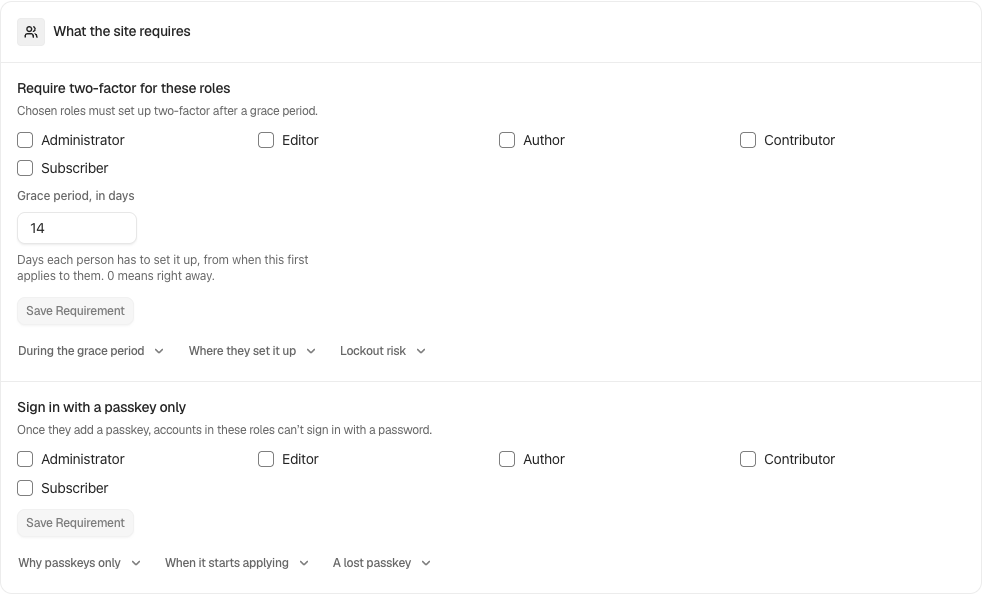
Tick the roles under **Require two-factor of a role**. Every role on the site is listed.
What the site requires holds the role requirements and grace period.
## Step 2: Require two-factor of a role, with a grace period
- Set **Grace period, in days**.
- Press **Save requirement**.
| Option | What it does | Default |
|---|---|---|
| Roles | Each ticked role is asked to set up two-factor. | None ticked |
| **Grace period, in days** | How long each account has, 0 to 90. **0** sends people to setup on their next dashboard page. Anything else shows "Enter a number of days from 0 to 90." | 14 |
### The clock
- An account's window starts the first time it opens a dashboard page, including its profile, while its role is ticked. Not when the account was created, and not at sign-in. Accounts that have existed for years get the full window.
- An account that never opens the dashboard, its profile or **My Account › Sign-in security** never starts its clock.
- Untick a role and tick it again later, and its accounts get a fresh window.
- An account that leaves the ticked roles loses its clock, and gets a fresh window if it comes back.
- People in a ticked role cannot turn their own two-factor off, outside safe mode; an administrator can. An account that sets up two-factor and later turns it off keeps its original deadline. If that has passed, the dashboard sends it to setup at once.
### The recovery check
Adding a role first checks your way back in. If there is no working recovery link and no unused recovery code, or the recovery options were not checked in the last day, **Check the way back in first** opens with the reason:
- **Check now** runs the check, then tries the save again.
- **Open Recovery** goes to **Protection › Recovery** when something is missing.
- **Go ahead anyway** saves regardless, and the activity log records "Sign-in change made without a recovery check".
- **Cancel** saves nothing.
Removing a role or keeping the same roles is never held up. See [Set up recovery](/docs/set-up-recovery/).
When you answer **Me and a team** in Quick Setup, it points you to **Protection › Two-Factor**, where you can require two-factor for administrators. Quick Setup itself does not set the requirement.
## Recommended settings
We recommend Administrator and Editor, with the default 14 days: long enough for someone on holiday, short enough to finish in one sprint. Set up your own two-factor before you save, because the requirement covers you too.
| Site | What we recommend |
|---|---|
| Blog or brochure site | Administrator, plus Editor if anyone else publishes. |
| Store (WooCommerce) | Administrator, Editor and Shop manager. Leave Customer unticked: WooCommerce keeps customers out of the dashboard, so the requirement never sends them to setup, and would only show a countdown on their **Sign-in security** tab. |
| Membership or course site | Administrator, Editor and any staff role that edits content. Leave member roles unticked. |
| Agency or many sites | Administrator as the network floor (below), or ticked on each client site, with 14 days and a note to the client's team before you save. |
Authors and contributors can be added once the first group has finished. A shorter window, such as 7 days, suits a small team you can talk to directly.
## What it can break, and how to undo
- **Someone without a phone** can use any app that makes six-digit codes, such as a password manager that does (1Password and Bitwarden both can). Backup codes cover a lost phone.
- **Roles WooCommerce keeps out of the dashboard** are never sent to setup. If they open **My Account › Sign-in security**, that tab starts their clock and shows the countdown, but nothing is withheld. When you tick one, the screen says so, and they can still set up two-factor there.
- **An overdue person** cannot reach the editor until they finish setup. Everything they need is on their profile.
- **To undo**, untick the role and press **Save requirement**. Removing a role or lengthening the grace period asks for your password when **Ask for my password before removing a protection** is on.
- **Safe mode**, from your recovery link, stands the requirement down: no countdown and no redirect while it lasts.
## Final Outcome
The **Two-factor required for** tile names the roles.
- Activity log: "Two-factor requirement changed" (Medium; High when a role comes off or the grace period grows, and then emailed as it happens (when instant alerts are enabled)), then "Two-factor turned on" as people finish.
- On someone's account under **Users**, the **Two-factor sign-in** section says whether it uses two-factor. A per-role report of who has a second factor is part of BetterShield Ultra (see [Sign-in report](/docs/sign-in-report/)).
What the site requires holds the role requirements and grace period.
## On multisite
**Require two-factor across the network**, on **BetterShield › Network**, is a floor for every site.
- Each site enforces the network's roles plus its own. Unticking a role the network requires is refused: "Two-factor is required of these roles for the whole network, so this site cannot take them off its own list".
- Where the network sets a grace period, the shorter of the network's and the site's applies.
- Each site's clock still runs from when that site first saw the account.
- The network can name the main site's roles and the five WordPress ships with. A site without one of those roles is not affected by it.
- The card starts as **Not set** and saves with **Save**. Only a network administrator can change it.
## Related
- [Two-factor with an app](/docs/two-factor-app/)
- [Two-factor and passkeys](/docs/two-factor-and-passkeys/)
- [Passkey-only sign-in](/docs/passkey-only-sign-in/)
- [Set up recovery](/docs/set-up-recovery/)
- [Multisite networks](/docs/multisite-network/)
This is how you can require two-factor by role with BetterShield.
Getting Stuck? Feel free to contact our [Dedicated Support Team](/support/).