# How To Set Up Site Recovery With BetterShield?
Keep a BetterShield recovery link and recovery codes, check daily that they work, and test that recovery email leaves your site.
[BetterShield](/) gives you two ways back in that need no password: a recovery link and recovery codes. Either one starts safe mode for an hour, so a BetterShield setting can never keep you out for good. Set them up on **BetterShield › Protection › Recovery**. Using them is covered in [Locked out](/docs/locked-out/).
## What it does
- **The recovery link** is a private address for this site. It works once, stops working 90 days after it was issued, and is shown only once, because the site keeps just a fingerprint of it. Using it shows the next link on screen and emails a copy to the site's administration email address.
- **Recovery codes** are eight single-use codes for the day email is the problem. They use the same address as the link and do not expire.
- **Recovery check** checks both every day without using either. If your host tells BetterShield it gives you a way into the site that does not use the sign-in form, the recovery findings pass.
## Step 1: Set Up Site Recovery
The first link is emailed to the site's administration address at activation, with the subject "[example.com] Your BetterShield recovery link" (your domain in the brackets). A new link made under **Generate a New Link** retires the earlier one.
| Option | What it does | Default |
|---|---|---|
| **Generate a New Link** (**Generate Recovery Link** when none exists) | Makes a new link and shows it once, with **Copy link**. The old link stops working at once, including a copy you saved. Not emailed. | One link, emailed at activation |
| **Issue Recovery Codes** (**Issue a New Set** when some are left) | Shows eight codes once, grouped in fours, with **Print** and **Copy all**. The printed sheet names the address to add a code to. A new set replaces every unused code. | None |
| **Check Recovery Options** | Runs the four checks below at once and refreshes Findings. Uses no link or code. Once a minute at most. | Runs daily on its own |
| **Send a weekly recovery email check** | Emails your alert recipients at most once a week, through the same path as alerts, with the subject "[Site name] Recovery readiness email check". It holds no link or code, and is not sent while alerts are muted. | Off |
From the terminal, `wp bettershield recover --new-link` turns on safe mode for an hour and prints a fresh link once; the old one stops working. See [WP-CLI commands](/docs/wp-cli-commands/).
The **Recovery check** lists four checks:
| Check | Passes when |
|---|---|
| **Recovery link** | A link exists, has not expired, and its email was not refused for sending. |
| **Recovery codes** | At least one code is unused. |
| **Administrator address** | At least one administrator has a valid email address (the first 200 are checked). It cannot prove the inbox is read. |
| **Email path** | The last weekly test was accepted for sending within eight days. Counted only while the weekly check is on. |
Confirm delivery on the recovery card after checking your inbox.
## The check before a change to how people sign in
Applying a **Signing in** fix (including **Enforce reviewed settings** after **Monitor first**), or adding a role to **Require two-factor of a role**, first checks that you have a working recovery link or an unused recovery code, and that recovery was checked in the last 24 hours. If not, **Check the way back in first** opens with the reason:
- **Open Recovery**, when there is no working way back in.
- **Check now**, when the last check is over a day old. It checks, then makes the change if it passes.
- **Go ahead anyway** makes the change and logs "Sign-in change made without a recovery check". **Cancel** changes nothing.
`wp bettershield harden --force` is the terminal's **Go ahead anyway**. Undoing a fix is never held. **Sign in with a passkey only** offers no way round: adding a role is refused until you hold a current link whose email was not refused, or recovery codes.
## Recommended settings
We recommend keeping both kinds of recovery: the link is the quick way back, and the codes still work when email does not.
- Keep the link in your password manager, in this site's entry, not only in an inbox.
- Print the codes and keep the sheet away from your computer.
- Turn on **Send a weekly recovery email check**, and look for the first message.
- Generate a new link when someone who has seen it leaves, after the site moves to a new address, and when Findings says it is close to expiring. Issue new codes when someone who saw the sheet leaves, or only a few are left.
- Press **Check Recovery Options** before requiring two-factor or passkey-only sign-in of a role.
| Site | What we recommend |
|---|---|
| Store (WooCommerce) | Keep the codes where more than one person who runs the shop can reach them. |
| Agency or many sites | One vault entry per site, shared with the people who look after it. On multisite, keep the network link too. |
## What it can break, and how to undo
- **A new link** (including **Resend**) retires the old one for good. If the Resend email cannot be sent, the new link is shown once on screen.
- **A new set of codes** retires old sheets.
- **After you change alert recipients,** the email check reads as untested until the next weekly test is due.
- **Ten wrong codes** from one connection within an hour stop codes working from it for up to an hour.
- If BetterShield's own records cannot be read, codes are refused and Findings shows **Sign-ins are being refused because BetterShield cannot save to the database** (Critical). The link still works.
- With **Ask for my password before removing a protection** on, generating a link, issuing codes and turning off the weekly check ask for your password. None of them works with an application password.
## Confirm the recovery email arrived
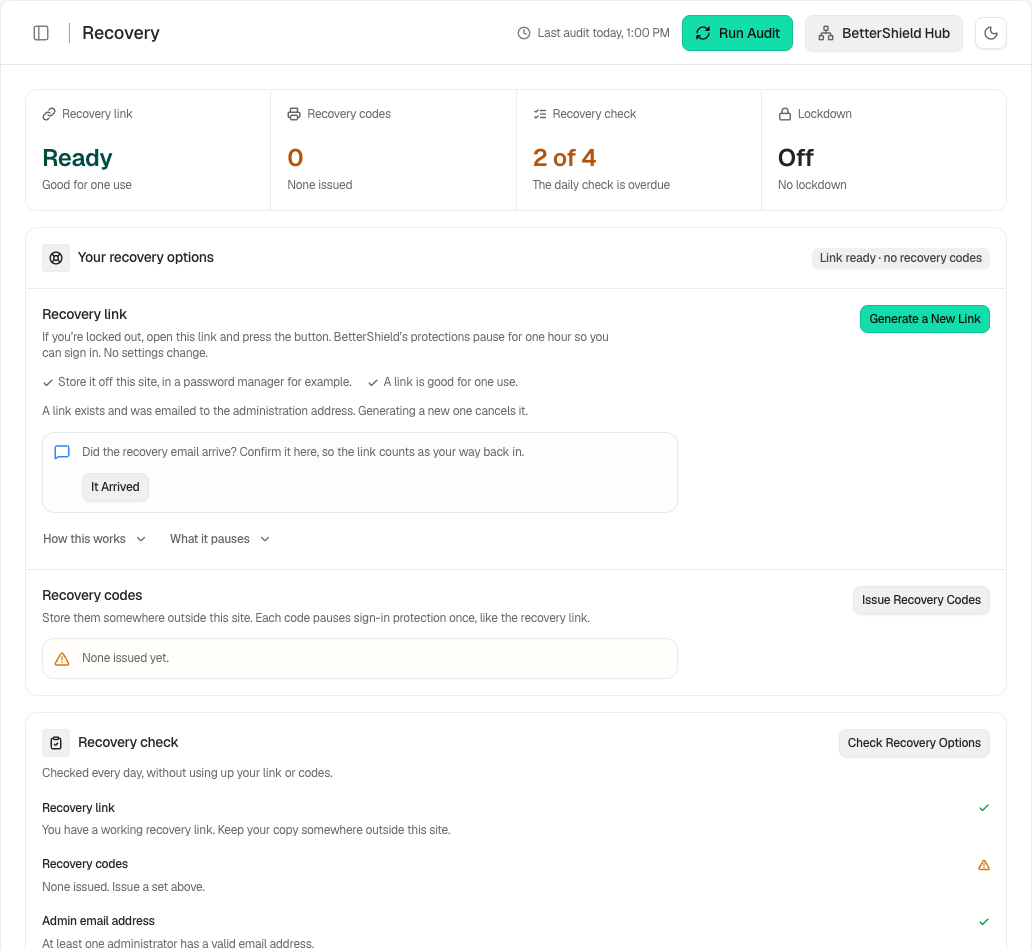
When the recovery card asks **Did the recovery email arrive?**, check your inbox and select **It Arrived**. The Overview then reflects your confirmation. Mail accepted for sending alone does not establish delivery.
## Final Outcome
The tab's tiles: **Recovery link** reads **Ready**, **Missing**, **Expired** or **Not delivered**; **Recovery codes** and **Recovery check** show counts.
- The Overview's recovery card is titled **A recovery link is ready** or **Recovery needs a look**.
- Findings: **Your recovery options aren’t fully set up** (Low) while any check fails, including when no codes are left or the daily check has not run for two days. **The recovery link is close to expiring** (Medium) in its last 14 days and after; with passkey-only sign-in on, **The recovery link is close to expiring, and passwords are switched off** (High).
- Activity log: "Recovery link generated" (also for new codes), "Recovery link rejected" and "Safe mode started".
- Email: "[your site] Your BetterShield recovery link was used", with the replacement, each time a link is used.
Example Set up recovery view. Check the saved values and status on your own site.
## On multisite
Each site has its own link and codes. Network administrators also get **Recovery link for the network** on **BetterShield › Network**: one link that pauses enforcement on every site for an hour, used at any site's recovery address. It is shown once, not emailed; after use, its replacement goes to the network's administration address. See [Multisite networks](/docs/multisite-network/).
## Related
- [Locked out](/docs/locked-out/)
- [Lock the site down](/docs/site-lockdown/)
- [Two-factor and passkeys](/docs/two-factor-and-passkeys/)
- [Passkey-only sign-in](/docs/passkey-only-sign-in/)
- [Multisite networks](/docs/multisite-network/)
- [WP-CLI commands](/docs/wp-cli-commands/)
This is how you can set up site recovery with BetterShield.
Getting Stuck? Feel free to contact our [Dedicated Support Team](/support/).