# How To Set Sign-in Hours by Role With BetterShield Ultra?
Choose allowed weekdays and hours by role, monitor exceptions, then decide whether to refuse out-of-hours sign-ins.
With **[BetterShield Ultra](/ultra/)**, choose allowed weekdays and hours by role, monitor exceptions, then decide whether to refuse out-of-hours sign-ins.
_**Note:** These controls require the paid [BetterShield Ultra](/ultra/) add-on alongside the free BetterShield plugin._
## What it does
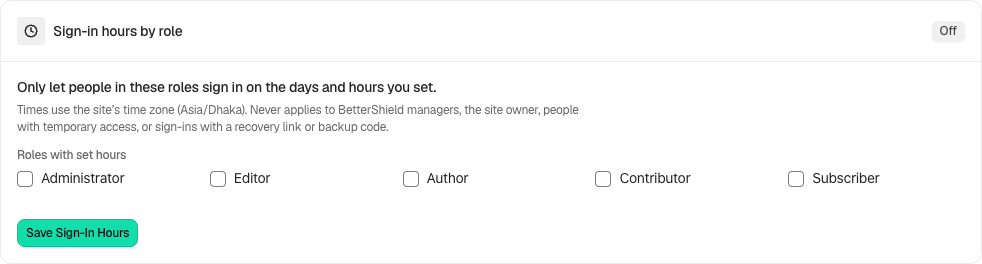
Open **BetterShield › Ultra › Sign-in rules**. **Sign-in hours by role** uses the site’s time zone. No role is restricted by default. BetterShield managers, the site owner, temporary grants and recovery or backup-code sign-ins are excluded as stated on the screen.
## Step 1: Open Roles with set hours
Choose **Roles with set hours**. A newly selected role starts with Monday to Friday, 09:00 to 18:00.
Review the state and choices shown on your own site before applying a change.
## Step 2: Set sign-in hours by role
- Choose the permitted days, **From** and **To**.
- Under **Outside these hours**, start with **Let them in, log it and email the account holder**. The other choice blocks sign-in and shows allowed hours.
- Read the last-30-days preview, then select **Save Sign-In Hours**.
## Recommended settings
Our advice: monitor first, review the site’s time zone and account for travel, overnight shifts and scheduled work before blocking.
## What it can break and how to undo
A legitimate user can be refused outside the saved hours. Remove the role’s restriction or return to the logging choice and save. Test with the affected account while retaining an unrestricted manager session.
## Final Outcome
The preview and activity records should distinguish allowed-with-warning and refused attempts. On multisite, the current site’s hours also apply to a session begun on another site.
Example Sign-in hours view. Check the saved values and status on your own site.
## Related
- [Ultra overview](/docs/ultra-overview/)
- [Activity log](/docs/activity-log/)
- [Sign-in policies](/docs/sign-in-policies/)
- [Set up recovery](/docs/set-up-recovery/)
This is how you can set sign-in hours by role with BetterShield Ultra.
Getting Stuck? Feel free to contact our [Dedicated Support Team](/support/).