# How To Set Up an Authenticator App With BetterShield?
Turn on two-factor with any authenticator app, keep ten backup codes, and know what the code screen, integrations and a lost phone need.
With **[BetterShield](/)**, turn on two-factor with any authenticator app, keep ten backup codes, and know what the code screen, integrations and a lost phone need.
## What it does
Two-factor sign-in asks for a six-digit code from an authenticator app after the password, so a stolen password alone signs nobody in. People who manage [BetterShield](/) set it up on the **Two-factor authentication** card at **BetterShield › Protection › Two-Factor**. Everyone else uses **Two-factor sign-in** on their own **Profile** screen, and store customers use **My Account › Sign-in security**. It is per account: nobody has it until they turn it on, unless their role is required to (see [Require two-factor](/docs/require-two-factor/)).
- After a correct password, the browser goes to an **Authenticator app code or backup code** screen on the site's own sign-in page. Nothing signs in until a code is accepted, and the waiting sign-in expires after 10 minutes.
- One field takes the app's current code (six digits) or an unused backup code (eight digits). Spaces and dashes are ignored.
- Codes change every 30 seconds. The code just before and just after the current one are accepted too, so a phone clock up to 30 seconds out still works.
- Each code signs in once. A code already used, or an older one, is refused.
- The app lists the account under the site's name and your username.
### Wrong codes
Each account may get 10 codes wrong in an hour, counted from the first code checked in that hour. After that no code is checked, a right one included, until the hour is up. Right codes are not counted. Wrong backup codes have a second limit of 10 an hour on top, and codes typed to turn two-factor off or issue new codes count too. On the code screen, wrong codes also count toward **Sign-in attempt limits**, as wrong passwords do (see [Login & Access](/docs/login-and-access/)).
| The code screen says | When |
|---|---|
| "That code does not match." | Wrong, or already used. |
| "Too many wrong codes for this account in the last hour, so codes are not being checked for now." | Over the limit. Wait, or use your recovery link. |
| "That sign-in took too long, or was already used. Please sign in again from the beginning." | After 10 minutes. **Sign in again** goes back to the sign-in page, as **Start again** does. |
## Step 1: Open Two-Factor Setup
Open **BetterShield › Protection › Two-Factor** and press **Set up two-factor**.
## Step 2: Scan the Setup Key
Open an authenticator app, such as 1Password, Google Authenticator, Microsoft Authenticator, Authy or Bitwarden. Scan the QR code, or type the **Manual entry key** (**Copy key** copies it).
## Step 3: Confirm Your App Code
Enter the code the app shows now and press **Confirm code**. **Cancel** throws the half-made setup away. This step allows 10 tries an hour.
## Step 4: Keep Your Backup Codes
Ten backup codes appear, once. Keep them with **Copy Codes** or **Download Codes**.
## Step 5: Complete Enrollment
Press **I have stored these codes**, the button that turns two-factor on.
Nothing changes at sign-in until you confirm that you have stored the backup codes. On the profile and on My Account, **Copy Codes** and **Download Codes** also save the codes before the last step. If copying fails, select and copy them yourself.
If BetterShield Ultra requires setup during sign-in, the **Save your backup codes** page offers **Copy Codes**, **Download** and **Print**. Keep a copy, then press **Turn On Two-Factor**. A failed copy tells you to select the codes yourself.
### Backup codes
- Ten codes, each eight digits shown as 1234-5678. Each works once in place of an app code.
- They are shown once and kept only in scrambled form, so nobody can read them back, the site included.
- The card shows how many are unused, and adds "Running low" at three or fewer. The profile warns at the same point.
- **New backup codes**: enter an **App code or backup code** and press **Issue new codes**. On the profile, **Issue new backup codes** asks for a **Code from the app, or a backup code**, then **Issue new codes**. Every old code stops working at once.
[WordPress 2FA backup codes](/blog/wordpress-2fa-backup-codes/) explains how they differ from the site's recovery codes.
### Turn it off
On **Protection › Two-Factor**, under **Turn off**, enter an **App code or backup code** and press **Turn two-factor off**. Your other sessions end; this browser stays signed in. To move to a new phone, turn it off and set it up again. If the site requires two-factor of your role, turning it off yourself is refused and an administrator can do it for you. While safe mode is on, this row asks for **Your password** instead of a code.
On the profile and My Account, **Turn off, or move to a new phone** does the same with a **Code from the app, or a backup code**, then offers **Set it up on a new phone**.
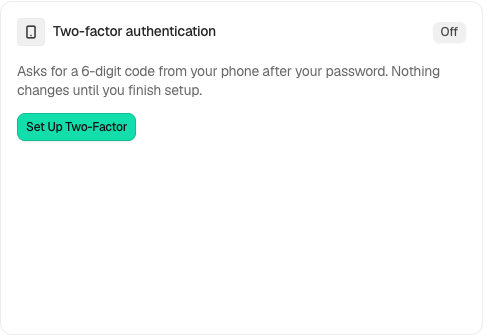
The Two-factor authentication card starts enrollment for your current account.
## Recommended settings
- Turn it on for your own account first. The summary at the end of Quick Setup has a **Set Up Two-Factor** button that opens **Protection › Two-Factor**.
- Store the backup codes away from the phone: in a password manager, or printed with your recovery codes.
- Give each person their own account, and each connected tool its own application password.
- Require it of the roles that can change the site. See [Require two-factor](/docs/require-two-factor/).
## What it can break, and how to undo
| What | What happens | The way through |
|---|---|---|
| A tool that signs in over XML-RPC with the account password | Refused with WordPress's own "Incorrect username or password.", the same answer a wrong password gets. | An application password, which skips the code. |
| A password sign-in over the REST API, a background request, WP-CLI or an app that asks for JSON | Refused: "This account uses two-factor authentication. Sign in through the site's sign-in page, or use an application password." | An application password. |
| A sign-in form on another page | The code screen is always on the site's own sign-in page, at its moved address if you moved it. A form that started drawing its page first is refused with a pointer to that page. | Sign in from the site's sign-in page. |
| A shared account | Each account holds one waiting sign-in at a time, so a second person entering the password expires the first person's code screen. | One account per person. |
| Two-factor in another security plugin | Both may ask. Quick Setup asks which plugin keeps two-factor, but that choice does not switch BetterShield's step off for accounts set up here. | Use one plugin's two-factor. |
Sign-ins another plugin completes without a password, through WordPress's sign-in step, are asked for the code too.
### When someone loses their phone
1. **A backup code** gets them in. Then, on their profile or **Protection › Two-Factor**, they turn two-factor off with another backup code (**Turn off, or move to a new phone**) and set it up on the new phone.
2. **No codes left**: an administrator opens **Users**, edits the account, and under **Two-factor sign-in** presses **Turn off two-factor for this account**, then confirms. Every session on that account ends, and the person signs in with their password and sets it up again. This needs an account that manages BetterShield (administrators by default), and asks for your password when **Ask for my password before removing a protection** is on.
3. **You are the only administrator**: your recovery link or a recovery code turns on safe mode for an hour, and no code is asked while it lasts. While it lasts, **Turn off** on **Protection › Two-Factor** takes **Your password** instead of a code, so you can set two-factor up again on a new phone; an alert goes out when it is used. See [Locked out](/docs/locked-out/).
## Final Outcome
The **Your two-factor** tile reads **On**. On someone else's account under **Users**, the section says "This account uses two-factor sign-in."
- Activity log: "Two-factor turned on", "Authenticator app code or backup code rejected", "Backup code used", "New backup codes issued", "Two-factor turned off", "Sessions ended after a credential change".
- "Two-factor turned off" is High on an admin or editor account (the Administrator or Editor role, any role that can manage settings, edit users or promote users, or a super admin), and emailed as it happens (when instant alerts are enabled); on its own, the subject is "[Your site] Two-factor turned off". On other accounts it is Low. Turned off with the password during safe mode, it is High on any account.
- **Sign-ins are being refused because BetterShield cannot save to the database** (Critical) means the records that count wrong codes could not be read, so every code is refused until they can. The recovery link still works.
The Two-factor authentication card starts enrollment for your current account.
## Good to know
- Safe mode, from your recovery link, pauses the code step.
- On multisite, one setup covers the account on every site, and the wrong-code limits are counted per site.
- Erasing an account's personal data turns its two-factor off.
- Trusted devices and a per-role report of who has a second factor are part of BetterShield Ultra: see [Trusted devices](/docs/trusted-devices/) and [Sign-in report](/docs/sign-in-report/).
## Moving from another two-factor plugin
Supported authenticator apps can continue working when their source plugin is deactivated after you choose BetterShield in Quick Setup. Backup codes do not carry over. Read [Move existing two-factor accounts](/docs/migrate-two-factor/) before the switch.
## Related
- [Two-factor and passkeys](/docs/two-factor-and-passkeys/)
- [Require two-factor](/docs/require-two-factor/)
- [Passkeys](/docs/passkeys/)
- [Your profile](/docs/your-profile/)
- [Locked out](/docs/locked-out/)
This is how you can set up an authenticator app with BetterShield.
Getting Stuck? Feel free to contact our [Dedicated Support Team](/support/).