# How To Ask Roles to Add a Passkey with BetterShield Ultra?
Remind selected WordPress roles to add a passkey and decide whether a verified passkey counts as both sign-in factors.
In **[BetterShield Ultra](/ultra/)**, **Passkeys by role** on **BetterShield › Ultra › Sign-in rules** reminds people in selected roles to add a passkey.
_**Note:** These controls require the paid [BetterShield Ultra](/ultra/) add-on alongside the free BetterShield plugin._
## What it does
The selected roles see a dashboard reminder until they hold a passkey. It is a reminder, not a sign-in block. Password sign-in still works unless another BetterShield policy requires passkey-only sign-in.
## Step 1: Open BetterShield › Ultra › Sign-in rules
Open **BetterShield › Ultra › Sign-in rules**.
The role reminder is off by default; a verified passkey counts as both factors by default.
## Step 2: Ask roles to add a passkey
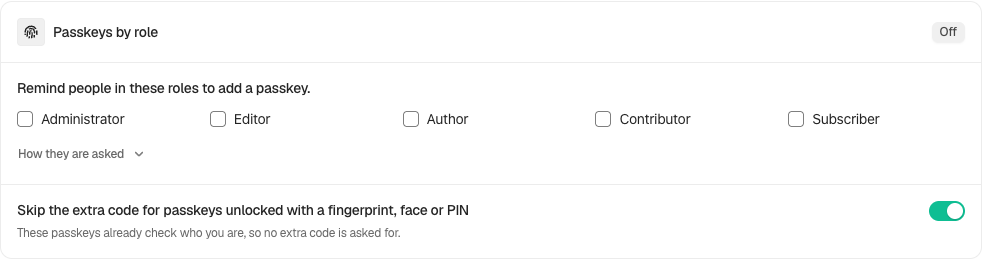
- Under **Passkeys by role**, tick the roles. None are ticked by default.
- Set **Skip the extra code for passkeys unlocked with a fingerprint, face or PIN**. It is on by default.
- Select **Save policies**.
When passkeys are unavailable on the site, saved role reminders pause until passkeys work again.
## Optional passkey-only date
For a selected role, **Passkey-only sign-in for… starts on** can set a date. From that date, people in the role who already have a passkey must use it; people without one can still use their password until they add a passkey. This is different from directly requiring passkey-only sign-in under Protection › Two-Factor. Read that screen’s warning when both policies apply.
Use **Allow Passwords Again** for a role to stop the Ultra deadline’s passkey-only behavior. Confirm recovery before choosing a date. If passkeys are unavailable, the screen reports the pause and keeps checking rather than enforcing an unusable sign-in path.
## Recommended settings
Our advice:
- Start with administrators and people who sign in often.
- Leave the both-factors option on for verified device passkeys unless policy requires a separate code.
- Confirm HTTPS and browser support before selecting many roles.
## What it can break and how to undo
The reminder does not block password sign-in. Turning off the both-factors option makes two-factor accounts enter a code after passkey sign-in.
Untick roles or restore the previous factor choice and save.
## Final Outcome
The card shows the selected roles.
- A person in one of those roles without a passkey sees the reminder.
- The reminder disappears after they add a passkey.
Example Passkey policy view. Check the saved values and status on your own site.
## On multisite
Each site keeps its own reminder policy. Network passkey-only roles remain a separate policy.
## Related
- [Set up Ultra sign-in policies](/docs/sign-in-policies/)
- [Require two-factor by role](/docs/ultra-two-factor-policy/)
- [Prevent people removing their last factor](/docs/ultra-factor-removal-policy/)
- [Two-factor and passkeys](/docs/two-factor-and-passkeys/)
This is how you can ask roles to add a passkey.
Getting Stuck? Feel free to contact our [Dedicated Support Team](/support/).