# How To Require Two-factor by Role with BetterShield Ultra?
Choose WordPress roles that must set up two-factor and give them 0 to 90 days to finish.
In **[BetterShield Ultra](/ultra/)**, **Two-factor authentication by role** on **BetterShield › Ultra › Sign-in rules** requires people in selected roles to set up the site's authenticator-app two-factor.
## What it does
People in selected roles see a dashboard reminder. After their grace period, the next password sign-in goes to **Set up two-factor authentication** before continuing.
## Step 1: Open BetterShield › Ultra › Sign-in rules
Open **BetterShield › Ultra › Sign-in rules**.
No role is selected by default, and the grace period starts at seven days.
## Step 2: Require two-factor by role
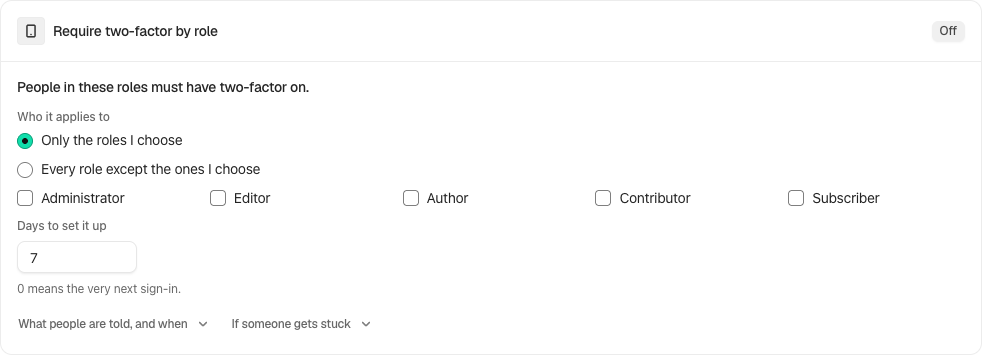
- Under **People in these roles must have two-factor on**, tick the roles. None are ticked by default.
- Set **Days to set it up** from 0 to 90. The default is 7. A value of 0 means the very next sign-in.
- Select **Save policies**.
The three policy cards save together.
At sign-in, the final **Save your backup codes** page offers **Copy Codes**, **Download** and **Print**. Store the codes before selecting **Turn On Two-Factor**. The free plugin’s **Two-Factor** screen also shows roles covered by the Ultra policy.
## Include or exclude roles
**Who it applies to** offers **Only the roles I choose** (the default) or **Every role except the ones I choose**. Read the explanatory line before saving: selecting all roles in the exclusion mode requires two-factor of nobody. New roles are covered by the exclusion mode unless excluded. The **Days to set it up** value may be 0 for the next sign-in; the default is 7 days.
## Recommended settings
Our advice:
- Require administrators first.
- Give active editorial teams enough time to enroll and store backup codes.
- Use 0 days only when every affected person is ready.
## What it can break and how to undo
After the deadline, a person who cannot complete setup cannot reach the dashboard. An administrator can turn off two-factor for that account, or remove the role from this policy and save.
Recovery safe mode pauses enforcement while somebody gets back in.
## Final Outcome
The card shows **On** after at least one role is saved.
- A person in that role sees the reminder and remaining days.
- After the deadline, their next password sign-in opens enrollment.
Example Two-factor policy view. Check the saved values and status on your own site.
## On multisite
Each site keeps its own policy. A session started on another site does not bypass this site's enrollment screen.
## Related
- [Set up Ultra sign-in policies](/docs/sign-in-policies/)
- [Ask roles to add a passkey](/docs/ultra-passkey-policy/)
- [See who has two-factor or a passkey](/docs/sign-in-report/)
- [Two-factor and passkeys](/docs/two-factor-and-passkeys/)
This is how you can require two-factor by role.
Getting Stuck? Feel free to contact our [Dedicated Support Team](/support/).