How To Approve Assistant Changes With BetterShield?
Turn on the separate change opt-in and understand which changes apply directly, need approval, or remain unavailable.
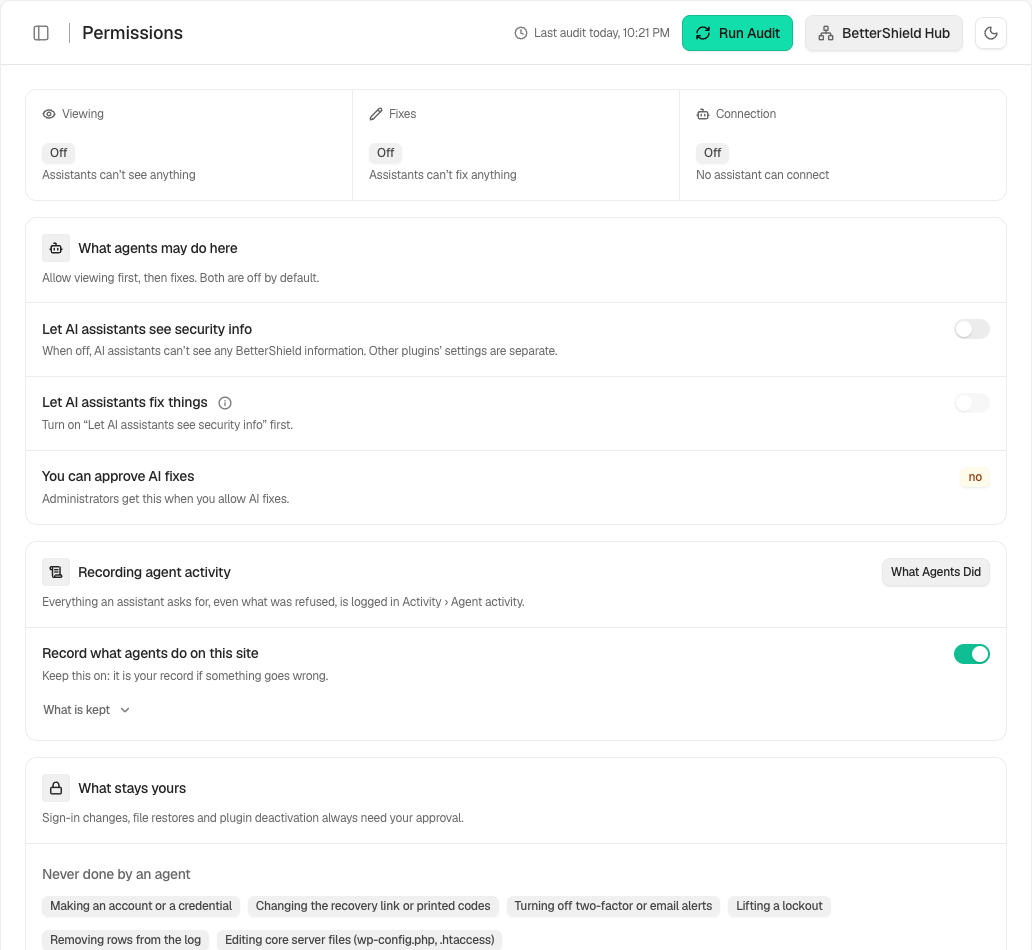
In BetterShield, the fix permission is Let AI assistants fix things under Agents › Permissions. Fixes that can be undone apply right away. Sign-in changes and anything else risky wait for your OK.
What it does
Supported low-impact BetterShield protections can be applied directly. Sign-in changes, removing a protection, and putting a changed file back require a plan and a person’s one-time approval. Sign-in changes also require a recovery link verified within the last day and the approving person’s password.
Free 1.1.4 adds the fixes on your findings. An assistant can look up the fix options for a finding, then act. A few fixes that only add protection apply right away, each with an undo: removing scheduled events nothing answers, watching a REST route and later closing it, narrowing folder permissions, applying a protection again that stopped working, and taking a source off the script and content policy. Everything else waits for a plan you approve: updating a plugin, quarantining an unused plugin, theme or downloadable file, renaming the account named admin, revoking an unused application password, suspending an unused privileged account, asking an account for a new password, and changing the script and content policy. Each plan says what will change and whether it can be put back. See Let an AI assistant propose finding fixes.
Agents never create accounts or credentials, change recovery options, weaken two-factor or alerting, lift a lockout, remove log rows, or write wp-config.php or .htaccess.
Limits are 5 changes of one kind per hour per connection, 15 for the site as a whole, and 30 plans of one kind per hour per connection. Excess calls are refused, not queued.
Step 1: Approve Assistant Changes
Turn on Let AI assistants see security info first, then Let AI assistants fix things. The connecting account must be allowed to approve AI fixes. When creating a key, leave Allow this key to make fixes unticked for read-only access. Turning fixes off stops assistants making fixes; to allow them again, turn it on and reconnect the assistant.
Recommended settings
Grant change access only to a dedicated, reviewed connection. Keep activity recording on.
What it can break and how to undo
Approved changes can affect requests, files, or sign-in behavior. Review the plan and its reversal note. Turn this switch off to prevent new changes, but separately reverse any completed change that should not remain.
Final Outcome
Under Agents › Permissions, Let AI assistants fix things should be on, and Connection diagnostics on Connect should show it. A heavier change should produce a plan under Requests rather than applying immediately.
Additional confirmed actions
Current versions can let an assistant that is allowed to fix things propose ending sessions, revoking another connection or entering lockdown. With Ultra 1.0.5, an assistant can also propose adding Cloudflare’s managed ruleset or a challenge for countries you name. See Deploy the managed ruleset and Answer the countries you name. A supported assistant that carries the person’s confirmation can apply the specific approved action once; otherwise it waits under Agents › Requests. Only the site can lift lockdown. Confirmed file-change triage and incident actions have their own undo. A tool selection never bypasses these confirmation rules.
Checks and observation
Assistants allowed to fix things can request audits, file checks, recovery checks, vulnerability checks, a check of a single finding or package, an early run of overdue scheduled work and refreshed incident evidence, and start or stop observation where supported. Starting observation does not enforce the protection. Every action still depends on its connection, tool selection and the site’s permissions.
Related
- Let an AI assistant propose finding fixes
- Review change requests from agents
- Record what agents do on this site
- Set up recovery
This is how you can approve assistant changes with BetterShield.
Getting Stuck? Feel free to contact our Dedicated Support Team.