How To Read an Incident's Evidence and Related Activity With BetterShield?
Follow the incident timeline, inspect linked access and file records, and separate recorded facts from interpretation.
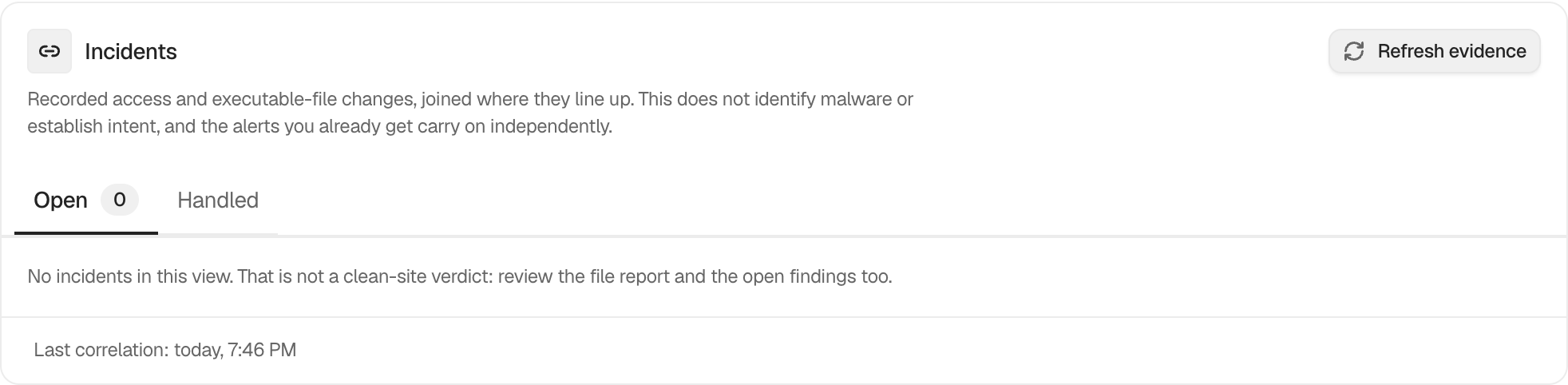
In BetterShield, open an item under BetterShield › Activity › Incidents to see the records that caused it to be grouped.
What it does
The detail view orders evidence by time and links back to the recorded access or file-change rows. It can show accounts, networks, files, and the timing that connected them. Correlation means the records line up under BetterShield’s rules. It does not establish who intended the action.
Step 1: Read an Incident’s Evidence and Related Activity
Select an open incident, expand its evidence, and follow the related-record links. Use Refresh evidence first if the correlation time is older than recent activity.
Recommended settings
Compare the timeline with deployments, administrator work, hosting actions, and expected automation. Preserve exports or external notes when the review matters beyond the log’s retention period.
What it can break and how to undo
Reading evidence is read-only. Actions offered from the incident can affect accounts or files and must be reviewed separately.
Final Outcome
Each evidence item should open or identify its original record. Times and subjects should match the Activity and Files tabs.
Related
- Review and manage grouped incidents
- Filter and search site activity
- Check files against their published copies
This is how you can read an incident’s evidence and related activity with BetterShield.
Getting Stuck? Feel free to contact our Dedicated Support Team.