How To See Who Is Trying to Sign in With BetterShield?
See the networks and usernames that failed sign-ins used most over the last 7 or 30 days, and block a tried name in one press.
In BetterShield, Recent sign-in attempts is a card on BetterShield › Protection › Login & Access, directly below Your connection and lockouts and above Sign-in protection.
What it does
Every failed sign-in is already in the activity log. This card adds them up for the last 7 or 30 days, so you can see that one network made most of the attempts, or that bots are working through names like admin. It stores nothing new, and it can only count what the log keeps, which is 30 days in the free plugin.
- Period switches between 7 days and 30 days. The default is 7 days.
- A line under it reads, for example, “120 failed sign-ins in the last 7 days.” With none it reads “No failed sign-ins in the last 7 days.”
- Top networks lists the five networks with the most tries. A network is shown as a /24 (IPv4) or /64 (IPv6), never a full address. Each line ends with a count, such as “42 tries”. If none could be read it says “No network could be read.”
- Names tried lists the ten names tried most, each with its count.
Where a burst of tries is stored as one log row, the extra attempts it stands for are added to its network, and each extra name counts once.
Each line is a link. A network opens Site activity narrowed to that network, and a name opens it with that name in the search box, both from the first day of the period.
Marks and the Block button
- Account marks a name that belongs to someone on this site.
- Blocked marks a name already refused from every network.
- Block appears on a name that is neither. Its accessible name is “Block [name] from signing in”.
Only a person who may list this site’s users sees Account, Blocked and Block. They can already read every username on the Users screen, so this gives nothing away. Anyone else sees the counts and names without marks. The note under the lists reads “Account marks a name that belongs to someone on this site. A blocked name is refused from every network.”
A name has no Block button when it is an account, is blocked already, or is written in a way the list would store differently, such as an email address.
Step 1: Open BetterShield › Protection › Login & Access
Open BetterShield › Protection › Login & Access and find Recent sign-in attempts.
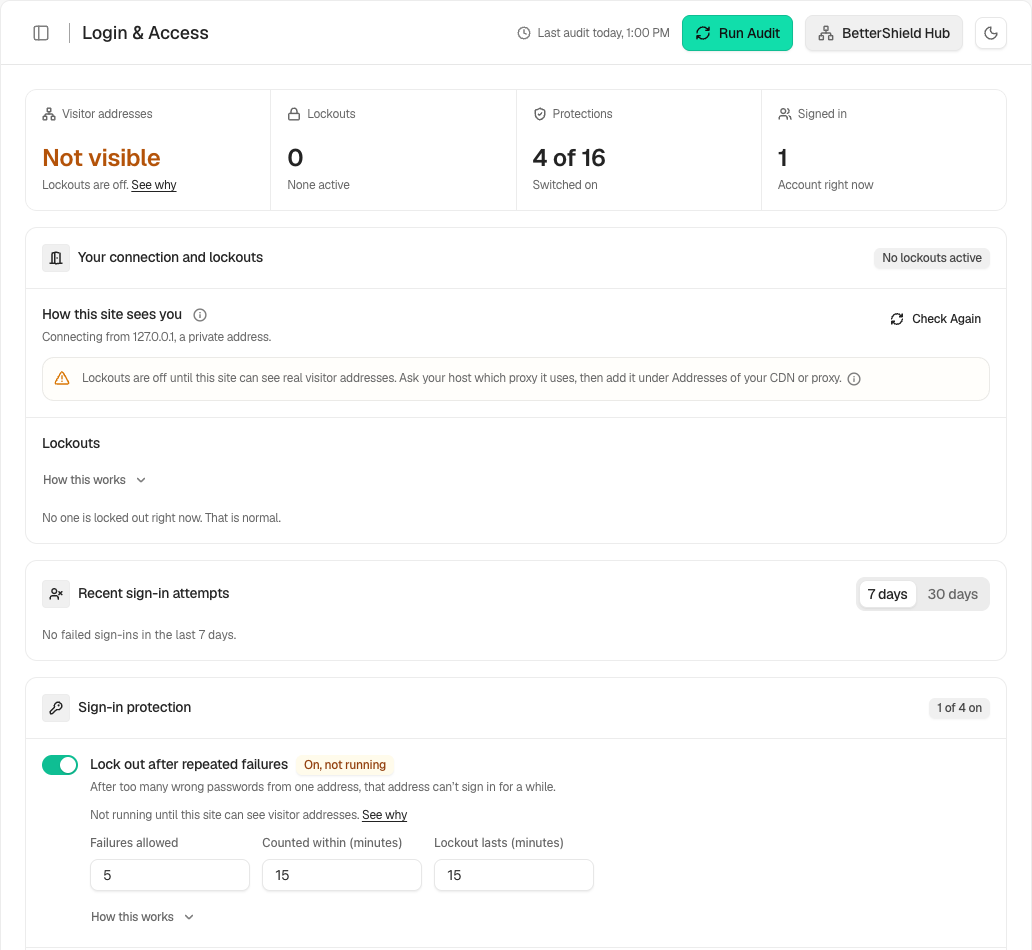
Step 2: See who is trying to sign in
- Choose 7 days or 30 days.
- Read Top networks and Names tried. Select a line to see the matching activity.
- Press Block beside a name that nobody on the site should use.
Block saves at once. The screen says “Blocking [name]…” and then “[name] is blocked from signing in.” It adds a username-only entry to Never allowed to sign in, with no Note, and you do not need the Save bar.
| Option | What it does | Default |
|---|---|---|
| Period | 7 days or 30 days | 7 days |
| Block | Adds the name to Never allowed to sign in | Nothing blocked |
Recommended settings
Our advice is to look at it weekly and block names that no account here uses, such as admin on a site with no admin account. A network line has no Block button, so a range needs a deliberate entry on Never allowed to sign in. Check a range before you save it. See Allow and block lists.
What it can break and how to undo
A blocked username is refused at sign-in from anywhere. While Sign-in attempt limits is on, whoever tries it on a verified connection is locked out on the first try, unless the address is on Always allowed. Real accounts never get the button, so you cannot block one by mistake here.
To undo, remove the entry from Never allowed to sign in and press Save. With password confirmation on, removing a block asks for your password.
Final Outcome
After you press Block, the line shows Blocked and the name is on Never allowed to sign in. The activity log records “Login protection changed”.
On multisite
Each site counts its own attempts and keeps its own list.
Related
This is how you can see who is trying to sign in with BetterShield.
Getting Stuck? Feel free to contact our Dedicated Support Team.