How To Put an Official File Back With BetterShield?
Replace an eligible changed core or plugin file with its published copy while keeping the current file in quarantine.
In BetterShield, eligible WordPress core and WordPress.org plugin differences show an action to put the published copy back.
What it does
BetterShield downloads or uses the verified official file for the installed version, moves the current file into quarantine, and writes the official copy to its expected path. The current copy is kept so the decision can be reversed.
Step 1: Put an Official File Back
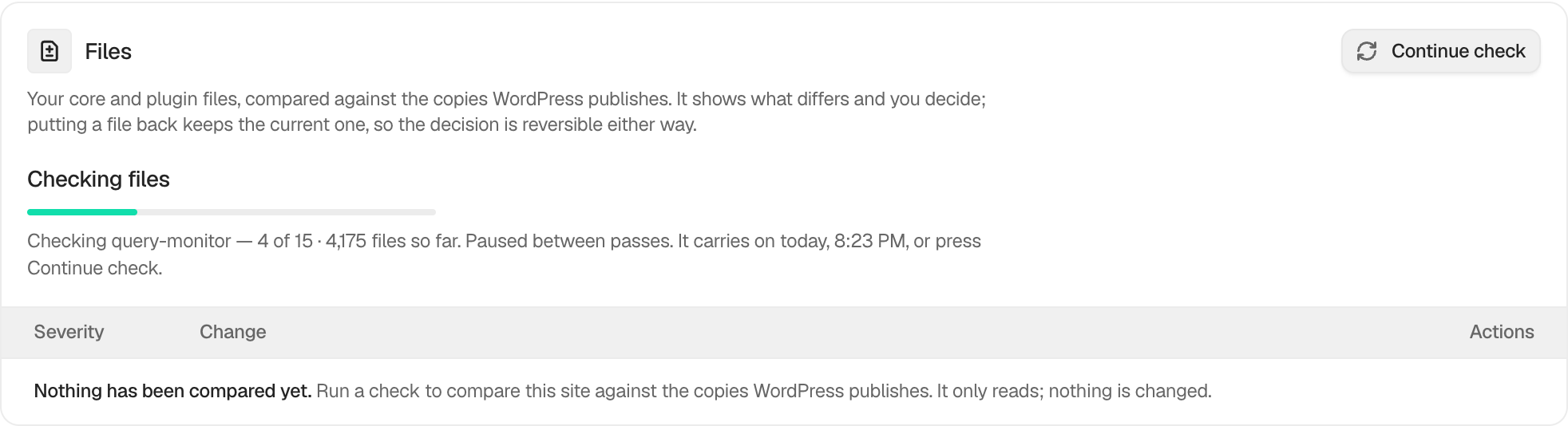
Run a file check, review the path and change, then choose the restore action for an eligible row. Complete any confirmation shown.
Recommended settings
Restore one file at a time. Test the affected plugin or WordPress screen immediately afterward. Do not restore a deliberate local customization without first saving it elsewhere.
What it can break and how to undo
Replacing a deliberately modified file can remove custom behavior. Use the quarantine action to put the kept copy back if the site changes unexpectedly. Files without a verified published copy cannot use this action. Published checksums for paid plugins allow comparison only; they do not supply a downloadable file for restoration.
Final Outcome
Re-run the file check. The official file should no longer appear as unresolved, and the former copy should appear in quarantine.
Related
- Review files kept in quarantine
- Check files against their published copies
- Prepare and apply an incident response plan
This is how you can put an official file back with BetterShield.
Getting Stuck? Feel free to contact our Dedicated Support Team.