How To Restrict Application Passwords With BetterShield?
Stop application passwords signing in for the accounts that manage your site, or for every account, without deleting any. Check what uses them first.
With BetterShield, stop application passwords signing in for the accounts that manage your site, or for every account, without deleting any. Check what uses them first.
What it does
In BetterShield, an application password signs in without the second factor, by design. App password block turns them away, either for the accounts that can manage this site or for every account. Nothing is deleted, and turning the switch off makes them work again. It is under Signing in on BetterShield › Protection › Login & Access, and it starts off. Finding, limiting and revoking single application passwords is covered in WordPress application passwords.
- A covered account’s application password is refused. The REST API answers 401 “Application passwords are not available for your account…” (with Every account, the request is treated as signed out instead), and XML-RPC refuses the sign-in.
- The profile section that issues them is hidden from the accounts it covers.
- Nothing is deleted. The passwords stay on their accounts and work again the moment you undo it.
- Everything else is left as it was: the REST API itself, WP-CLI and ordinary sign-in. BetterShield’s own AI assistant connection uses its own credential, not an application password, so it keeps working.
Safe mode pauses it, and it stops while BetterShield is deactivated.
Step 1: Open BetterShield › Protection › Login & Access
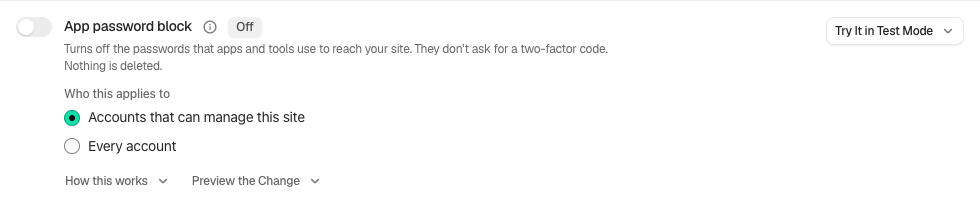
Open BetterShield › Protection › Login & Access and find App password block under Signing in.
Step 2: Block app passwords for site managers or everyone
- Under Who this applies to, choose who it covers. The note beneath says existing application passwords are never deleted.
- Press Preview the change. Nothing changes. Its first line answers from your activity log, for the accounts your choice covers. With Accounts that can manage this site: “No account this mode covers has used one in the last 30 days, which is as far back as this site’s log goes.” or “An account this mode covers used one on 5 separate hours in the last 30 days, most recently 2 hours ago. Applying this will stop it.” With Every account: “Nothing has used this in the last 30 days, which is as far back as this site’s log goes.” or “Something used this on 5 separate hours in the last 30 days, most recently 2 hours ago. Switching this off will stop it.” With Accounts that can manage this site, it also counts them, as “2 such accounts currently hold an application password and would stop being able to use theirs.”
- Turn the switch on. The row reads “Refused for accounts that can manage this site.” or “Refused for every account.”, with On since and Undo never expires.
| Option | What it does | Default |
|---|---|---|
| Who this applies to | Accounts that can manage this site covers any account that can change settings, edit users or install plugins, and super admins on a network; editors, authors, customers and everyone else keep theirs. Every account covers everyone on this site. | Accounts that can manage this site |
The usage line counts the separate hours in which a covered account used an application password: “Application password used” is written at most once an hour per password. It looks back as far as the log goes (30 days, or 90 with Ultra), never before BetterShield was activated, and says nothing in its first day.
The choice is hidden while the fix is on. To change it, turn the fix off, choose again and turn it on.
Before it applies
Like every Signing in fix, applying it first checks your way back in: a working recovery link or unused recovery code, checked within the last day. If that fails, Check the way back in first offers Check now (or Open Recovery) and Go ahead anyway, which is logged. See Set up recovery. Applying needs a signed-in browser, not an application password.
Monitor first
Monitor first, at the end of the row, counts real application password sign-ins without refusing any: each one is observed, and it is matched when the choice above would refuse it.
- Choose Who this applies to, then a New observation window (1 hour, 24 hours, which is preselected, or 7 days), and press Start monitoring with the fields above.
- The panel reads, for example, “18 requests observed; 6 matched this rule.” End monitoring now stops early.
- When the window ends, press Enforce reviewed settings. It applies the choice saved with the window, needs a usable recovery link or recovery codes and safe mode off, and leaves the usual undo. Like the switch, it first checks your way back in: if that check fails, Check the way back in first opens, and Go ahead anyway is logged.
Checkout traffic is not counted. Counts are kept for a week after the window ends.
From WP-CLI
wp bettershield harden application_passwords --dry-run
wp bettershield harden application_passwords --user=admin
wp bettershield harden application_passwords --mode=everyone --user=admin
Without --mode, it covers the accounts that can manage this site. A connected AI assistant can only propose this fix, as a plan you agree to. See WP-CLI commands.
Recommended settings
We recommend Accounts that can manage this site wherever administrators do not connect tools with an application password. Read the preview’s usage line first, and if anything has used one, watch 7 days with Monitor first before enforcing. Choose Every account only on a site with no integrations at all.
| Site | What we recommend |
|---|---|
| Store (WooCommerce) | Accounts that can manage this site, after a week of Monitor first: an integration signed in as an administrator stops working. |
| Membership or course site | The same. Avoid Every account unless you know no integration signs in as an ordinary account. |
| Agency or many sites | Check each site’s preview before applying: a publishing or deployment tool that signs in with an administrator’s application password stops working. |
What it can break, and how to undo
- Tools that use them. A publishing app, deploy script or connector that signs in with a covered account’s application password is refused until you undo the fix or move the tool to an account it does not cover.
- Revoking from the profile. While the fix is on, covered accounts do not see the Application Passwords section of their profile. Turn the fix off first to revoke one there.
- Already unavailable. If another plugin has turned application passwords off, or the site is not served over HTTPS, the row says so: applying changes nothing until that is no longer true.
To undo, turn the switch off. Every refused password works again at once, and the profile section returns. Undo needs a signed-in browser, and your password if Ask for my password before removing a protection is on. From the terminal: wp bettershield harden application_passwords --undo --user=admin.
Final Outcome
The row. “Refused for accounts that can manage this site.” or “Refused for every account.”, and “This one has no effect a page view can check, so it is reported from your settings.”
- A covered profile. The Application Passwords section is gone.
- The activity log. “Hardening applied” and “Hardening undone” name the fix, and “Application password used” stops appearing for covered accounts.
- Findings. No finding opens while it is off. While it is on, Some protections that are switched on are not working (Medium) names it if it reads as on but is no longer in force, for example because another plugin took it off. Some app passwords haven’t been used for months (Low) keeps counting refused passwords, because they still exist: revoke the stale ones to clear it.
On multisite
Each site has its own switch. Accounts and their application passwords belong to the whole network, so a password refused on one site still works on a site where the fix is off.
Related
- Login & Access
- Two-factor and passkeys
- Connect an AI assistant
- Turn off remote publishing (XML-RPC)
- Set up recovery
- WordPress application passwords
This is how you can restrict application passwords with BetterShield.
Getting Stuck? Feel free to contact our Dedicated Support Team.