How To Use the BetterShield Hub Overview?
Read the workspace summary, open incidents, recent alerts and site list on the BetterShield Hub overview.
The Overview is the first screen in BetterShield Hub. It brings the workspace totals, open incidents, recent activity and every connected site into one place.
Note: Sign in to your free BetterShield Hub account. Your workspace role and site permissions determine which information and actions you can use.
What it does
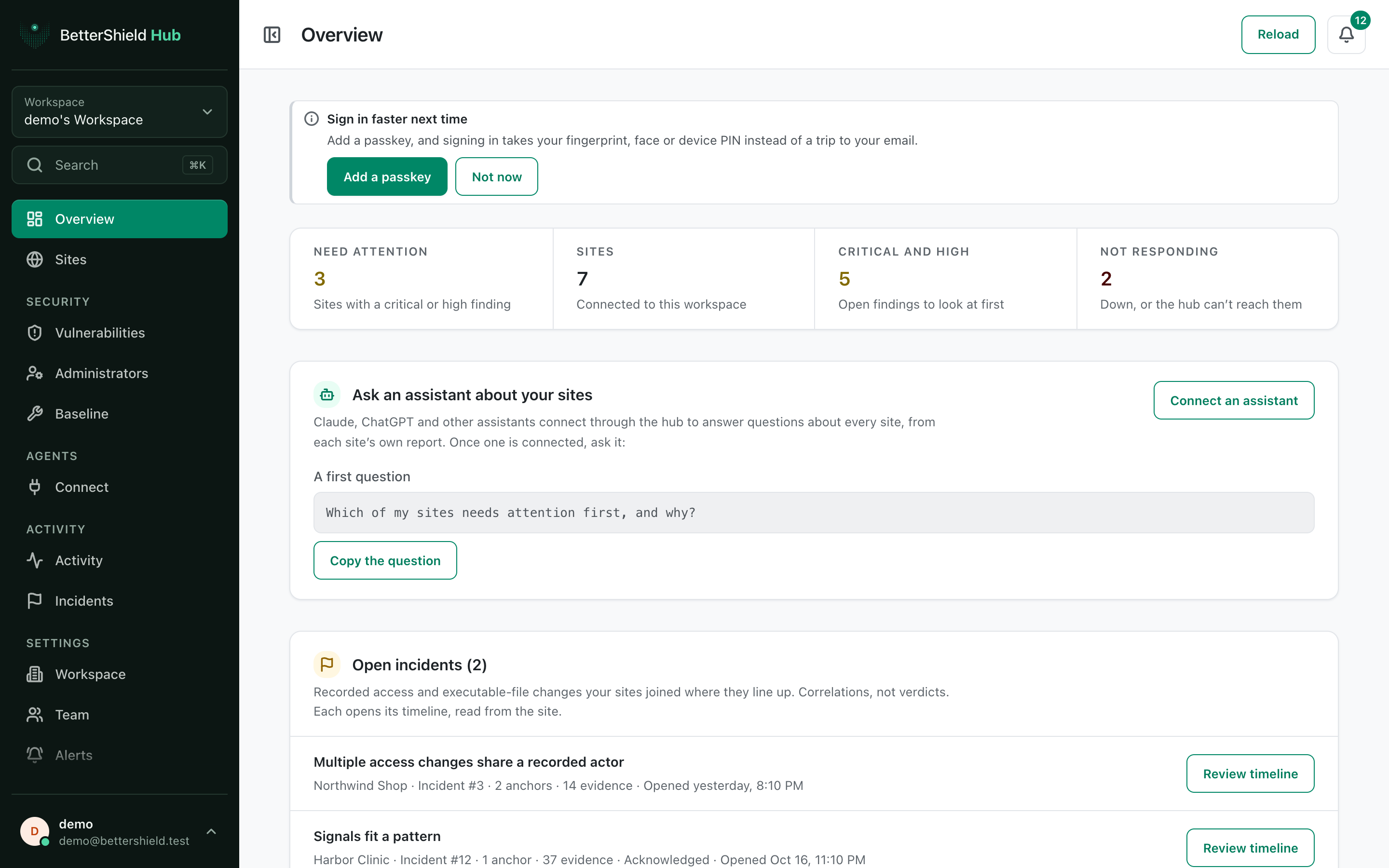
This workspace at a glance counts sites that need attention, all sites, critical and high findings, and sites that are not responding. The screen can also show Open incidents, Look at these first, Last 7 days, Recent alerts and All sites.
The figures come from each connected site’s own report. Select a total, incident or site to open the matching detail.
Step 1: Use the BetterShield Hub Overview
There are no Overview settings. Connect at least one site, then open Overview in the Hub sidebar. Select Reload when you want to ask for the current workspace view immediately.
If no assistant is connected, Ask an assistant about your sites offers Connect an assistant and a first question you can copy. Adding an assistant is optional.
Recommended settings
Our advice:
- Start with Need attention and Not responding, then review open incidents.
- Use Look at these first as a short triage list, not as a replacement for the full Sites screen.
- Reload after connecting, removing or reconnecting a site.
What it can break and how to undo
Reading or reloading the Overview changes no site. Opening an item only moves to another Hub screen.
Figures can be old when a site has not reported recently. Open that site and check Last read before acting on an old result.
Final Outcome
The four workspace totals appear.
- All sites lists the sites you can access.
- Selecting a total opens the matching Sites view.
- Selecting Review timeline opens that incident.
Related
This is how you can use the BetterShield Hub overview.
Getting Stuck? Feel free to contact our Dedicated Support Team.