How To Manage a Connected Site in BetterShield Hub?
Use a connected site's Hub page to review posture, findings, activity, protections, recovery and site settings.
A connected site’s page brings together what BetterShield reports and the actions that its Hub connection allows.
Note: Sign in to your free BetterShield Hub account. Your workspace role and site permissions determine which information and actions you can use.
What it does
The page can show score history, findings, protections, uptime and certificate state, vulnerabilities, administrators and sessions, sign-in coverage, incidents, assistant connections, file changes, recovery readiness, backups, scheduled work, Ultra details, site settings, email alerts, recent changes and notes.
What appears depends on the site’s BetterShield version, installed add-ons, permissions and connection state. Site settings and Site email alerts are read-only summaries with Open on the site links; change those values in WordPress.
Step 1: Open Sites
Open Sites and select the site.
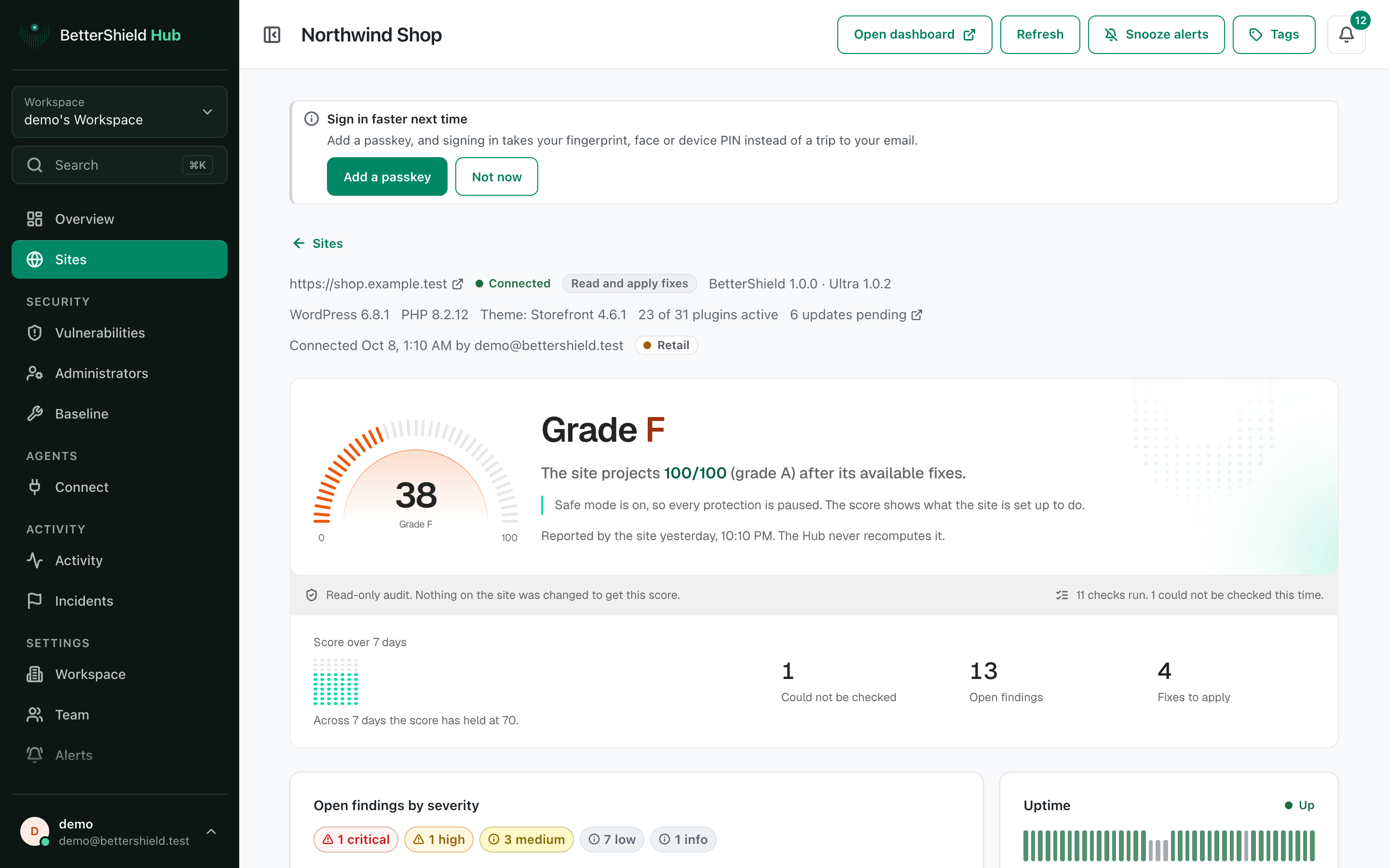
Step 2: Manage a connected site
- Use Run audit or Refresh when the buttons are available.
- Select a page link or scroll to the card you need.
- Use Open dashboard when a setting must be changed on the site itself.
There is no site-page default. It reflects the connected site’s current report.
Recommended settings
Our advice:
- Check Last read before acting on a result.
- Review findings before changing protections.
- Keep the WordPress recovery route ready before making access changes.
What it can break and how to undo
Reading or refreshing changes nothing. Actions that change the site show a plan or confirmation first. Some actions, such as revoking a credential, cannot be restored and must be created again.
If the connection is read-only, Hub shows information but does not apply changes.
Final Outcome
The header shows the site name and connection state.
- Last read shows a recent time after refresh.
- Cards load from the site without a stale or unavailable message.
- A change made from Hub appears under Changes made from hub and Activity.
Related
- Review and fix site findings in Hub
- Review site file changes in Hub
- Review a site’s settings in Hub
- Remove a site from Hub
This is how you can manage a connected site in BetterShield Hub.
Getting Stuck? Feel free to contact our Dedicated Support Team.