How To Export the Activity Log as CSV With BetterShield?
Download the current Site activity view as a UTC CSV file and recognize when the 10,000-row limit has been reached.
In BetterShield, Export CSV on BetterShield › Activity › Site activity downloads the rows selected by the current filters.
What it does
The file includes up to 10,000 matching rows. Each row starts with readable columns: Time (site) in the site’s time zone, Time (UTC), Event, Category, Severity, Who, About and Network. The raw record fields follow for scripts and audits. When more match, the screen warns that the result was limited and the final CSV line states that it was cut short.
Step 1: Open the feature
Apply the category, person, network, search, and date filters you need.
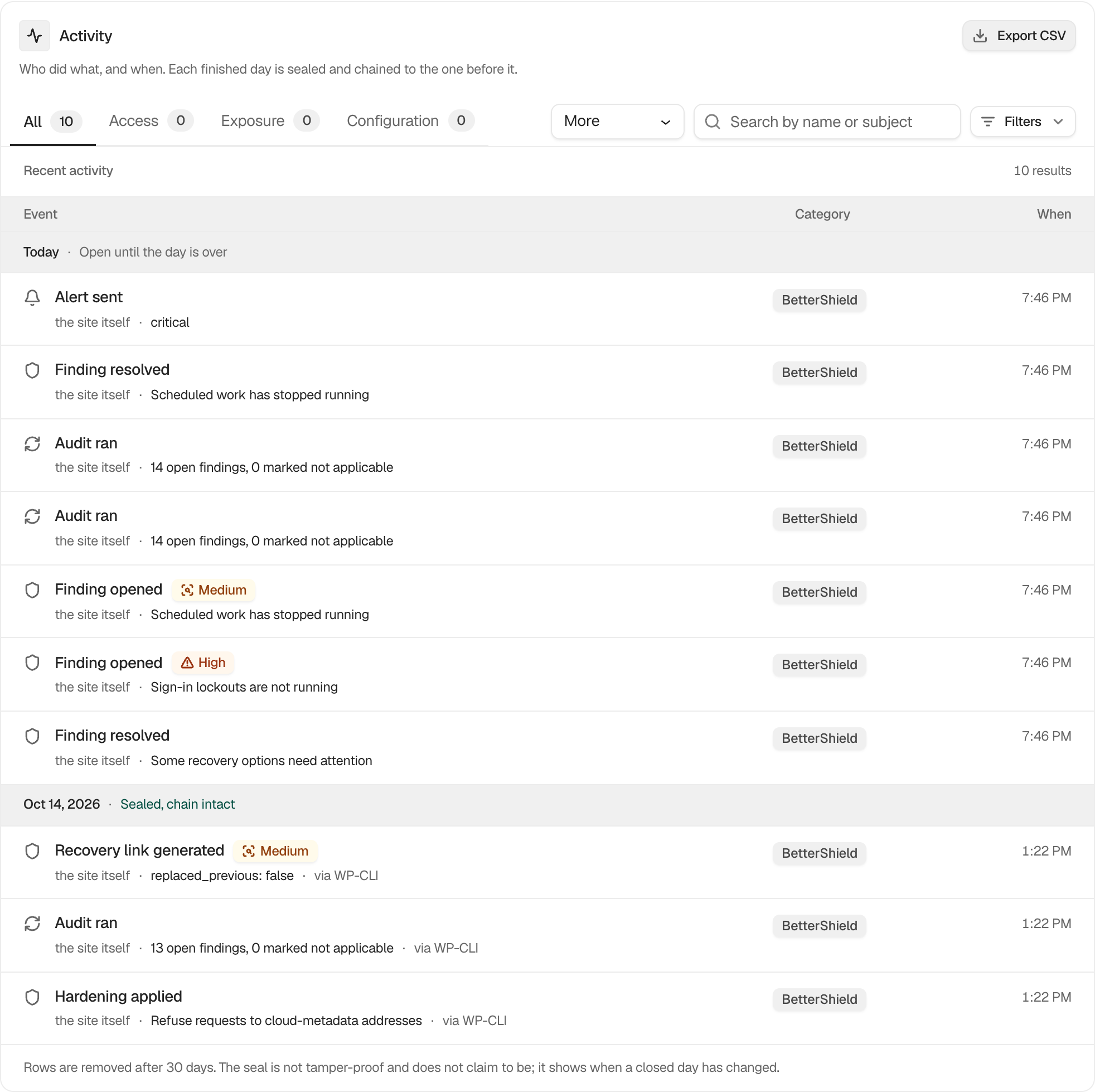
Step 2: Export the activity log as CSV
- Select Export CSV.
- Save the downloaded file in an access-controlled location.
The command-line equivalent is wp bettershield activity --format=csv.
Recommended settings
Use date ranges small enough to stay below 10,000 rows. Export separate periods instead of relying on a truncated file.
What it can break and how to undo
Exporting does not change the log. The file can contain account names, network information, and operational details, so delete or retain it according to your own data policy.
Final Outcome
Open the CSV and confirm its first and last records match the filtered view. The first line names the columns above. Check the last line for a truncation notice.
On multisite
Network Admin has no export button. Use a site’s own log or wp bettershield activity --sites=all --format=csv.
Related
This is how you can export the activity log as CSV with BetterShield.
Getting Stuck? Feel free to contact our Dedicated Support Team.