How To Remove a Site from BetterShield Hub?
Remove a connected site from a Hub workspace, understand what remains on the site and delete retained Hub history when offered.
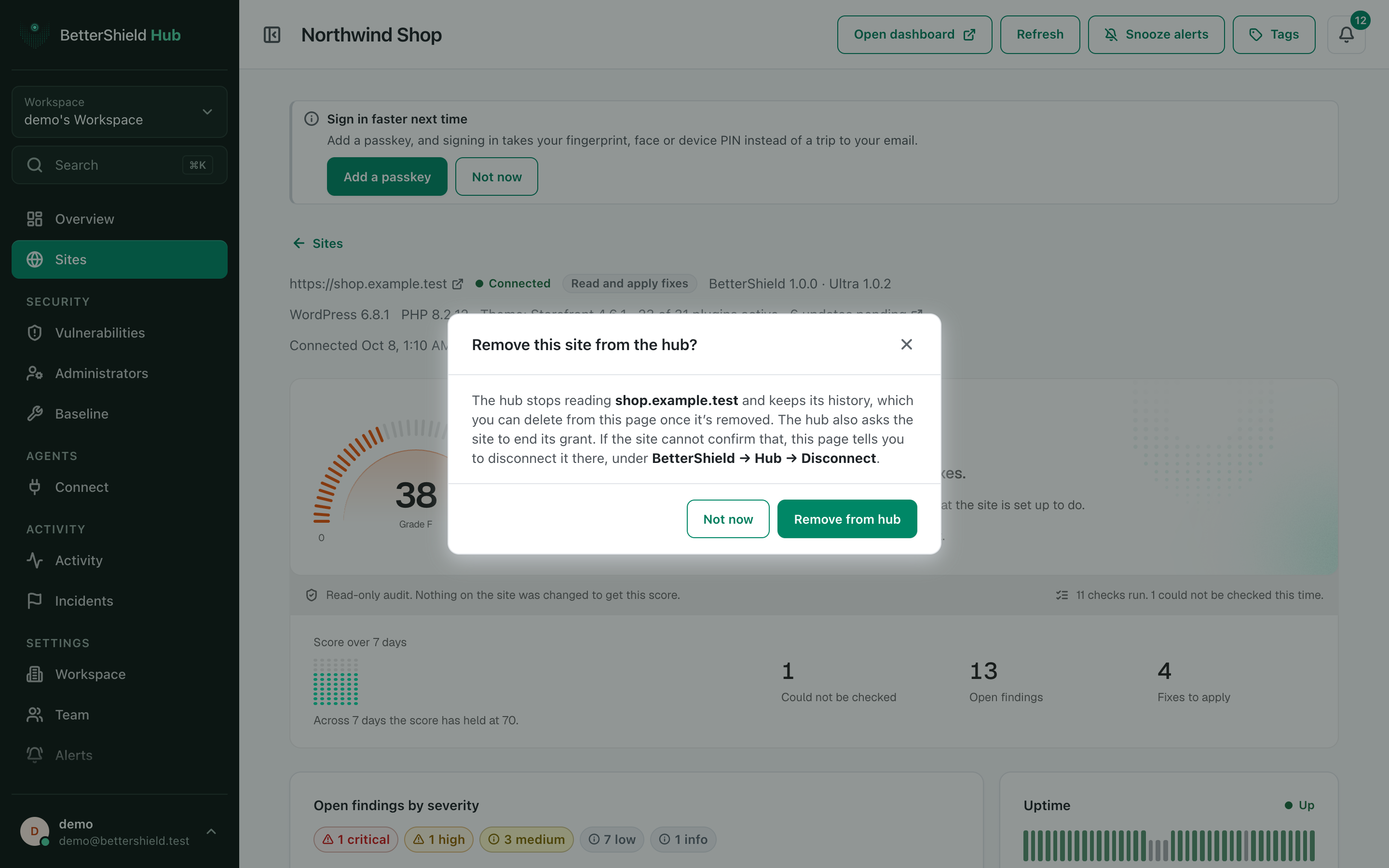
In BetterShield Hub, Remove from hub takes a site out of the workspace. The confirmation explains whether the site can also confirm the removal and what history stays in Hub.
Note: Sign in to your free BetterShield Hub account. Your workspace role and site permissions determine which information and actions you can use.
What it does
Removing ends the site’s place in this workspace. It does not uninstall BetterShield or delete WordPress content. When the site can answer, Hub asks it to end the matching connection too.
A disconnected site’s retained Hub history can later offer Delete its history.
Step 1: Open the feature
Open the site in Hub.
Step 2: Remove a site
- Select Remove from hub.
- Read what the site can confirm and what stays.
- Confirm the removal.
- If retained history is no longer needed, use Delete its history and read that separate confirmation.
There is no automatic removal. Both actions require confirmation.
Recommended settings
Our advice:
- Remove a site only after deciding who will monitor it next.
- End the connection from BetterShield › Hub on the site when Hub could not confirm it.
- Keep history until handover or audit work is complete.
What it can break and how to undo
Hub stops refreshing or managing the removed site. Reconnect it from the WordPress dashboard to add it again.
Deleting retained Hub history cannot be undone. A new connection starts new Hub history.
Final Outcome
The site leaves the active workspace list.
- The WordPress BetterShield › Hub screen shows the connection ended when the site confirmed it.
- A retained-history page clearly says the site is disconnected.
Related
This is how you can remove a site from BetterShield Hub.
Getting Stuck? Feel free to contact our Dedicated Support Team.