How To Apply a Security Baseline Across BetterShield Hub Sites?
Choose protections every site should have, review each site's plan, apply the baseline and undo supported changes from BetterShield Hub.
In BetterShield Hub, Security › Baseline compares connected sites with a workspace list of protections and can bring supported sites to that baseline.
Note: Sign in to your free BetterShield Hub account. Your workspace role and site permissions determine which information and actions you can use.
What it does
Workspace administrators choose Every site should have protections from those reported by connected sites. Hub lists each site’s standing, prepares that site’s own plans, asks for one agreement and records the run under Recent runs.
Filters can limit the view and run to a workspace tag or reported WordPress network.
Step 1: Open Security › Baseline
Open Security › Baseline.
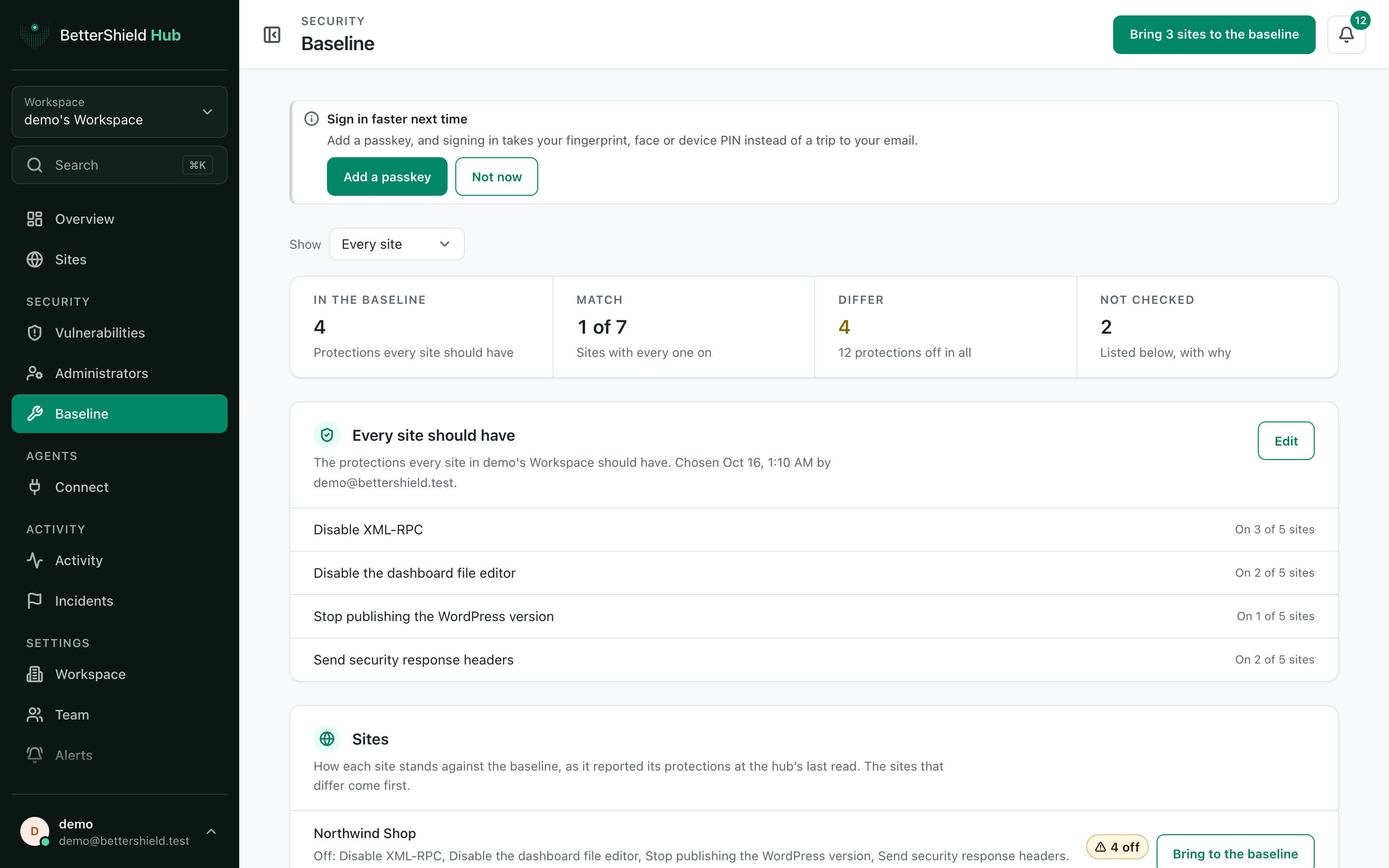
Step 2: Apply a security baseline across BetterShield Hub sites
- Select Choose protections. Nothing is chosen by default.
- Turn on the protections for the baseline and select Save the baseline.
- Optionally choose Show for a tag or Reported network.
- Select Bring to the baseline for one site or the workspace action for all shown sites.
- Read Review the plans, then agree.
Recommended settings
Our advice:
- Start with protections you already use successfully on representative sites.
- Run the baseline on a tag or small group before the whole workspace.
- Check incompatible and not-checked sites separately.
What it can break and how to undo
A protection can affect sign-in, headers or integrations. Each site’s plan names the change before it runs.
Use Undo on this site or Undo on every site under Recent runs only after reading the undo plans. Stop sends no further change, but changes already made stay until undone.
Final Outcome
The summary shows how many sites Match, Differ or are Not checked.
- A completed run records each site’s result.
- A fresh read moves changed sites to Matches.
Related
- Review a site’s BetterShield settings in Hub
- Review Hub operations and activity
- Restore a settings change
This is how you can apply a Security baseline across BetterShield Hub sites.
Getting Stuck? Feel free to contact our Dedicated Support Team.