How To Send Important Security Alerts Straight Away With BetterShield?
Email high and critical events promptly while lower-rated activity waits for the weekly summary, per address and per event type.
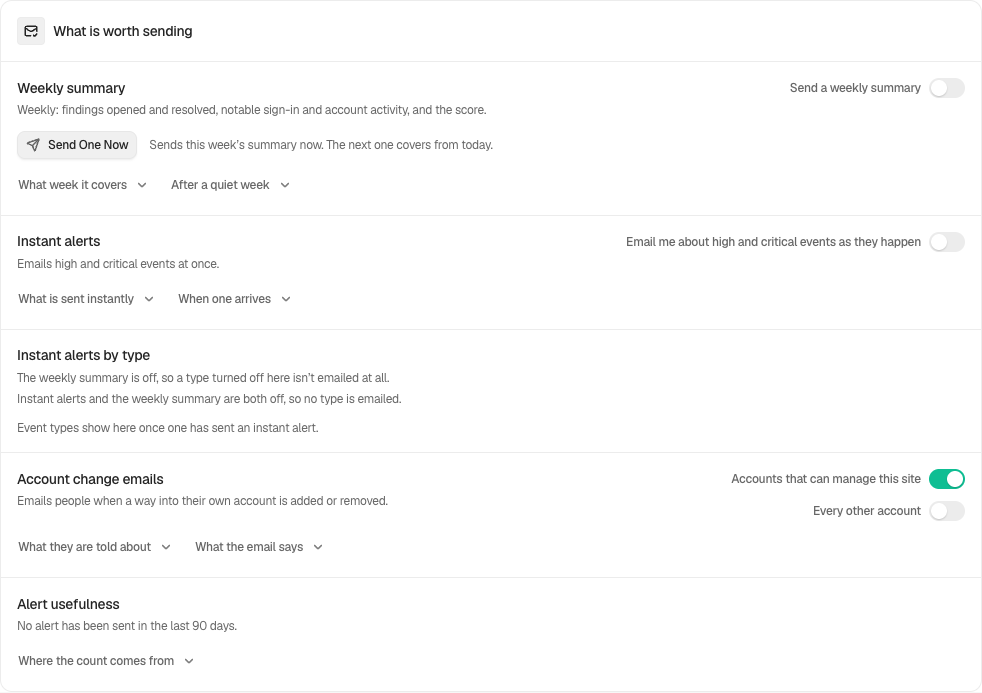
In BetterShield, the switch is under BetterShield › Settings › Email Alerts › What gets emailed › Instant alerts.
What it does
Email me about high and critical events as they happen starts off on a new install. Turn it on in Quick Setup or Settings. Updating an existing site keeps its saved alert settings. Lower-rated events wait for the weekly summary. Several events arriving together are collected rather than sent as one message each. The first goes promptly and events in the next five minutes can join a follow-up.
Email is not sent while a visitor waits for a page. The next dashboard request, WP-CLI run, or hourly task handles it. A refused send is retried hourly up to three times, then Activity records Alert could not be delivered.
Two finer controls narrow this switch:
- Per address. Each named address can ask for High and critical, Critical only or None. See Choose what each address gets.
- Per event type. The Instant alerts by type row below the switch lets one type wait for the weekly summary. With instant alerts enabled, critical events bypass this per-type hold. Host-managed alerts follow a separate policy described below. See Hold an event type for the weekly summary.
Each alert is written in its reader’s language. See Alerts in each person’s language.
Step 1: Send Important Security Alerts Straight Away
Turn the switch on and configure recipients. Use Send a Test Alert to verify WordPress mail.
| Option | What it does | Default |
|---|---|---|
| Email me about high and critical events as they happen | Emails those events at once | Off on a new install |
| Instant alerts (per address) | High and critical, Critical only or None | High and critical |
| Instant alerts by type | One switch per event type; off means it waits for the weekly summary | Every type on |
Recommended settings
Keep instant alerts on. Use planned maintenance for expected routine changes instead of disabling this channel. If one routine type is noisy, hold that type for the summary rather than turning the whole channel off.
What it can break and how to undo
Busy or poorly tuned sites can produce more email than the team can review. Mark an opened alert as not worth sending where offered, use maintenance for planned work, hold a noisy type, or turn the switch off. Turning it off makes ordinary important events wait for the weekly summary. Emergency-account use follows the separate rule below.
Final Outcome
Send a Test Alert and verify delivery. Activity should record live delivery failures and retries.
When your host manages routine alerts
A host can enable wp bettershield alerts host-managed on --user=admin. While instant alerts are enabled, only a new administrator, promotion to administrator, use of the trap password, or a changed code file sends immediately. Other events wait for the weekly summary. This mode does not turn either email switch on. See Host-managed alerts.
Events that still email with instant alerts off
Use of the trap password emails even when instant alerts are off. With BetterShield 1.1.6 and Ultra 1.0.7 or newer, Emergency account used emails even when instant alerts are off. Mute all alerts still silences it. Check the card’s delivery warning and configure an email recipient before relying on it. See Emergency account.
Related
- Choose who receives alerts
- Choose what each address gets
- Hold an event type for the weekly summary
- Pause routine alerts during planned maintenance
- Send a weekly security summary
This is how you can send important Security alerts straight away with BetterShield.
Getting Stuck? Feel free to contact our Dedicated Support Team.