How To Configure Request Protection With BetterShield Ultra?
Enable site-specific request rules through Hub, read coverage and delivery states, and return to previous rules.
With BetterShield Ultra, enable site-specific request rules through Hub, read coverage and delivery states, and return to previous rules.
Note: These controls require the paid BetterShield Ultra add-on alongside the free BetterShield plugin.
What it does
Open BetterShield › Ultra › Request protection. With a usable Hub link, this opt-in receives rules for the components installed on this site and checks matching requests as they reach WordPress. It reports engine health and aggregated rule activity. Where the must-use plugins folder permits it, rules run before ordinary plugins load. Rules that need a signed-in user run later. If the early check cannot be installed, the screen explains why and rules run after WordPress loads. It does not inspect every kind of input; uploaded file contents are among the exclusions.
Step 1: Open the feature
Connect the site to BetterShield Hub and verify recovery.
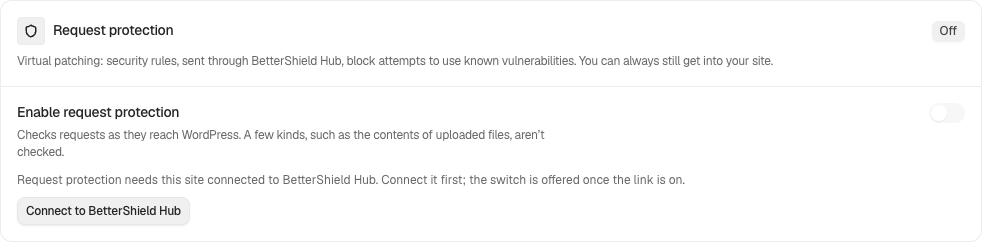
Step 2: Set up Ultra request protection
- Review Turn on request protection, which starts off.
- Where Rules to use is offered, distinguish Real rules from Test rules (nothing is blocked). Test rules do not establish live coverage.
- Select Save Request Protection and read the confirmation about installed versions and block counts sent to Hub.
- Wait for the background rule delivery and read the displayed status and expiry.
Make an exception
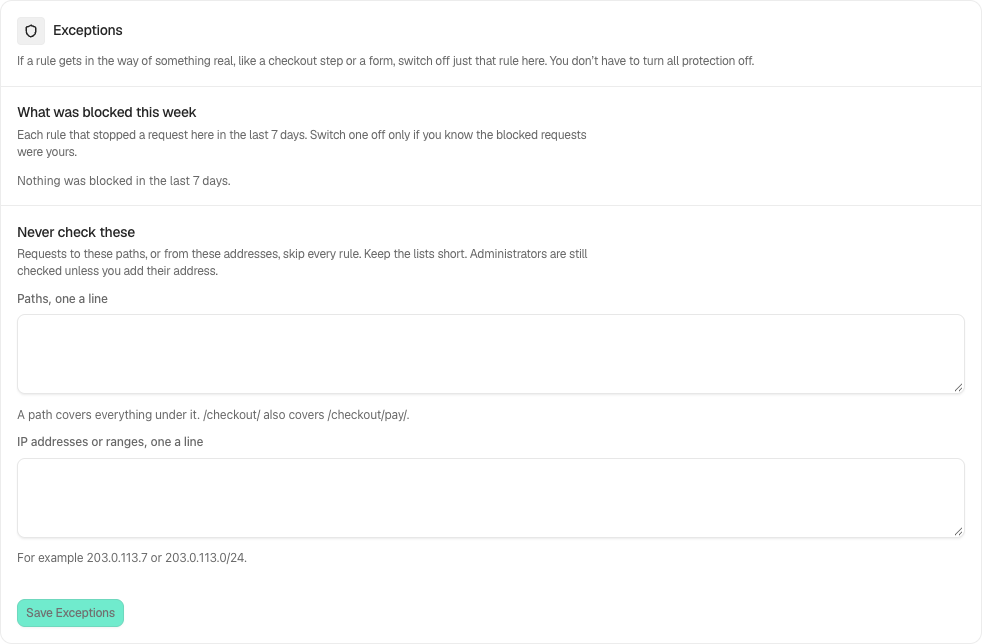
Under Exceptions, What was blocked this week lists rules that blocked requests in the last seven days. Use Stop Using This Rule only after confirming it interrupted a legitimate request. Other rules keep working. Use This Rule Again restores it.
Never check these takes Paths, one per line and IP addresses or ranges, one per line. A path covers its children: /checkout/ also covers /checkout/pay/. These lists skip every rule, so keep them narrow. Administrators are checked unless their address is listed. Save Exceptions records the change in Activity, where it can be undone.
Block repeated rule matches
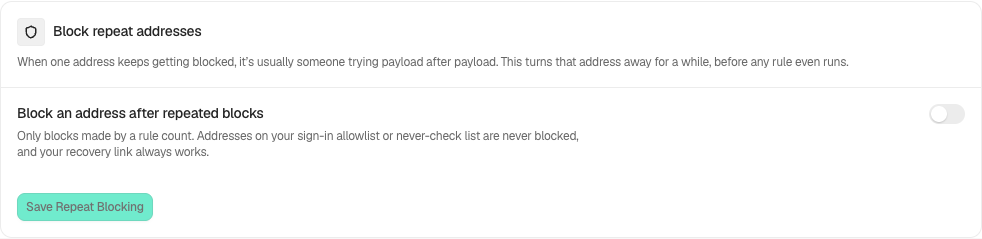
Block repeat addresses is off initially. Enable Block an address after repeated blocks, choose Block after, Within and Keep it blocked for, then select Save Repeat Blocking. Only actual rule blocks count. Sign-in allowlisted addresses, never-check addresses and recovery access are exempt. Use Unblock All to release the current list. Turning the option off also clears its temporary blocks.
Recommended settings
Our advice: keep a working recovery method and test your important forms after enabling real rules. A connected switch alone does not prove that applicable current rules arrived.
What it can break and how to undo
A matching rule can interrupt a legitimate request. Go Back to the Previous Rules restores the prior rules and pauses updates. Resume Rule Updates permits newer rules again. Switching protection off stops local enforcement and removes its early must-use file. Request protection keeps running through ordinary plugin updates, activations and theme switches while enabled. Safe mode pauses it. Rules are not fetched indefinitely after a broken connection, and expired rules do not establish protection.
Final Outcome
The screen distinguishes no applicable rule, no rules yet, rejected delivery, an unusable Hub link, simulation, paused enforcement and rules in use. Check that the status explicitly describes current live rules before reporting coverage.
New rules are fetched in the background within minutes. Accepting bundles that include uploaded-file or shortcode and block-setting rules does not mean uploaded file contents are inspected.
Related
This is how you can configure request protection with BetterShield Ultra.
Getting Stuck? Feel free to contact our Dedicated Support Team.